

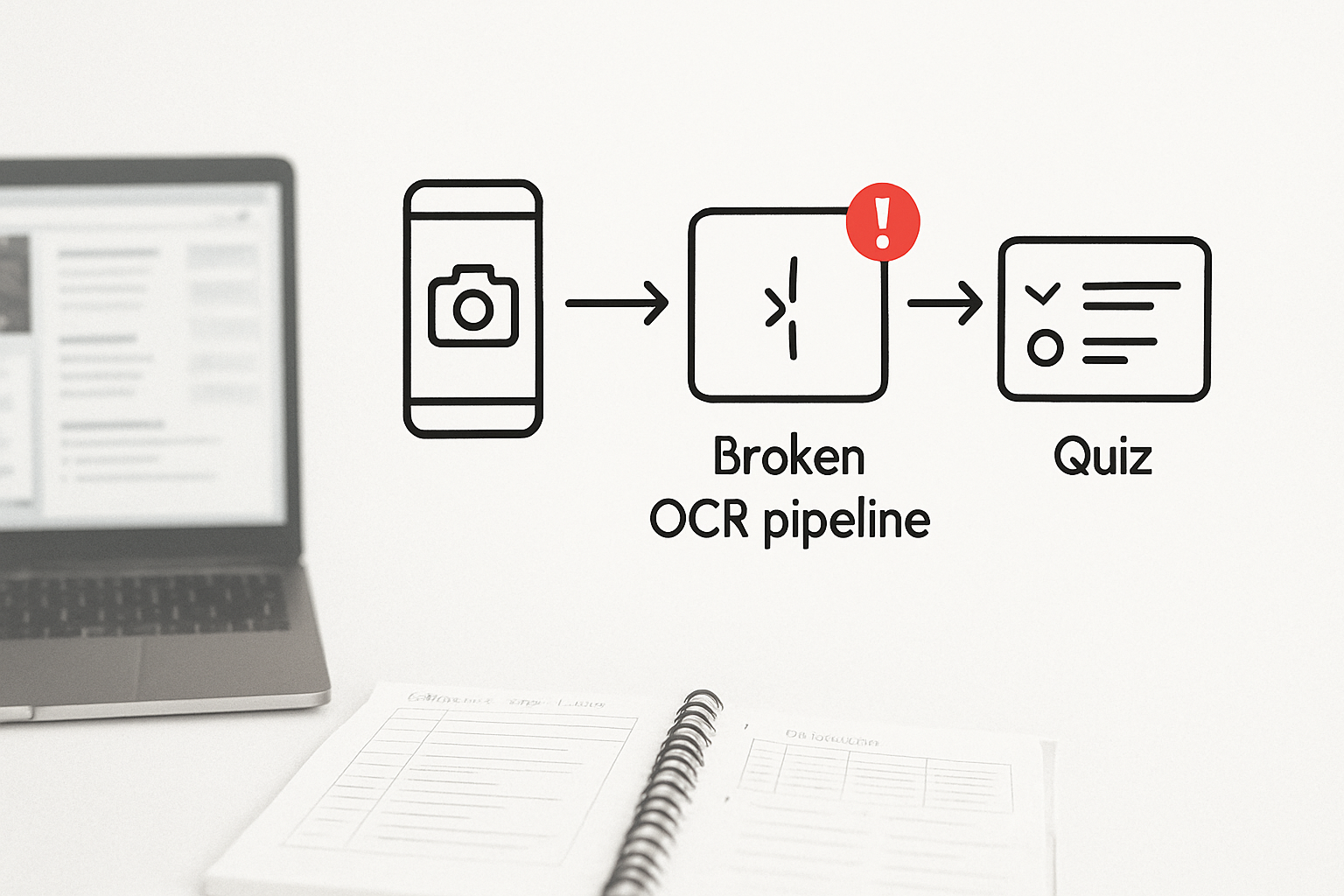
The worksheet was clear enough to read at arm’s length. The Quizizz import returned four garbled questions and missed eight others entirely. Nothing in the error message explained why — and nothing on the SERP did either.
When you search this failure, nearly every result points to the same generic advice: try a different browser, re-upload the file, check your internet connection. One forum thread from 2024 suggests reinstalling the Quizizz app. None of it addresses what is actually happening at the moment the image enters the OCR pipeline.
What the Search Results Get Wrong
Page one for “Quizizz image to quiz not working” is almost entirely forum posts and Reddit threads where teachers describe the same symptom — partial recognition, blank questions, scrambled text — and receive the same non-answers. The occasional tutorial that ranks focuses on the upload interface, walking through the button sequence as if the problem lives inside Quizizz itself.
It doesn’t. By the time your image reaches Quizizz’s OCR layer, the damage is already done. The recognition failure happened before you opened the browser.
The operating rule here: garbage in, garbage out — and with OCR, “garbage” starts at the camera angle.
What OCR Actually Needs From a Worksheet Photo
Optical character recognition does not read an image the way a teacher skims a page. It looks for contrast ratios, pixel uniformity, and character edge consistency. A handheld phone photo of a worksheet introduces three compounding problems that destroy recognition accuracy before any AI model sees the content:
- Keystoning — shooting at even a slight angle causes vertical lines to converge, which distorts character shapes enough that “4” reads as “A” and “E” reads as “F”.
- Uneven lighting — overhead fluorescent shadows, window glare, or a single desk lamp creates contrast gradients across the page. OCR engines struggle when the top half of a letter is bright and the bottom half is dim.
- Motion blur — a handheld shot at 1/60s on a standard phone camera introduces enough micro-blur to soften character edges, which collapses recognition confidence on anything smaller than 14pt font.
A worksheet photographed with a phone held casually over a desk typically produces 60–75% OCR accuracy on printed text and drops below 50% on handwritten or dense multi-column layouts. Run that same page through a dedicated scanning app and accuracy climbs to 90–98%, because the app corrects for all three failure conditions before the image is processed.
The Fix: Pre-Process Before You Upload
The intervention point is not inside Quizizz. It is in how the image is created. Two apps handle this reliably without cost, and both are available on iOS and Android.
Adobe Scan
Adobe Scan uses real-time edge detection to identify the page boundary automatically. It applies perspective correction to remove keystoning, equalizes contrast across the page, and outputs a flattened PDF or high-resolution JPEG. For printed worksheets, this is the fastest path. Open the app, hold the phone directly above the page — not at an angle — let the orange border lock onto the document edges, and capture. The app handles the rest.
One failure mode worth knowing: Adobe Scan struggles with worksheets on dark or patterned desks because the edge detection confuses the desk texture with the page border. Fix this by placing the worksheet on a plain white surface or a light-colored folder before scanning.
Microsoft Lens
Microsoft Lens offers a “Document” mode specifically tuned for flat printed materials. It applies the same perspective and contrast corrections as Adobe Scan but exports directly to OneDrive, OneNote, or your camera roll. For teachers already inside a Microsoft 365 workflow, Lens eliminates one export step. Select “Document” mode from the bottom carousel before capturing — the default “Whiteboard” mode uses different contrast settings that over-sharpen edges and can introduce artifacts on fine print.
Both apps are free at the tier needed for worksheet scanning. Neither requires an account to capture and export a single image.
Before and After: What the OCR Pipeline Actually Sees
❌ Handheld phone photo — what Quizizz receives
Image captured at 15° angle, overhead light casting shadow across lower third of page. Quizizz OCR output: “Whlch of the folIowing best descrlbes…” — 6 of 10 questions partially recognized, 3 returned blank, 1 returned with garbled answer options. Teacher spends 25 minutes manually correcting the quiz draft.
✅ Adobe Scan export — what Quizizz receives
Same worksheet, same phone, scanned with Adobe Scan in Document mode, page placed on white folder. Quizizz OCR output: all 10 questions recognized correctly, answer options intact, question numbering preserved. Quiz ready for review in under 3 minutes.
The difference between those two states is not the AI model inside Quizizz. It is the 90 seconds spent using a scanning app instead of the camera app.
What This Actually Replaces
For teachers converting paper test banks to digital quizzes, a reliable scan-first workflow replaces roughly 20–30 minutes of manual question re-entry per worksheet — not because Quizizz is faster, but because the OCR output no longer needs to be rebuilt from scratch after a failed import.
Lighting and Angle: The Two Variables That Control Everything
Even with a scanning app, two environmental conditions can degrade the output enough to push Quizizz’s recognition back into failure territory.
Lighting: Natural diffuse light — indirect window light, not direct sun — produces the most uniform contrast across a white page. Direct sunlight creates a blown-out region where the page surface reflects the light source back into the lens, washing out characters in that zone. Fluorescent overhead lighting is acceptable only when the worksheet is positioned so no single bulb is directly above one corner of the page. If you see a bright patch on the preview, move the page 30–45 centimeters in any direction before capturing.
Angle: Both Adobe Scan and Microsoft Lens will correct moderate keystoning, but they have limits. Hold the phone within 15° of vertical — directly overhead is ideal. If the app’s border detection is struggling to lock onto the page edges, the angle is too steep. Flatten it before capturing rather than relying on the correction algorithm to compensate.
A worksheet scanned under poor lighting with a scanning app will still outperform a well-lit handheld photo, but the ceiling on accuracy drops. Combine good light with the scanning app and you remove nearly every variable that causes OCR failure at the Quizizz import stage.
The operating rule: garbage in, garbage out — and with OCR, “garbage” starts at the camera angle. Fix the input and the AI output fixes itself.
Where This Breaks Anyway
Even a clean Adobe Scan export will fail in specific worksheet formats that Quizizz’s OCR pipeline handles poorly regardless of image quality:
- Handwritten text — OCR engines trained on printed fonts perform inconsistently on cursive or mixed print-cursive handwriting. If the worksheet contains student-written fill-in responses, those fields will not transfer reliably. The fix is to photograph only the printed question stem and answer options, then add handwritten fields manually after import.
- Two-column layouts with narrow gutters — When columns are separated by less than roughly 8mm on the original page, the OCR engine sometimes reads across columns instead of down them, producing nonsense question sequences. Crop the image to one column before uploading, then repeat for the second column as a separate import.
- Worksheets with embedded diagrams — Quizizz’s Image to Quiz feature extracts text. Diagrams, labeled anatomical drawings, or math figures with visual components will not convert. The text surrounding the diagram may import correctly, but the image itself will be absent from the generated question. Flag these manually before sending the quiz to students.
- Very small font sizes — Footnotes, copyright lines, and any text below approximately 9pt on the original document tend to fall below the recognition threshold even in clean scans. These are rarely quiz questions, but if the worksheet uses small font for sub-questions or answer banks, expect partial recognition.
The Scan-First Checklist — Copy and Keep This
Run through this before every Quizizz Image to Quiz import. It takes under two minutes and eliminates the most common failure points.
- Place the worksheet flat on a plain white or light-colored surface — no patterned desk, no dark folder underneath.
- Use indirect natural light or diffuse overhead lighting. Check the preview for bright patches before capturing; if visible, reposition the page.
- Open Adobe Scan or Microsoft Lens — not the default camera app.
- Select “Document” mode (Microsoft Lens) or let Adobe Scan auto-detect the page boundary.
- Hold the phone directly overhead, within 15° of vertical. Wait for the border lock before capturing.
- Review the app’s corrected preview before exporting. If any corner is cut off or distorted, retake the scan.
- Export as PDF (preferred) or high-resolution JPEG — not a compressed share image.
- Upload the exported file to Quizizz Image to Quiz, not a screenshot of the scan preview.
- After import, check question count against the original worksheet. If any questions are missing, check for two-column layout or embedded diagram conflicts before re-scanning.
A Note on the CTA Side of This Workflow
If you are building a repeatable digital quiz workflow from paper test banks — converting a full unit’s worth of printed materials into Quizizz quizzes — the scan-first method above handles the capture layer, but the review layer still needs structure. The AI EdTech Review newsletter includes a worksheet-to-digital-quiz workflow template covering scan settings, import validation steps, and a question-review checklist for catching OCR edge cases before a quiz goes live. It is practical and free to access.
Classroom Reality
The scan-first workflow described here works reliably for printed, single-column worksheets under controlled lighting. It does not solve handwritten content, narrow two-column layouts, or diagram-dependent questions — those still require manual entry or a different tool entirely. If more than 30% of your worksheet falls into those categories, the time cost of post-import correction will exceed the time cost of typing the questions directly. Know the threshold before you commit to the import workflow.