

The lesson plan was there on Thursday. By Monday morning, every link to it returned a blank page with a “Page not found” error — and the Notion sidebar looked completely normal.
No deletion warning. No migration error. Just silence where the content used to be. Most teachers who hit this start rebuilding from scratch, which is the wrong move entirely, because the pages almost certainly still exist.
What Everyone Tries First (And Why It Fails)
When you search this problem, the first page of results is almost entirely forum threads recommending the same three things: clear your browser cache, log out and back in, or check the Notion status page. Nearly every result assumes a sync error or a session timeout. One widely-shared thread from a Notion community forum confidently attributes it to “CDN propagation delays.”
None of that is wrong exactly — but it is pointed at the wrong layer. The status page will show Operational. Your session is fine. The CDN has nothing to do with it. The pages are not loading because they are no longer shared with you, not because the platform is down. The real cost here is not the missing pages — it’s the thirty minutes spent refreshing a browser before realising the problem lives in the permission chain, not the network.
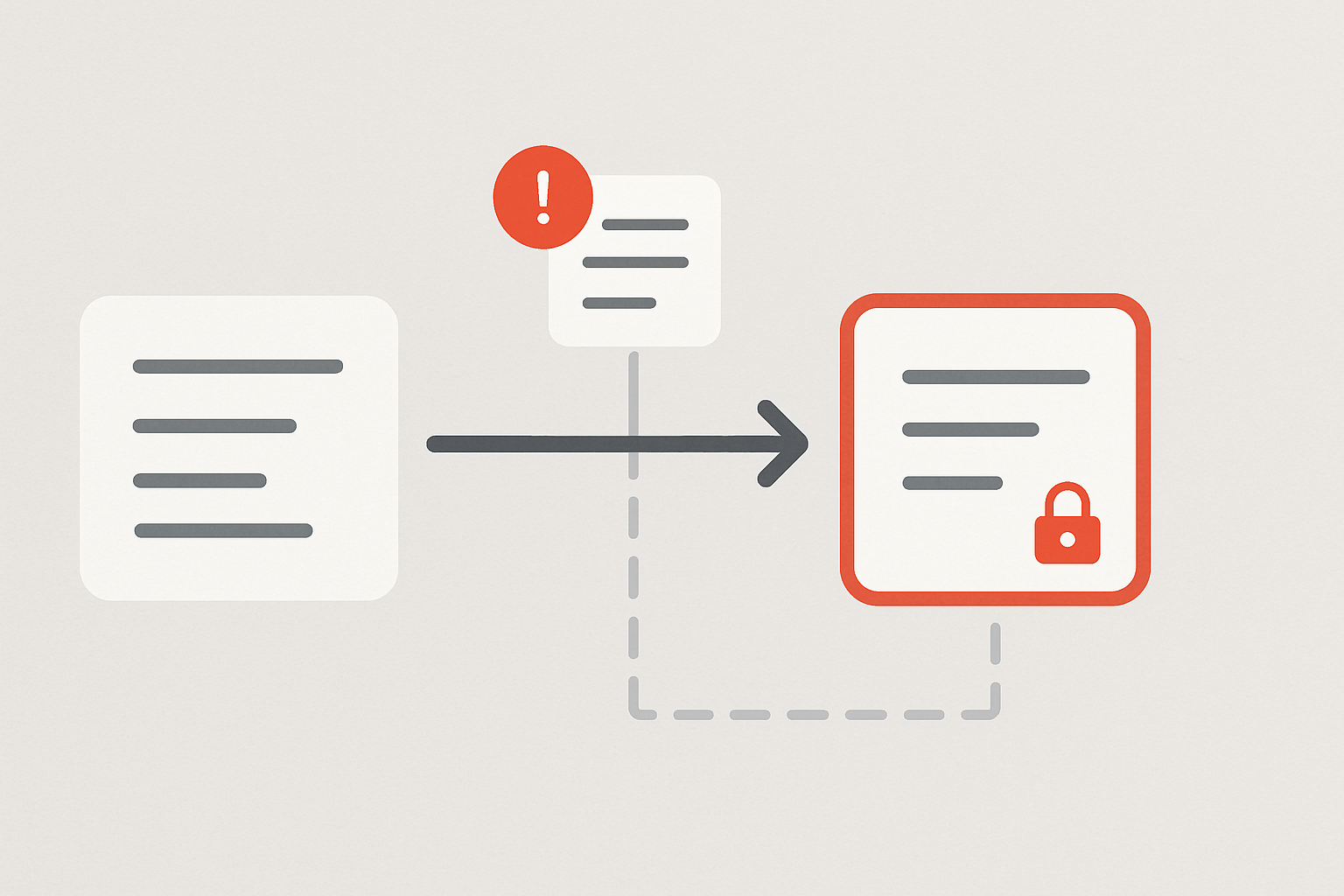
When a Notion workspace gets migrated to a school or institutional domain, pages that previously lived in a personal workspace do not automatically inherit permissions in the new structure. The “Move to Workspace” action in Notion transfers the page object — but it does not transfer the sharing state. If a page was previously shared via a direct link or personal workspace default, that access evaporates the moment the page lands inside a private school space with its own access controls.
The page exists. You just lost the key.
The Migration Ghost: What Is Actually Happening
Notion’s workspace permission model works in layers. At the top is the workspace itself, which has a member list and an access level (open, closed, or private). Below that are pages, which can inherit workspace access or carry their own explicit sharing settings. When you move a page from a personal workspace into a school workspace, Notion does not carry the old sharing settings forward — it drops them and defers to whatever the destination workspace’s defaults are.
For most school workspaces, the default is private. That means a page that anyone with the link could previously open now requires an explicit member invitation or a re-share from within the new workspace. If the page also had sub-pages — a unit plan with individual lesson pages nested underneath — every child page loses access simultaneously, which is why an entire semester of planning can vanish at once.
There is a secondary failure mode worth naming: if the original page was shared from a personal Pro account and the school is running a free or Education tier, the permission model itself changes on arrival. Features like “Share to web” behave differently across plans, and a page that was publicly accessible before the move may now require explicit workspace-level sharing that the free tier handles differently than the paid tier did.
Check this before assuming the move was clean: open Notion, go to Settings → Members in the school workspace, and confirm your account is actually listed as a member — not just an invited guest. Guest access in Notion is scoped per-page, not workspace-wide, which means a guest user can see one page and be completely locked out of everything adjacent to it.
The Fix: Re-Inheriting Parent Page Rights
There are two recovery paths depending on whether you need the original page URL to keep working or whether you just need the content back.
Path A — Restore access to the existing page (keeps original URL)
- Log into Notion and switch to the school workspace using the workspace selector in the top-left corner.
- Navigate to the affected page using the sidebar. If it appears greyed out or inaccessible, try accessing it directly from Settings → Import / Teamspace if your role allows it, or ask the workspace admin to locate it in the Members → Guests panel.
- Once you can see the page, click Share in the top-right corner.
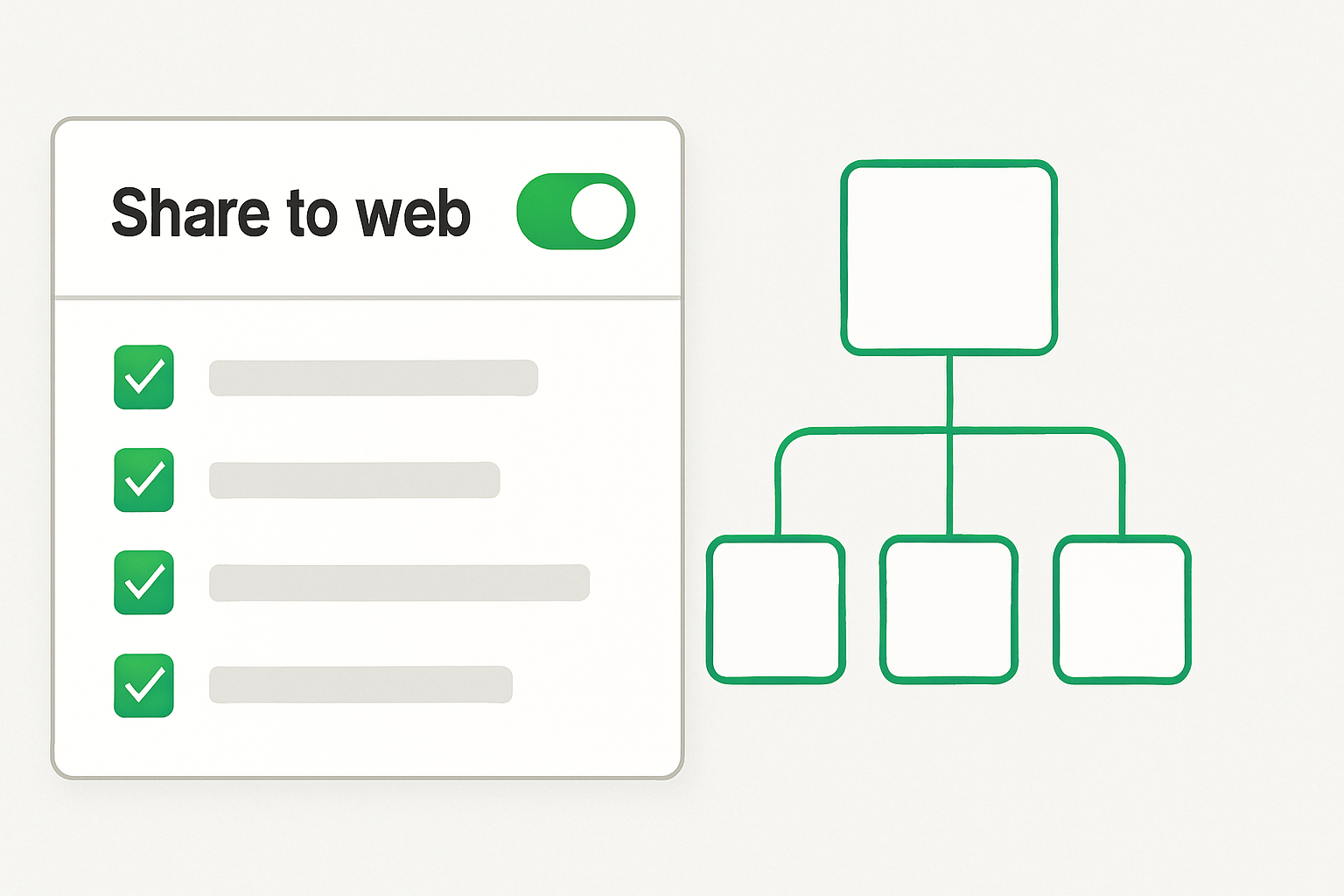
- Under “Share to web,” toggle it on if the page needs to be publicly accessible, or use “Invite” to add specific colleagues or students by email.
- To restore access to all child pages simultaneously, click the three-dot menu (⋯) on the parent page in the sidebar, select Add connections or Share, and confirm that the sharing setting applies to sub-pages. Notion will ask whether to apply permissions to child pages — select Yes, apply to all.
- Test by opening the page URL in an incognito window or a different browser profile to confirm external access is working.
Path B — Duplicate and rebuild with clean permissions (safest for large migrations)
- In the school workspace sidebar, right-click the affected page and select Duplicate.
- The duplicated page starts with the workspace’s default sharing settings, which you can now configure correctly from scratch.
- Update any internal links pointing to the old page URL to the new duplicated page URL — Notion does not auto-redirect duplicated pages.
- Archive or delete the original once the duplicate is confirmed working.
Path A is faster if the admin can locate the page. Path B is more reliable when you are migrating multiple nested pages at once, because duplication forces a clean permission state rather than attempting to repair a broken one.
Verify before you move anything else. The pattern here is consistent: workspace migration breaks permission chains, and the failure is invisible until someone clicks a link. Check the sharing state of every page before completing the move, not after.
Before and After: What the Broken and Fixed States Look Like
⚠ Broken State
Clicking a shared Notion lesson plan link returns: “This page could not be found.”
The page still appears in your personal sidebar but shows no content when opened from the school workspace.
Sub-pages (individual lesson notes, rubrics, unit plans) are also inaccessible even though the parent page is visible in the sidebar.
✓ Fixed State
The page opens from the original shared URL after re-sharing within the school workspace.
Share settings show the correct access level: either “Anyone with the link” or specific member invitations.
All child pages inherit the parent permission after confirming “Apply to sub-pages” during the re-share step.
Where This Fix Breaks (Edge Cases)
Edge case 1: You are a guest, not a member. If your school workspace admin added you as a guest rather than a full member, you cannot re-share pages yourself. Guests in Notion can view and edit pages they have been explicitly invited to, but they cannot change sharing settings. You need the workspace admin to either upgrade your role to Member or perform the re-share on your behalf. Check your role at Settings → Members — if your name appears under “Guests” rather than “Members,” this is your problem.
Edge case 2: The page was moved by someone else. If a school IT admin or department head performed the migration, the page may now sit inside a Teamspace you do not belong to. Teamspaces in Notion are sub-workspaces with their own member lists. A page inside a Teamspace is invisible to anyone not in that Teamspace, even if they are a full workspace member. Ask the admin to check Settings → Teamspaces and confirm whether the migrated pages landed inside a closed Teamspace.
Edge case 3: Notion AI features stopped working after the move. If you were using Notion AI on lesson planning pages and the AI features have disappeared, this is a separate tier issue. Notion AI is attached to the workspace plan, not the individual account. If the school workspace is on the free tier or an Education plan that does not include AI, those features will be unavailable regardless of permission state. Restoring page access does not restore AI features — that requires the workspace to be on a plan that includes Notion AI.
The Copy-Paste Migration Checklist
Run this before moving any page from a personal workspace to a school domain. Checking these states takes under five minutes and prevents the permission loss entirely.
What This Actually Replaces
This checklist replaces the 30–60 minutes most educators spend after a migration trying to diagnose a 404 as a sync error, browser issue, or account problem — when the answer is always in the Share panel.
- Confirm your destination role. In the school workspace: Settings → Members → verify you appear as a Member, not a Guest.
- Check the destination Teamspace. If the school workspace uses Teamspaces, confirm which one the page will land in and that you belong to it before moving.
- Screenshot existing share settings. On the page you are about to move, click Share and note the current access level. You will need to recreate this after the move.
- Use Duplicate instead of Move for critical pages. Right-click → Duplicate in the destination workspace, then delete the original. Duplication creates a clean permission state; Move inherits the destination defaults.
- Re-apply share settings immediately after moving or duplicating. Click Share → confirm “Anyone with the link” or re-invite specific members → select “Apply to sub-pages” when prompted.
- Test with an incognito window. Paste the page URL into an incognito tab to simulate external access. If it returns “Page not found,” the share settings did not apply correctly — repeat step 5.
- Confirm Notion AI availability if you use it. Settings → Upgrade (or Plan) → verify the school workspace plan includes Notion AI. If not, AI features will be absent regardless of permission state.
One Rule Worth Keeping
Every migration failure traced above came down to the same gap: verify the share state before you move, not after. A page that looks present in the sidebar and returns 404 on click is not a Notion bug — it is a permission state mismatch that takes ninety seconds to fix if you know where to look, and forty-five minutes if you do not.
If you are planning a larger migration — moving an entire semester of lesson plans or a full course structure into a school workspace — run the checklist above on a single test page first. Confirm the full recovery sequence works on one page before touching the rest. That test takes five minutes. Rebuilding a course structure from memory takes considerably longer.
For a practical Notion workspace setup template designed for educators moving from personal to institutional accounts, the AI EdTech Review resources page has a course module organisation checklist you can adapt before your next migration.
Classroom Reality
The 404 error after a domain migration is not random. It appears on every page that relied on personal workspace sharing defaults — which, for most teachers who built their Notion setup before joining a school domain, means almost everything they made.
If more than three pages are returning “Page not found,” do not fix them one at a time. Locate the top-level parent page, re-share it with sub-page inheritance enabled, and test from incognito. That single action will restore the entire nested structure in under two minutes.