
The plan looked correct. The billing confirmed it. And yet the AI panel refused to load for half the workspace members.
That gap — between what the subscription says and what the workspace actually delivers — is one of the most common access failures in Notion’s education setup. It doesn’t announce itself as a billing problem. It shows up looking exactly like a technical bug.
What the Error Actually Looks Like
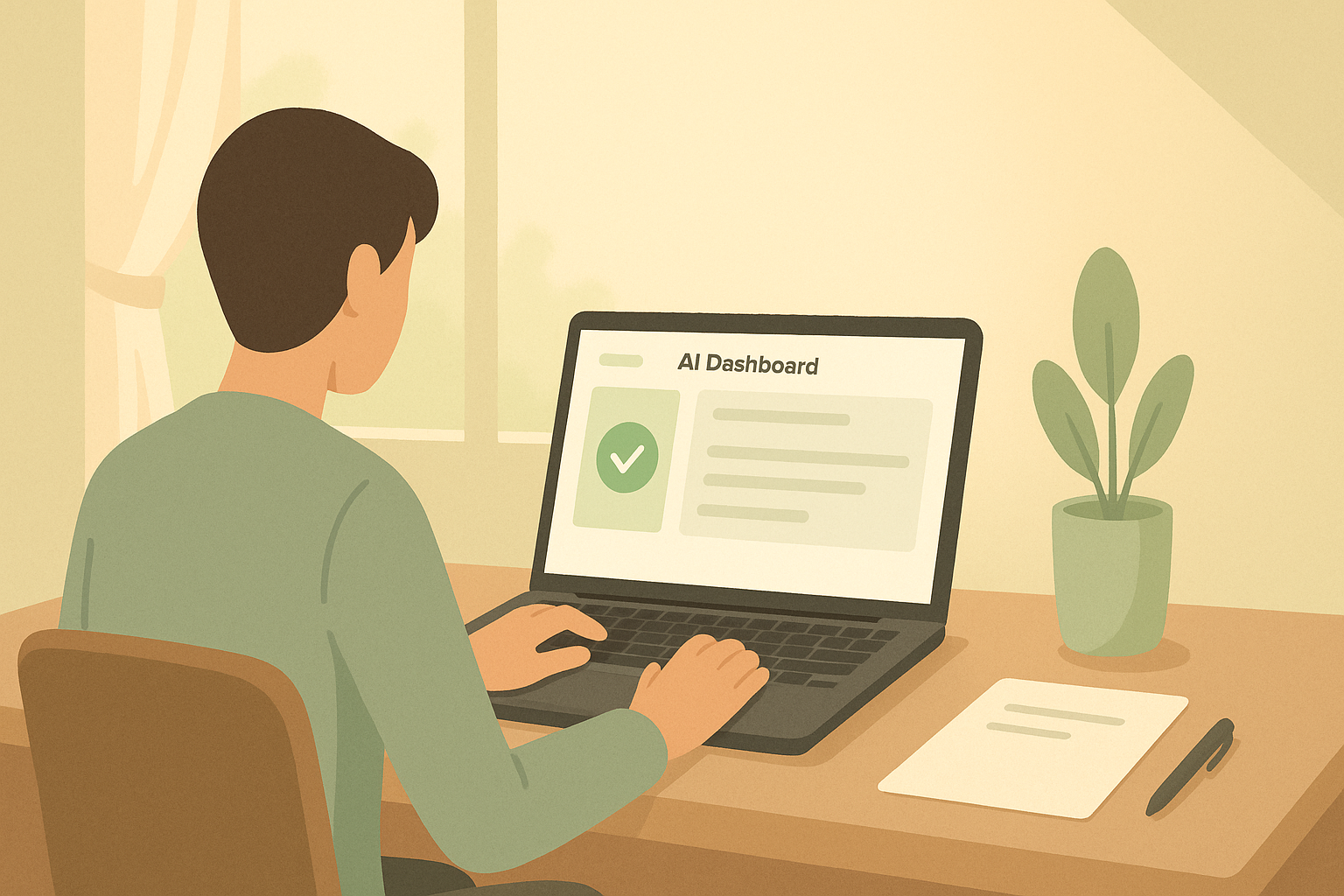
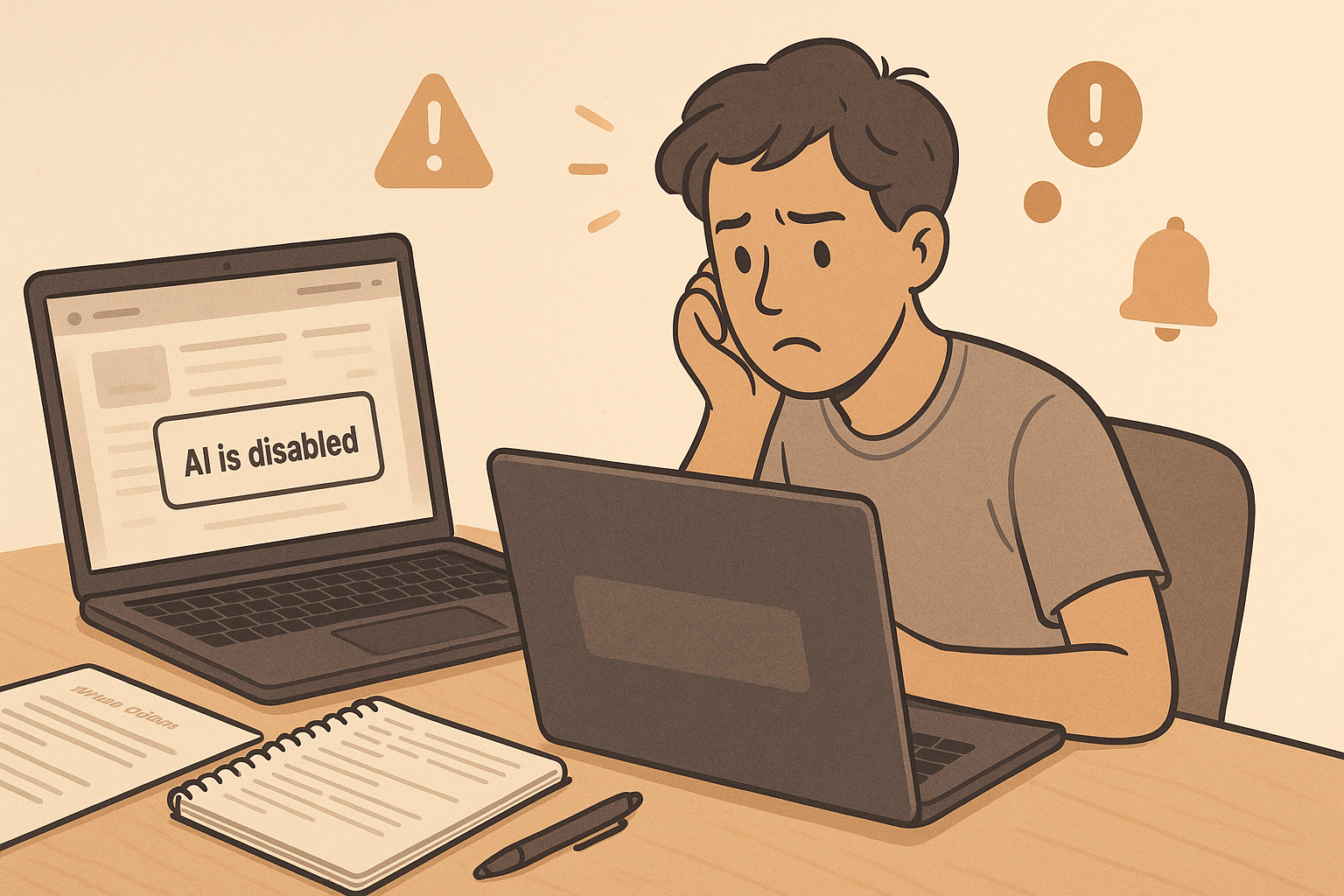
The AI panel either doesn’t appear at all, shows a greyed-out state, or loads for some workspace members but not others. There’s no error message that says “billing mismatch.” There’s no alert that says “entitlement not assigned.” The workspace just silently withholds the feature.
The first assumption is almost always: Notion is down. Check the status page. Wait. Refresh. It still doesn’t load. The second assumption: the wrong plan. Check billing. The plan looks right. It still doesn’t load.
That’s the chain failure. The surface symptom looks like a technical outage. The real problem is one layer deeper — inside the Admin console, in a toggle most workspace owners don’t know exists.
The Personal Plan vs. the Plus Plan: Why They’re Not the Same
Notion’s education access structure has a specific split worth understanding before you touch any settings.
The Education Plus Plan is a free Plus Plan for a one-member workspace. It’s available to students and teachers who sign in with a verified institution email. This is personal. It belongs to the individual, not the group. AI features on this plan are tied to that single workspace seat.
The Student Organization offer is different. It’s a free Plus Plan for an entire student club or organization workspace — but it requires verification as a recognized group at a higher education institution. This is the multi-member path.
Here’s where the confusion compounds: a student can have the Education Plus Plan active on their personal workspace and still find AI locked inside a shared organization workspace. The entitlement does not transfer. The subscription does not cascade. Each workspace requires its own AI entitlement assignment.
This matters for anyone building a course workspace, a shared study hub, or a collaborative lesson-planning environment. The plan on the billing page is a starting condition, not a guarantee of access.
The Entitlement Toggle: Where It Lives and What It Controls
Inside a team or organization workspace, Notion AI access is not automatic even after the plan is confirmed. There is a specific toggle inside the Admin panel that controls whether AI features are distributed to workspace members.
To find it: go to Settings → Workspace → Plans, or navigate directly to the Admin section depending on your workspace version. Look for the AI add-on or AI features section. The toggle controls whether AI is active at the workspace level and, in some configurations, whether it applies to individual members or the whole group.
The critical mistake most admins make: they confirm the plan is correct and stop there. The plan tier is the permission. The entitlement toggle is the activation. Both have to be in the right state for AI to load.
The fix is not dramatic. It’s just in the wrong drawer. Most people check billing before they check admin permissions, and Notion’s interface doesn’t surface the connection between them clearly.
The Chain Failure in an Education Workspace
Here’s how this plays out in a real course-building or study-group context.
An instructional designer sets up a shared Notion workspace for a team building an online course. They upgrade to a plan that includes AI. They invite collaborators. Everyone logs in. The AI features work for the workspace owner. They don’t work for anyone else.
The first diagnosis is wrong. The team assumes the invited members need to accept the plan upgrade or verify their accounts. Time passes. People work around it. The AI features that were supposed to speed up lesson drafting, module structuring, and content summarization are simply not used — because half the team can’t access them.
The actual cause: in team workspaces, Notion AI billing can be configured at the workspace level or the individual member level. If AI is set to individual billing, each member needs their own AI add-on. If it’s set at the workspace level, the admin still has to confirm that the entitlement is toggled on and applied to the right members.
One small misconfiguration at setup. Every collaborator locked out. Every AI-assisted workflow stalled. That’s the full chain.
The hidden cost here isn’t the locked AI feature. It’s the hours spent assuming the problem is technical — running browser checks, reinstalling apps, contacting support — when the answer was a single toggle in the Admin panel all along.
The Workflow Once Access Is Restored
Once entitlement is correctly assigned, the practical AI workflow inside a Notion education workspace becomes genuinely useful — but it still requires a human review layer to be worth anything in a learning context.
The pattern across all three: AI reduces the starting friction. The instructor or course creator still owns the quality check. Skip that review step and the output is usually too generic to be useful in a real learning context.
Where This Fix Does Not Solve the Problem
Fixing the entitlement toggle restores access. It does not fix every AI limitation you’ll encounter once the workspace is running.
The AI panel loading correctly does not mean the AI output is ready for learners. A Notion AI-generated lesson outline looks structured. It often has no learning sequence — no scaffolding from simpler concepts to harder ones, no built-in check for prior knowledge, no formative assessment points. That’s not a bug. That’s the limit of what a general-purpose AI tool produces without instructional design input.
The entitlement fix also does not resolve plan-level capability gaps. If the workspace is on a free or Personal plan and AI was never part of the subscription, toggling the entitlement setting won’t conjure a feature that isn’t licensed. The fix only works when the plan genuinely includes AI and the activation step was missed.
And for student-facing workspaces, there’s a supervision gap worth naming. Notion AI responses can sound authoritative while being factually imprecise. Any AI-generated study material shared directly with learners without an instructor review step carries that risk. The tool is useful for drafting. It is not a substitute for subject-matter verification.
The Diagnostic Sequence That Actually Works
If Notion AI is not loading for workspace members, run this check in order — not in parallel, not by intuition.
- Confirm the workspace plan — not the personal plan, the workspace plan. Go to Settings → Plans. Verify that the plan active on this specific workspace includes AI.
- Check whether AI is set to workspace-level or member-level billing — if it’s member-level, each person needs their own AI add-on. If it’s workspace-level, move to step three.
- Find the AI entitlement toggle in the Admin panel — confirm it is on. Re-toggle it off and back on if it appears active but AI is still not loading.
- Verify member roles — in some configurations, guests or read-only members do not receive AI access even when the workspace entitlement is active. Confirm that affected members have the correct role.
- Check institution email verification — for Education Plus Plans, the feature is tied to a verified education email. A member who signed up with a personal email will not receive the education plan benefits even inside a shared workspace.
The diagnostic takes under 10 minutes when done in this order. The same problem diagnosed by assumption — checking the wrong layer first — can consume hours of back-and-forth before landing on the right fix.
Get the AI Workspace Setup Checklist — a practical walkthrough for configuring Notion AI access in education and course-building workspaces, including the entitlement steps, member role checks, and the review layer that keeps AI output usable for learners. Join the list to get the checklist.
The AI feature didn’t fail — the activation layer between the subscription and the workspace was never completed. That gap exists across most education tools: the plan is a permission slip, not a delivery mechanism. Access problems that look like outages are almost always configuration problems in disguise, and the fastest path through them is always the Admin panel, not the support queue.