

Best for: Teachers using MagicSchool’s lesson plan generator who receive a blank or invisible output after submitting a prompt
Avoid if: Your account is showing an authentication error or the platform itself is down — those require a different fix
Time reality: The browser reset takes roughly 3–5 minutes; the blank screen diagnosis typically wastes 30+ minutes without it
Verdict: This is a front-end rendering conflict, not a backend generation failure — the fix is in your browser, not the tool
The Wrong Diagnosis That Wastes the Most Time
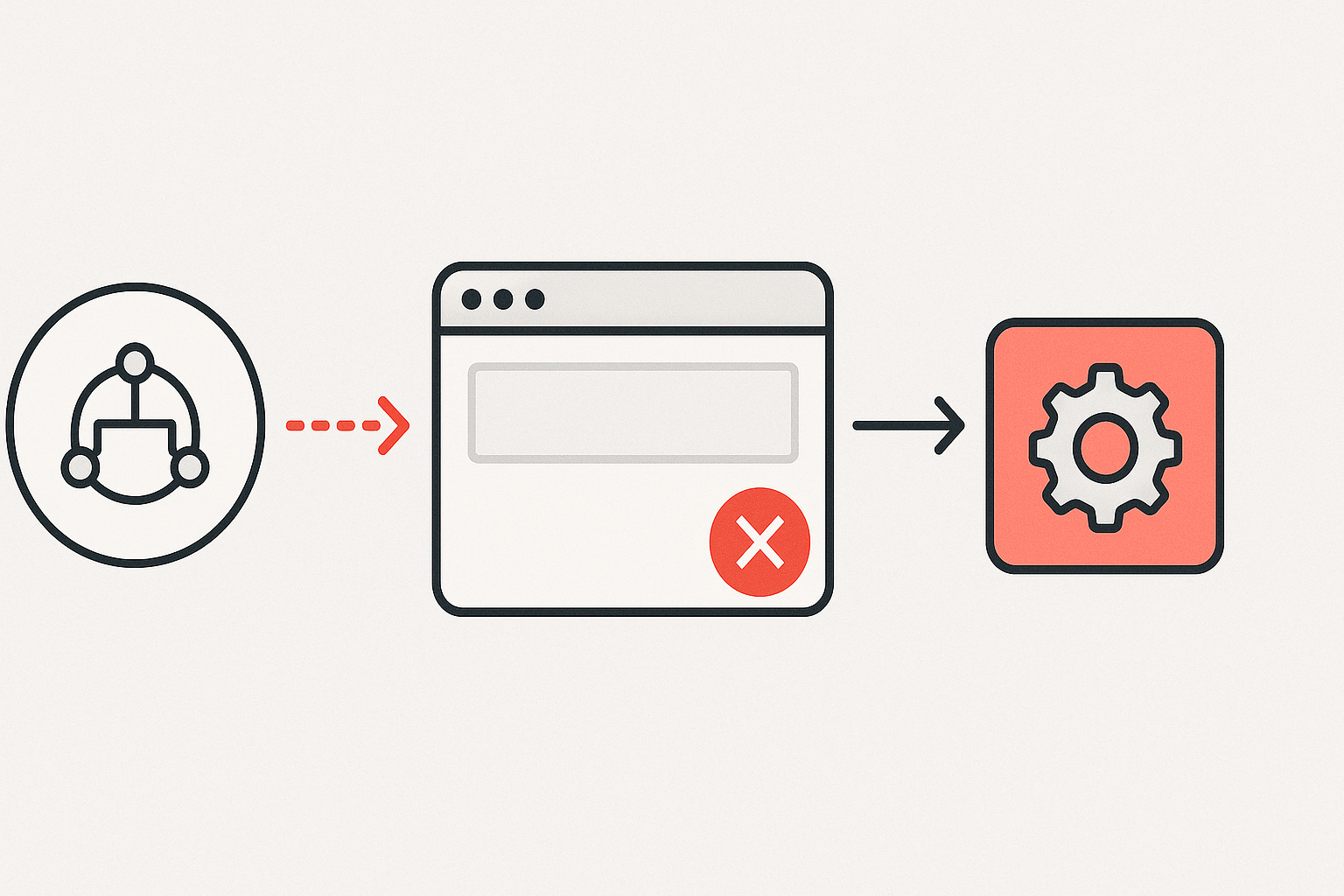
When MagicSchool’s lesson generator returns a blank page, the natural assumption is that the AI model stalled mid-generation — that something went wrong in the logic that constructs a lesson plan. So the response is to resubmit the prompt, try a different topic, or start rebuilding the lesson manually. None of those address the actual problem.
The AI did generate a response. The text exists. It just did not render in the browser window. The failure happened between the server response and the visible output — in the layer that actually displays the content on screen. That distinction matters enormously for lesson planning workflows, because it means every manual workaround is solving the wrong problem.
This is a common pattern with browser-based AI tools. The generation engine runs on the server. The output renders client-side. When those two layers fall out of sync — usually because of a cached script conflict, a browser extension intercepting the response, or a stale session token — the result is a blank field that looks like an AI failure but is actually a display failure.
In the context of teacher workload and lesson planning under time pressure, this distinction is not academic. Diagnosing it correctly cuts the recovery time from 30 minutes to under 5.
The Chain Reaction Behind the Blank Screen
The sequence that produces the blank output is predictable once you see it clearly. It typically starts with a browser session that has been running long enough to accumulate cached JavaScript files — some of which belong to extensions that were not active when MagicSchool last loaded cleanly.
An ad-blocker or privacy extension intercepts part of the response. Or a cached script version conflicts with a recent platform update. The request completes on MagicSchool’s end — the lesson plan is generated — but the front-end rendering script either receives a corrupted payload or blocks the display call entirely. The spinner stops. The field stays blank.
Before (wrong path): Generator is submitted → blank output appears → user resubmits multiple times → switches topics → eventually rebuilds the lesson manually → roughly 25–40 minutes lost
After (operator path): Generator is submitted → blank output appears → hard refresh clears cached scripts → incognito test confirms extension conflict → lesson renders on next submission → under 5 minutes total
The cascade from one small rendering failure into a full manual rebuild is exactly the kind of invisible friction that compounds across a planning session. One blank screen becomes a lost afternoon if the diagnosis never corrects.
The 30-Second Rendering Integrity Audit
- The Invisible Draft: If the loading spinner finishes but the box is empty, the AI has likely already finished its work. The problem is your screen, not its brain.
- Hard vs. Soft Refresh: A standard F5 won’t clear the toxic cache. You need
Ctrl + F5orCmd + Shift + Rto force-clear the broken script. - Extension Interference: Ad-blockers often mistake AI-generated text boxes for “pop-up ads.” Incognito mode is the fastest way to prove this.
- The Diagnostic ROI: Every minute spent resubmitting the same prompt to a blank screen is a minute stolen from your student-facing prep.
The Fix: Hard Refresh First, Incognito Second
The fastest intervention is a hard refresh. On Windows and most Linux systems, that is Ctrl + F5. On Mac, it is Command + Shift + R. This forces the browser to discard its cached version of MagicSchool’s scripts and reload everything fresh from the server — including the rendering layer that displays generated output.
A standard page refresh (F5 or Ctrl+R) does not do this. It reloads the page but retains cached files, which means the conflict that caused the blank screen survives the reload. The hard refresh is the critical distinction.
If the hard refresh alone does not resolve the blank output, the next step is incognito mode. Open a new incognito or private browsing window and load MagicSchool there. Incognito sessions start without cached data and — critically — run without most browser extensions active by default. If the lesson generator produces output in incognito but not in the standard window, the culprit is almost certainly an extension: an ad-blocker, a privacy shield, a script manager, or an AI writing assistant that is intercepting the page’s JavaScript.
Identifying the Conflicting Extension
Once an extension conflict is confirmed via the incognito test, return to the standard browser window and disable extensions one at a time — starting with ad-blockers and privacy tools — reloading MagicSchool after each toggle. The blank screen will stop appearing when the conflicting extension is disabled. That extension can then be whitelisted for MagicSchool specifically, or left disabled during lesson planning sessions.
Common offenders include uBlock Origin, Privacy Badger, Ghostery, and certain AI writing assistants that inject scripts into web pages. None of these are wrong to use — they just occasionally intercept rendering calls on AI-generated output fields in ways their developers did not anticipate.

What the Workflow Looks Like When It’s Working
To make the fix concrete: a secondary education teacher building a 45-minute lesson on argumentative writing submits a prompt to MagicSchool’s generator — grade level, subject, learning objective, and any standards alignment. The tool processes the request and constructs a structured lesson plan including objectives, activity sequence, and assessment notes.
In a clean browser session, that output renders in the output field within seconds. The teacher reviews it, adjusts the pacing section to match actual class time, and exports or copies the plan. The useful work is in the review and adjustment — roughly 10–15 minutes of professional judgment applied to a structural draft.
In a session with a rendering conflict, the same prompt produces nothing visible. Without the correct diagnosis, the teacher spends that same 10–15 minutes resubmitting, then begins rebuilding manually. The AI did its job. The browser did not. The lesson planning burden did not shrink — it doubled — because of a stale cache file.
The blank screen does not replace lesson planning — it replaces the 5-minute browser fix that nobody thinks to run first. Most “AI failures” in browser-based tools are rendering failures: the generation worked, the display didn’t, and every minute spent resubmitting prompts is time spent fixing the wrong layer. The invisible cost is not the blank screen itself — it’s the manual rebuild that follows a misdiagnosis.
Where This Fix Does Not Apply
The hard refresh and incognito approach resolves front-end rendering conflicts. It does not fix every blank-screen scenario, and treating it as a universal solution creates its own version of the wrong-diagnosis problem.
If MagicSchool is experiencing a platform-wide outage, the blank output is a backend failure — no browser-side reset will change the result. Check MagicSchool’s status page or a tool like Downdetector before spending time on browser troubleshooting. If the platform is down, the fix is to wait.
If the blank output appears consistently across multiple browsers — Chrome, Firefox, and Safari all producing empty fields on the same session — the issue is more likely an account-level problem: a session token that has expired and needs a full logout and re-login, or a permissions issue on a school-managed account where certain domains are restricted. Hard refresh does not resolve authentication failures.
And if the output field renders but the generated content is incomplete — a lesson plan that cuts off mid-section — that is a different category of problem: a generation timeout or a token-length limit, not a rendering conflict. That scenario requires a shorter, more focused prompt rather than a browser reset.
The Compact Workflow Reference
Press Ctrl+F5 (Win) or Cmd+Shift+R (Mac). Forces a full cache-clear reload of all MagicSchool scripts. Try generating again immediately after.
Open MagicSchool in a private/incognito window. If output renders correctly here, a browser extension is the conflict source.
Disable extensions one at a time in the standard browser window. Ad-blockers and privacy tools first. Reload and test after each toggle.
Check MagicSchool’s platform status. Try a full logout and re-login. If issue persists across browsers, contact MagicSchool support — this is no longer a front-end conflict.
Task
Diagnosing blank output
Without fix
Resubmit loop → manual rebuild → roughly 25–40 minutes lost
With browser reset
Hard refresh → incognito test → extension off → output renders → typically under 5 minutes
Education effect
Lesson planning session stays intact; teacher review work can begin on schedule
One Resource Before You Close This Tab
If front-end rendering conflicts keep interrupting your planning sessions, a short browser setup checklist — covering extension whitelists, cache-clear shortcuts, and incognito defaults for AI tools — can prevent the same 30-minute disruption from recurring every few weeks. AI EdTech Review maintains a practical workflow notes resource for teachers using browser-based AI tools. No signup pitch — just the checklist that keeps the tools working.
A blank output field is a browser event, not an AI event — and the tools that help most with lesson planning are the ones that break most visibly when a single cached script goes stale. Browser-based AI tools fail at the display layer far more often than they fail at the generation layer, which means the skill that actually protects your workflow is knowing which layer broke. The teachers who lose the least time to “AI failures” are usually the ones who stopped blaming the AI first.