

Every video took hours to make. After publishing, it sat there.
Not because the content was bad. Because turning a 15-minute YouTube video into a blog post manually takes another two hours — and doing that consistently, alone, is how content pipelines die quietly.
The fix was not a better tool. It was a different sequence: extract the transcript, let AI generate three distinct angles, edit instead of write. The blank page problem disappears. The editing problem stays — but that one is faster.
Here is the exact workflow, what it actually produces, and where it breaks.
Decision Snapshot
Best for: YouTube creators publishing 10+ minute structured videos who want blog drafts without starting from scratch each time.
Avoid if: Your videos are under 5 minutes or largely unscripted — the transcript quality determines the draft quality.
Time reality: Setup takes roughly 2 hours once. Each video after that produces 3 blog drafts in under 10 minutes of active work.
Verdict: This replaces the blank page, not the editor. You still decide structure, tone, and whether it’s worth publishing.

The Exact Workflow — Step by Step
This runs automatically the moment a video publishes. No manual file uploads. No copy-pasting transcripts.
Step 1 — Trigger: YouTube RSS Feed
Make.com watches the YouTube RSS feed for the channel. When a new video appears, it checks the duration. Videos under 5 minutes are filtered out — transcripts from short videos produce thin drafts that require more editing than writing from scratch.
Step 2 — Send to Castmagic via Webhook
Videos over 5 minutes trigger a webhook to Castmagic’s API. Castmagic pulls the audio, generates a transcript, and runs it through its content extraction layer. The extraction prompt is configured to return three distinct blog angles — not three versions of the same post, but three genuinely different entry points into the same material.
The three angles this workflow typically produces:
- The how-to version — step-by-step walkthrough, tutorial structure
- The opinion version — one argument from the video, expanded
- The listicle version — key points reformatted as a scannable resource
Step 3 — Deliver to Notion for Review
Castmagic’s output routes to a Notion database via Make.com. Each entry includes the video title, publish date, and all three draft angles as separate fields. The database view shows which drafts are unreviewed, in progress, or published.
The draft is waiting before the video even finishes processing on YouTube’s side.
🛠 The Make.com Scenario — Full Sequence
YouTube RSS Feed — fires on new video published
Duration > 300 seconds — skip short videos
Webhook → Castmagic API (audio URL + extraction config)
Castmagic returns 3 blog angles as structured JSON
Notion database entry — status: Needs Review
The Castmagic Extraction Prompt That Works
The default Castmagic output is a general summary. That is not what this workflow needs. The extraction prompt is configured to return structured angles, not a recap.
Copy this into Castmagic’s custom prompt field:
You are a blog content strategist. From this transcript, extract three distinct blog post angles. For each angle, provide: a working title, a 2-sentence summary of the argument, and 4-6 bullet points covering the key content. Return the output as structured JSON with keys: angle_1, angle_2, angle_3. Each angle must have a genuinely different framing — not three versions of the same summary.
The JSON output routes directly into the Notion database fields. If Castmagic returns unstructured text instead, add a Make.com JSON Parse module between the webhook response and the Notion step.
The Hidden Workload
The blank page is not the bottleneck — it disappears with the first draft. The real cost is the 45 minutes per video spent deciding what angle to take. This workflow produces three angles automatically. You pick one and edit. That decision cost drops to under 5 minutes.
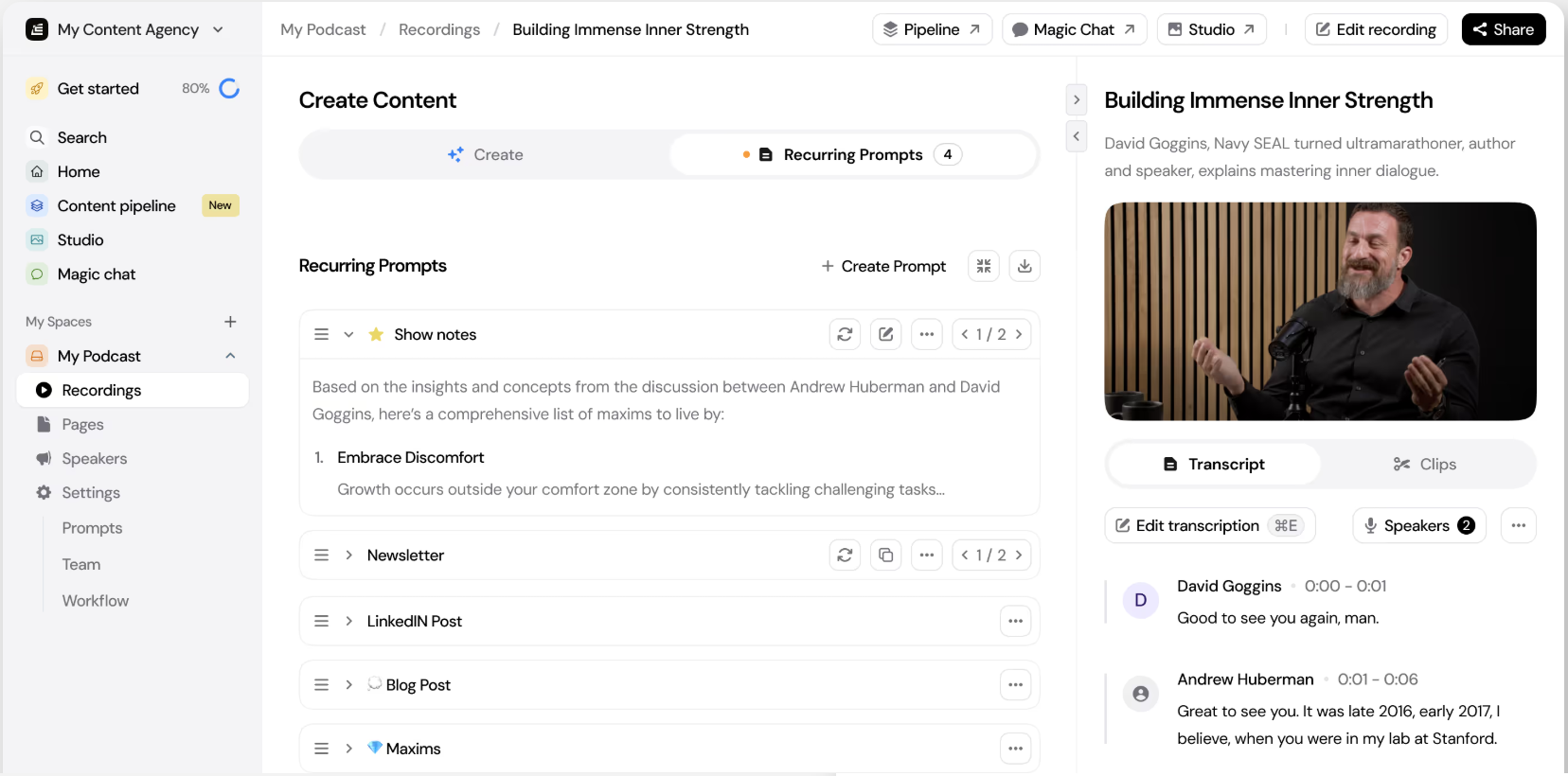
What the AI Draft Actually Looks Like
The draft that comes out of this workflow is not publish-ready. It is edit-ready — which is a different and more useful thing.
A typical Castmagic draft from a 15-minute tutorial video:
- Correct structure and logical flow — the video already had this
- Accurate terminology — pulled directly from the transcript
- Missing transitions — the spoken connectives do not translate cleanly to written prose
- Thin on examples — the visual demonstrations from the video are absent
- Generic opening — almost always needs a complete rewrite
Edit time on a typical draft: roughly 25–40 minutes. Writing from scratch on the same topic: roughly 90–120 minutes. The workflow saves the difference — not the editing work itself.
Where This Breaks
Short or unstructured videos. A 4-minute video or a casual vlog produces a transcript with no logical sequence. The AI extraction returns whatever it finds — which is usually a thin summary that requires more work than starting fresh. The 5-minute duration filter exists for this reason.
Heavily visual content. Screen recordings, design walkthroughs, and demonstration-heavy videos leave gaps in the transcript wherever the explanation was “look at this.” The draft will be structurally incomplete. Add a manual notes field to the Notion entry to flag which sections need supplemental writing.
Expecting three usable angles from every video. Some videos have one strong angle and two weak ones. The workflow always returns three — but “always three” does not mean “always three good ones.” Review all three before discarding. The weaker angles sometimes work better for social or newsletter content than for blog posts.
Castmagic API rate limits. If the channel publishes multiple videos in quick succession, the webhook queue can back up. Add a Make.com delay module (30–60 seconds) between the trigger and the Castmagic webhook if rate limit errors appear in the scenario logs.
The Reusable Checklist
Before publishing any draft from this workflow:
- Rewrite the opening paragraph — the AI version is almost always generic
- Add at least one concrete example not present in the transcript
- Check that transitions between sections read as written prose, not spoken notes
- Verify any statistics or claims — the transcript captures what was said, not whether it was accurate
- Add internal links to related posts — the draft will not include these automatically
- Replace the AI-generated title with one that matches your actual search target
FAQ
Does this work with Castmagic’s free plan?
The API access required for the Make.com webhook is not available on Castmagic’s free tier. The Starter plan or above is required for API integration. The workflow can be tested manually on a free account — upload the video file directly and run the custom prompt — but the automation requires API access.
Can I use a different transcription tool instead of Castmagic?
Yes. The Make.com scenario can be adapted to route to any transcription API that accepts an audio URL and returns structured text. Alternatives that work with this setup include AssemblyAI and Deepgram. The extraction prompt would need to be moved to a separate Claude or OpenAI API call in Make.com if the transcription tool does not support custom content prompts natively.
How long does the full process take from video publish to Notion entry?
Roughly 8–12 minutes depending on video length and Castmagic’s current processing queue. The Make.com scenario triggers within 1–2 minutes of the RSS feed updating. Castmagic processing adds 6–10 minutes for a 15-minute video.
What if the Castmagic output is not valid JSON?
Add a Make.com Tools → Parse JSON module after the Castmagic webhook response. If the output still fails to parse, add a fallback route that sends the raw text to a Notion field labeled “Needs Manual Extraction” and notifies via Slack. Do not let the scenario error out silently — the draft exists in Castmagic’s interface even if the automation fails.
Get the Make.com Scenario Template
The full Make.com scenario JSON for this workflow — importable directly into your account. Includes the RSS trigger, duration filter, Castmagic webhook, and Notion delivery step. Join the list and get it sent directly.
The Practical Takeaway
The video you already made contains more blog content than you will write this month. This workflow does not create content — it surfaces what is already there and formats it for a different medium. The editing is still yours. The blank page is not.