

The credits were there at the start of the lesson. By the third slide, Magic Media stopped generating entirely. No warning beforehand, no clear counter visible anywhere on screen — just a refusal message where the image should have been.
If you searched this problem before landing here, you already know what most results look like: a Reddit thread from two years ago, a Canva support page explaining plan tiers in marketing language, and a few YouTube walkthroughs that never mention quotas at all. None of them explain the specific mechanic that’s actually burning through your credits — and none of them give you a working fallback you can use mid-session.
The Wrong Diagnosis Almost Everyone Makes
The first assumption is usually that the school plan is too limited, that Canva is deliberately throttling educators to push upgrades, or that there’s a bug in the account. All three feel plausible. None of them explain why the credits sometimes reset sooner than expected, or why one team member still has generations available while another is locked out.
The credit system isn’t broken and it isn’t purely a plan-tier restriction. It’s a rolling 24-hour window — which behaves very differently from a fixed monthly or weekly allowance. Most educators assume “monthly” and plan accordingly. That assumption is what causes the mid-week collapse.
How the Rolling 24-Hour Quota Actually Works
Canva’s AI generation allowance on education and school plans is not a calendar-month pool. It resets on a rolling 24-hour basis from the moment each generation fires, not from midnight or the first of the month. This means a teacher who runs eight generations between 9am and 11am on Monday will see that quota window expire around 9am–11am on Tuesday — not at midnight, not on the following Monday.
On a shared team account, the quota may also be distributed across the team rather than being fully independent per user. This varies by plan configuration, but it explains the frustrating state where one colleague is generating images freely while another account is locked. The visible usage counter in Canva’s interface does not always refresh in real time — so you can appear to have remaining credits while the underlying quota has already been consumed. The UI lags behind the actual state.
The practical consequence: if a class activity or resource-building session involves multiple educators pulling from the same team account within a short window, the quota drains faster than any individual user expects. The rate of consumption looks like a bug. It’s actually a coordination problem.
Where the Free AI Tier Always Breaks First
This is worth stating plainly: AI generation inside SaaS products aimed at education is almost always a teaser, not a production-grade tool. The generous trial period or the “included with your plan” framing creates an expectation of unlimited use that the underlying quota structure cannot support for a classroom of active designers.
Magic Media specifically falls into this category. It is genuinely useful for low-volume individual projects — one teacher building one presentation. It degrades quickly when the use case shifts to a team working in parallel, a class activity where students are generating simultaneously, or any session where visual assets are being iterated rapidly. Those are exactly the situations where educators most want it to work.
WHAT THIS ACTUALLY REPLACES
The real cost here isn’t the blocked generation — it’s the 20 minutes lost mid-session while educators search for a workaround that should have been set up before the lesson started. Having one external AI image generator pre-configured in your browser replaces that dead time with a two-minute detour.
The fix isn’t to wait for the quota to reset. It’s to treat Magic Media as the first option, not the only option, and to have a fallback already open in another tab before the session starts.
Free External Generators That Work as Direct Fallbacks
Each of these tools has a realistic failure mode. Knowing where they break first helps you choose the right one for the situation.
Adobe Firefly (Free Tier)
Generates images you can upload directly to Canva. Free tier includes a monthly credit allowance that resets on a calendar month — more predictable than a rolling window. Where it breaks first: the free tier watermarks outputs unless you have an Adobe account, and generation speed slows under high server load. Best for single-teacher use rather than whole-class parallel sessions.
Microsoft Designer / Bing Image Creator
Accessible with a free Microsoft account, which most school environments already provision. Generates images without a visible watermark on free tier. Where it breaks first: content filtering is aggressive — educational prompts involving historical events, science diagrams, or anything with ambiguous phrasing get blocked frequently. Expect to rephrase prompts more than once.
Google ImageFX (Free, via Google Labs)
Requires a personal Google account rather than a Workspace for Education account in most configurations. Clean output suitable for educational graphics. Where it breaks first: availability varies by region and is not guaranteed on school-managed Google accounts due to Labs access restrictions. Verify access before relying on it in a session.
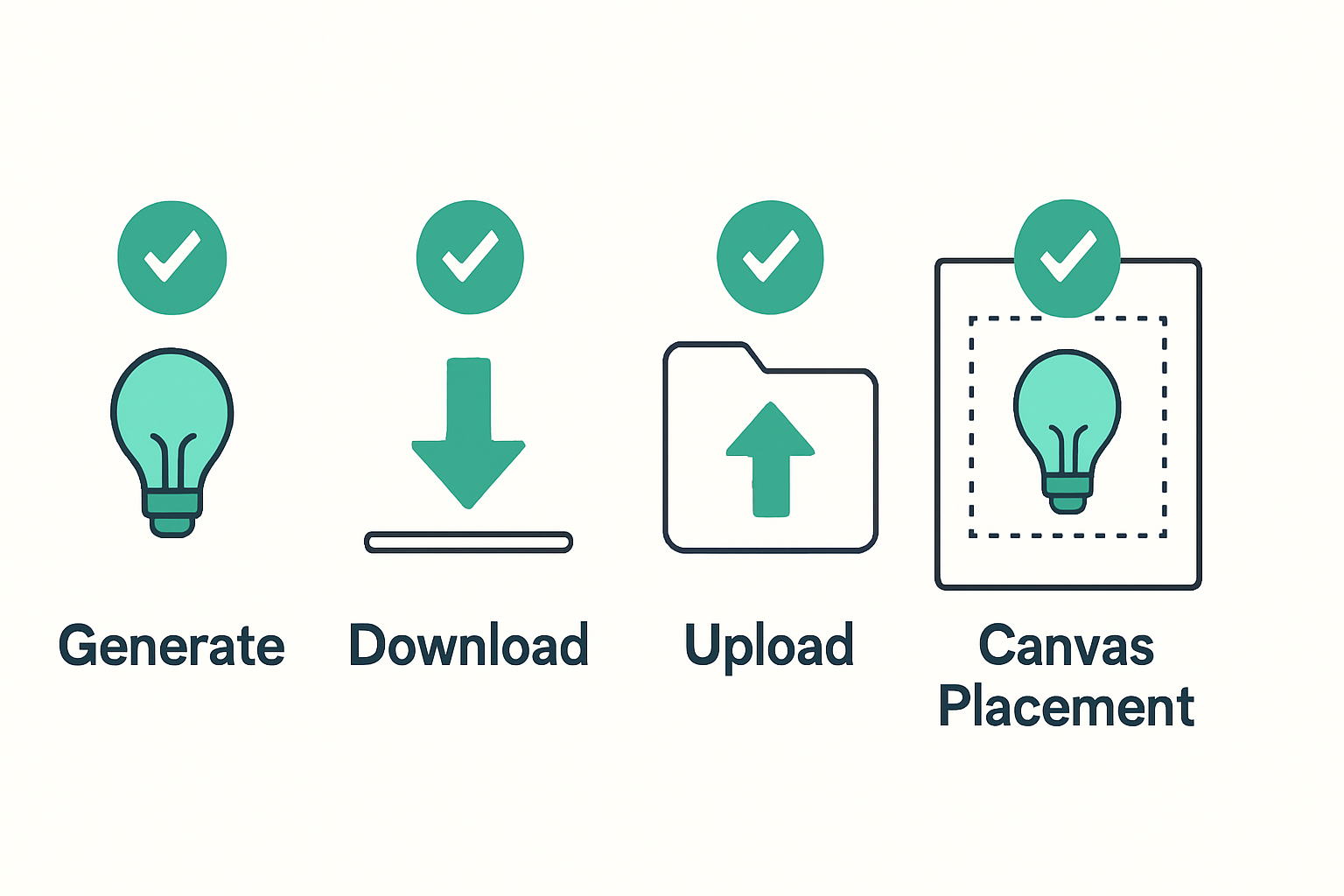
All three generate images you can download and upload directly into any Canva project via the Uploads panel — no special integration required. The workflow is: generate externally → download the file → open Canva → click Uploads → drag the file in.
The Fallback Workflow, Step by Step
Use this sequence when Magic Media returns a quota error mid-session. It takes roughly two minutes from blocked generation to uploaded image in Canva.
- Note the prompt you were using in Magic Media — you’ll need it verbatim for the external tool.
- Open your pre-selected fallback generator in a new browser tab (Bing Image Creator recommended for school accounts with existing Microsoft provisioning).
- Paste the same prompt. If the result is blocked, simplify the language: remove adjectives, use direct object descriptions (“flat illustration of a water cycle diagram, blue and white, no people”).
- Download the generated image to your device — PNG format where available.
- Return to your Canva project. In the left panel, select Uploads → Upload files.
- Select the downloaded image. It will appear in your Uploads panel within 10–15 seconds for most file sizes under 5MB.
- Drag it onto the canvas to replace the placeholder where Magic Media would have generated.
The output won’t be styled to Canva’s internal aesthetic, but it will be usable. For presentation slides and educational resources, the difference is rarely visible to the audience.
Copy-Paste Prompt for External Generators (Educational Use)
Use this structure when adapting a Magic Media prompt for an external tool:
COPY-PASTE PROMPT TEMPLATE
Flat illustration of [describe the subject or concept clearly].
Style: [simple / infographic / diagram / icon-based].
Color palette: [2-3 specific colors].
No people, no faces, no text overlays.
White or light background.
Educational use, clean and minimal.
The “no people, no text overlays” line reduces filter rejections across all three external generators and keeps the output compatible with Canva’s canvas without covering your existing text elements.
What This Does Not Solve
Switching to an external generator mid-session solves the immediate quota block. It does not solve the coordination problem on shared team accounts. If multiple educators are running Magic Media simultaneously from the same Canva for Education team, the quota drains at a rate no individual can predict or control from their own view.
Two edge cases that break the fallback workflow itself:
- School network filtering: Bing Image Creator and Google ImageFX are sometimes blocked at the network level on school-managed devices. If the external generator won’t load, the issue is likely a DNS or content filter setting — not the tool. Test access from a personal device on the same network to confirm before a session.
- Managed device download restrictions: Some school device configurations prevent downloading files to local storage. If the downloaded image won’t save, use the external tool’s share link to copy the image URL and paste it into Canva’s Add image via URL option under Uploads → Add image from link.
Also worth noting: the rolling 24-hour window means that rationing generations across a day — rather than using them all at once — extends your effective capacity without any plan change. Running four generations in the morning and four in the afternoon is not more efficient than eight at once in terms of the quota math, but it does mean the reset window arrives sooner for the earlier batch.
Before and After: What Changes in Practice
Before — Without a Configured Fallback
Magic Media returns a quota error at slide 4 of a 12-slide resource. The session pauses. The teacher searches for alternatives, finds conflicting advice, tries a tool that requires account creation, gives up, and uses a stock photo that doesn’t match the visual style of the other slides. Roughly 20 minutes lost, inconsistent output, and residual frustration that makes the next session’s planning feel riskier.
After — With a Fallback Pre-Configured
Magic Media returns a quota error. The teacher pastes the same prompt into Bing Image Creator, which is already open in the next tab. The image downloads in under 30 seconds, uploads to Canva via the Uploads panel in another 15 seconds, and the session continues. Total interruption: about two minutes. Visual consistency is close enough to not require restyling.
If you want a reusable reference for managing AI tool limits across a school year — including which tools reset monthly vs. rolling, and which ones work on managed school devices — the AI Tools Quota Tracker for Educators template in our resource library gives you a one-page planning sheet you can adapt for your team’s workflow. It covers Magic Media, Magic Write, and four external generator options with their current free-tier limits noted.
CLASSROOM REALITY
Set up your external generator fallback before the first session where you plan to use Magic Media heavily — not after the first quota block. If you’re on a shared school team account, check whether your plan allocates credits per user or per team before assuming you have a full individual allowance. The session where you find out the hard way is always the one you couldn’t afford to lose 20 minutes from.