

This is the specific failure pattern that hits Canva for Education hardest: the session appears to be saving, the design looks complete, and then a tab close or a browser refresh exposes the truth. The sync never finished. The work is gone.
Decision Snapshot
Best for
Teachers on unstable school Wi-Fi building high-stakes slide decks.
Time Reality
Verification: 3 seconds | Rebuilding: 60 minutes. Choose wisely.
Verdict
The “All changes saved” icon is your only real insurance policy.
The Wrong Diagnosis Almost Everyone Makes First
The instinct is to blame Canva’s servers. That’s the wrong layer to look at.
When edits vanish after closing a tab, the first assumption is usually that Canva had an outage, or that the auto-save feature failed on the backend. So the response is to reload the page, check Canva’s status page, or submit a support ticket — none of which address what actually happened.
The real cost here is not the missing tool — it’s the hour spent looking in the wrong place.
The actual failure occurs much closer to the browser. Canva’s collaborative editor depends on a persistent WebSocket connection to push changes from your local session to the cloud in real time. That connection is not always stable. On school networks — where bandwidth is shared across dozens of devices, and where network filters or proxy settings can interrupt long-lived connections — the WebSocket can drop silently while the rest of the browser keeps functioning normally.
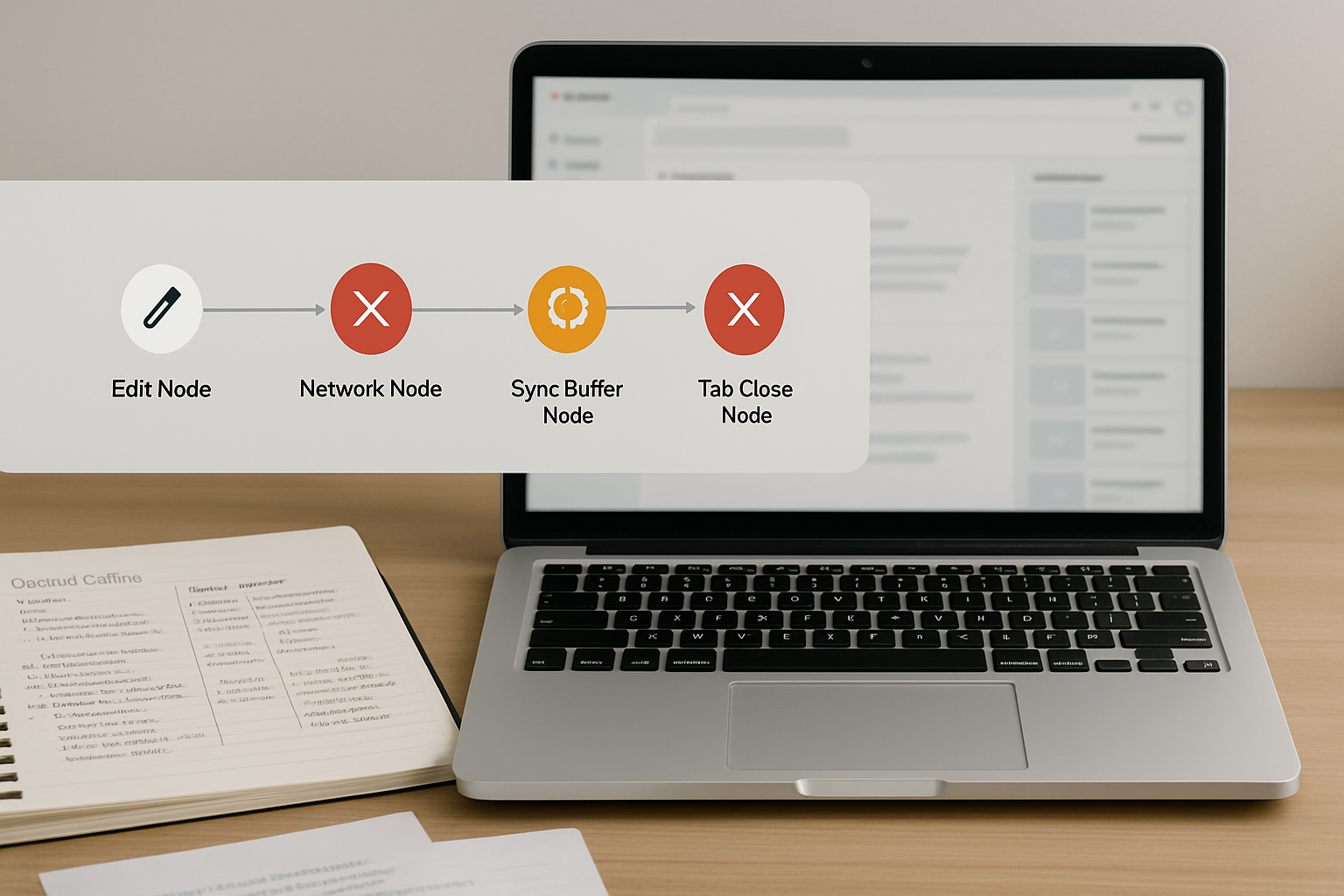
The page does not crash. The design does not disappear mid-session. Everything looks fine. But the sync pipeline between your browser and Canva’s servers has stalled, and any edits made after the connection dropped are sitting in a local buffer that never transmitted.
Close the tab before that buffer flushes, and the work is gone.
Why Collaborative Classroom Environments Make This Worse
Standard Canva usage on a home network with a single user rarely triggers this failure. The WebSocket connection is stable, the session is short, and the sync completes cleanly.
Canva for Education changes the conditions significantly. Multiple students or co-teachers editing a shared design at the same time puts concurrent write pressure on the sync layer. School Wi-Fi networks — often managed with aggressive session timeouts or content filtering — interrupt long-lived connections more frequently than residential broadband.
There is also a behavioral pattern that compounds the problem: teachers building lessons in short bursts between classes. A 10-minute editing window, a tab closed in a hurry, a browser left running overnight. Each of these creates a moment where the sync boundary is crossed before the “All changes saved” confirmation appears.
The failure is not random. It follows a predictable pattern: heavy edit → network interruption → silent sync stall → tab close → data loss. Once you can see the chain, you can break it at the right link.
Before and After: What the Broken State Looks Like vs. the Safe State
BROKEN STATE
- Cloud icon shows “Saving…” or spins indefinitely
- Design looks complete in the editor window
- Tab is closed or browser is refreshed
- On reopening: edits from the last session are absent
- No error message was shown at any point
SAFE STATE
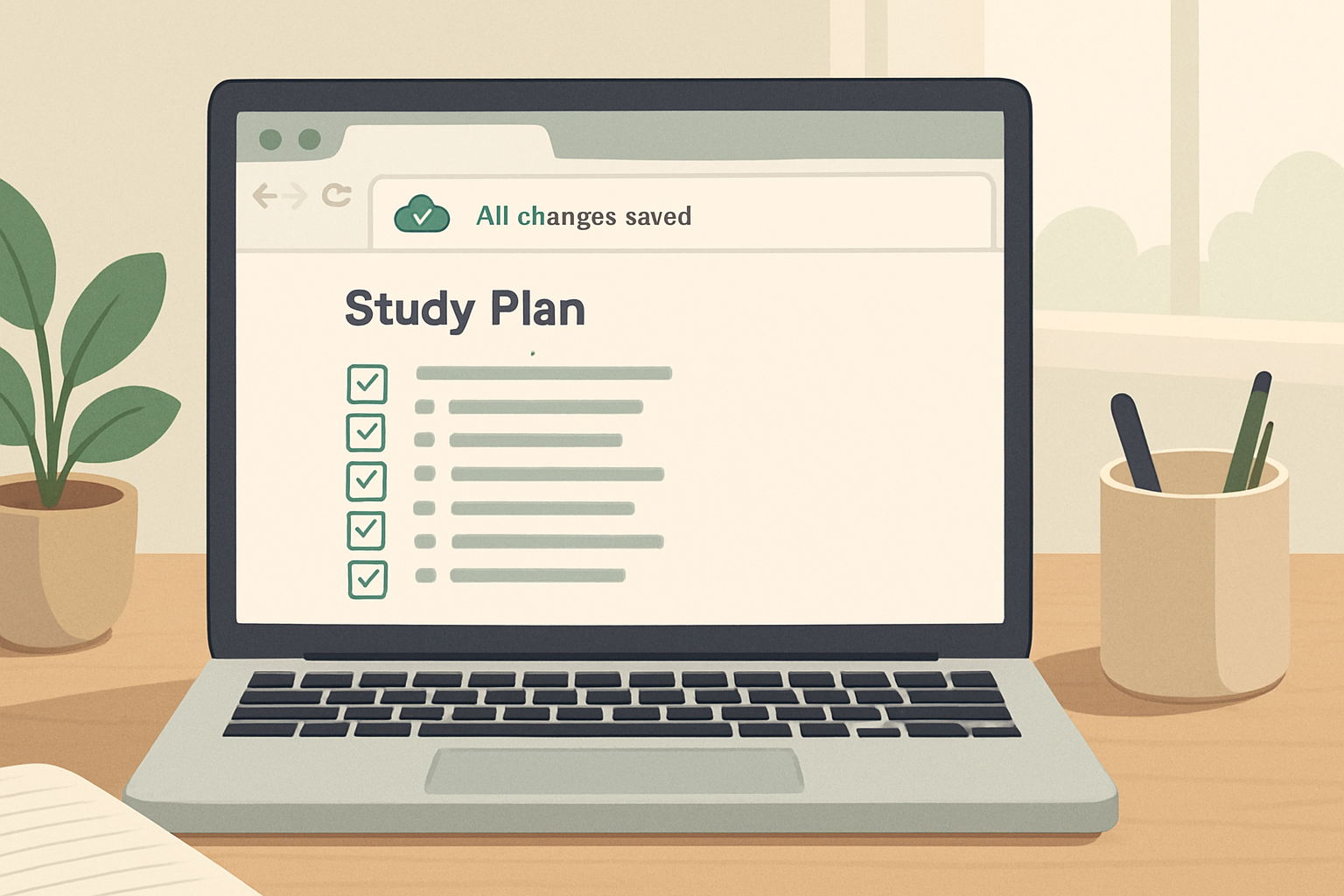
- Cloud icon shows “All changes saved” — static, not spinning
- Toggling Share and returning to the design confirms the state
- Tab is closed only after the saved confirmation appears
- On reopening: all edits are present and intact
- Connection was stable throughout the session
The difference between these two states is not visible in the design itself. It is only visible in the small cloud icon in the top navigation bar. That icon is the only reliable signal you have.
The 30-Second Canva Sync Audit
- The Cloud Truth: If the icon shows “Saving…” for more than 15 seconds, your WebSocket connection is dead. Your browser is lying to you; the server isn’t listening.
- The Share Nudge: Clicking the ‘Share’ button forces a handshake. It’s the fastest way to wake up a stalled sync without refreshing the page.
- Collaborative Collision: In multi-teacher sessions, the last one to close the tab doesn’t always win. Coordinate or use ‘Make a copy’ as a baseline.
- The Manual Backup: If the sync stays stuck,
Ctrl+A→Ctrl+Cis your life jacket. Paste it into a new tab before you even think about hitting refresh.
The Exact Fix Sequence
This is the sequence that breaks the chain reaction before data loss occurs. Follow it in order — do not skip to step 4.
- Stop editing. Do not add more changes while the sync state is unknown.
- Look at the cloud icon in the top navigation bar. It sits to the left of the Share button. If it shows a spinning indicator or the word “Saving…”, the sync has not completed. Wait.
- Wait for “All changes saved” to appear as static text next to the cloud icon. This confirms the WebSocket has transmitted your edits to Canva’s servers. Do not close the tab before this appears.
- If the icon stays stuck on “Saving…” for more than 30–60 seconds, the WebSocket connection has likely dropped. Do not close the tab yet.
- Force a sync nudge: Click the Share button (top right), then close it without making changes. This interaction can prompt Canva’s editor to re-evaluate the sync state and retry the connection.
- Check your network connection. Open a new browser tab and load any page to confirm internet access. If the connection dropped, restore it before returning to Canva.
- If the sync still does not complete, open a new Canva tab (canva.com), locate the same design in your recent files, and confirm whether your latest edits are visible there. If they are not, your local buffer has not flushed.
- Copy your current design as a backup: In the stuck session, select all elements (Ctrl+A / Cmd+A), copy them (Ctrl+C / Cmd+C), open a new blank design in a separate tab, and paste (Ctrl+V / Cmd+V). Save this copy as an emergency backup before doing anything else.
- Reload the original design tab and check if Canva’s auto-recovery restores the missing edits. This works in some cases when the buffer was partially saved.
What This Does NOT Solve
This sequence stops future data loss. It does not always recover work that is already gone.
If the tab was closed before “All changes saved” appeared, and the WebSocket had dropped before the buffer transmitted, those edits are typically unrecoverable through the Canva interface. Canva’s version history (available via File → Version History) may show a prior saved state, but it will not include edits that never reached the server.
There is also a failure mode this fix does not address: browser-level session crashes. If the browser itself closes unexpectedly — power loss, OS crash, browser update — the local buffer is cleared regardless of network state. The only mitigation is the emergency copy step described above.
Finally, this fix assumes the issue is a WebSocket sync delay. If Canva is showing an “Unsaved changes” banner persistently even after the network is stable, the cause may be an outdated browser version or a corrupted local cache. In that case: clear the browser cache (Settings → Privacy and Security → Clear Browsing Data → Cached Images and Files), reload Canva, and check for browser updates before attempting to edit again.
The Checklist You Can Keep Open While Working
Copy this checklist and keep it in a browser tab or sticky note during any important Canva session:
CANVA SYNC SAFETY CHECKLIST — COPY AND USE
☐ 1. Before closing any tab: confirm cloud icon shows “All changes saved”
☐ 2. If icon spins for more than 30 seconds: click Share, then close it (sync nudge)
☐ 3. After nudge: wait another 15–20 seconds and recheck the icon
☐ 4. Open a second Canva tab and verify the latest edit is visible in the design
☐ 5. On school networks: check internet access in a separate tab before closing Canva
☐ 6. For critical lessons: use File → Version History to confirm a recent snapshot exists
☐ 7. Emergency backup: Ctrl+A → Ctrl+C → new design tab → Ctrl+V before any forced reload
☐ 8. Do NOT close the tab mid-save during collaborative multi-editor sessions
The Education Scenario Where This Compounds Fast
A teacher builds a 12-slide lesson in Canva for Education during a 20-minute prep window. The school network drops the WebSocket connection at slide 9 — silently, with no visible error. The teacher finishes slides 10–12, sees the design looking complete, and closes the tab to move to the next task.
The next morning, the design opens at slide 9. Three slides of work are gone. The class starts in 40 minutes.
The wrong assumption here was that “the design looks finished” equals “the design is saved.” These are two different states, and Canva’s editor only signals one of them — in a small icon that is easy to miss when you are rushing between periods.
The fix is not a technical workaround. It is a habit: never close a Canva tab without reading the cloud icon first. That single behavioral change eliminates the majority of this failure pattern. Roughly 30–60 minutes of rework, avoided by a 3-second check.
WORKFLOW COMPARISON
WITHOUT SYNC CHECK
Edit → close tab → reopen → missing slides → rebuild → roughly 30–60 min lost → lesson delayed
WITH SYNC CHECK
Edit → check cloud icon → “All changes saved” → close tab → reopen → all slides intact → 3 seconds spent
Two Edge Cases That Break the Standard Fix
Edge Case 1: The Icon Shows “Saved” But the Edits Are Still Missing
This can happen when a browser extension interferes with Canva’s WebSocket connection — particularly ad blockers, VPN extensions, or privacy-focused extensions that intercept or throttle persistent connections. The icon may report a saved state based on a partial handshake, while the actual design data was not fully transmitted.
Fix path: Disable all browser extensions temporarily (Settings → Extensions → toggle each off), reload Canva, and attempt the edit again. If the issue resolves, re-enable extensions one at a time to identify the conflict.
Edge Case 2: Collaborative Edit Conflict During Multi-Teacher Sessions
When two teachers edit the same Canva for Education design simultaneously, write conflicts can cause one user’s changes to silently overwrite the other’s — or be dropped entirely during a sync merge. This is not the same as a connection drop, and the cloud icon may show “Saved” for both users while one version has been discarded.
Fix path: Coordinate editing windows so only one person edits at a time, or use Canva’s built-in commenting system to flag sections before editing them. For critical shared assets, duplicate the design before collaborative editing sessions begin (File → Make a copy) so a clean baseline always exists.
If you build lessons, assessments, or course visuals in Canva regularly, a short checklist for your pre-class workflow can prevent this entirely. The AI EdTech Review Classroom Workflow Checklist covers sync checkpoints, backup habits, and tool-specific failure patterns for educators building digital learning materials — practical notes you can apply during any session, not just Canva.