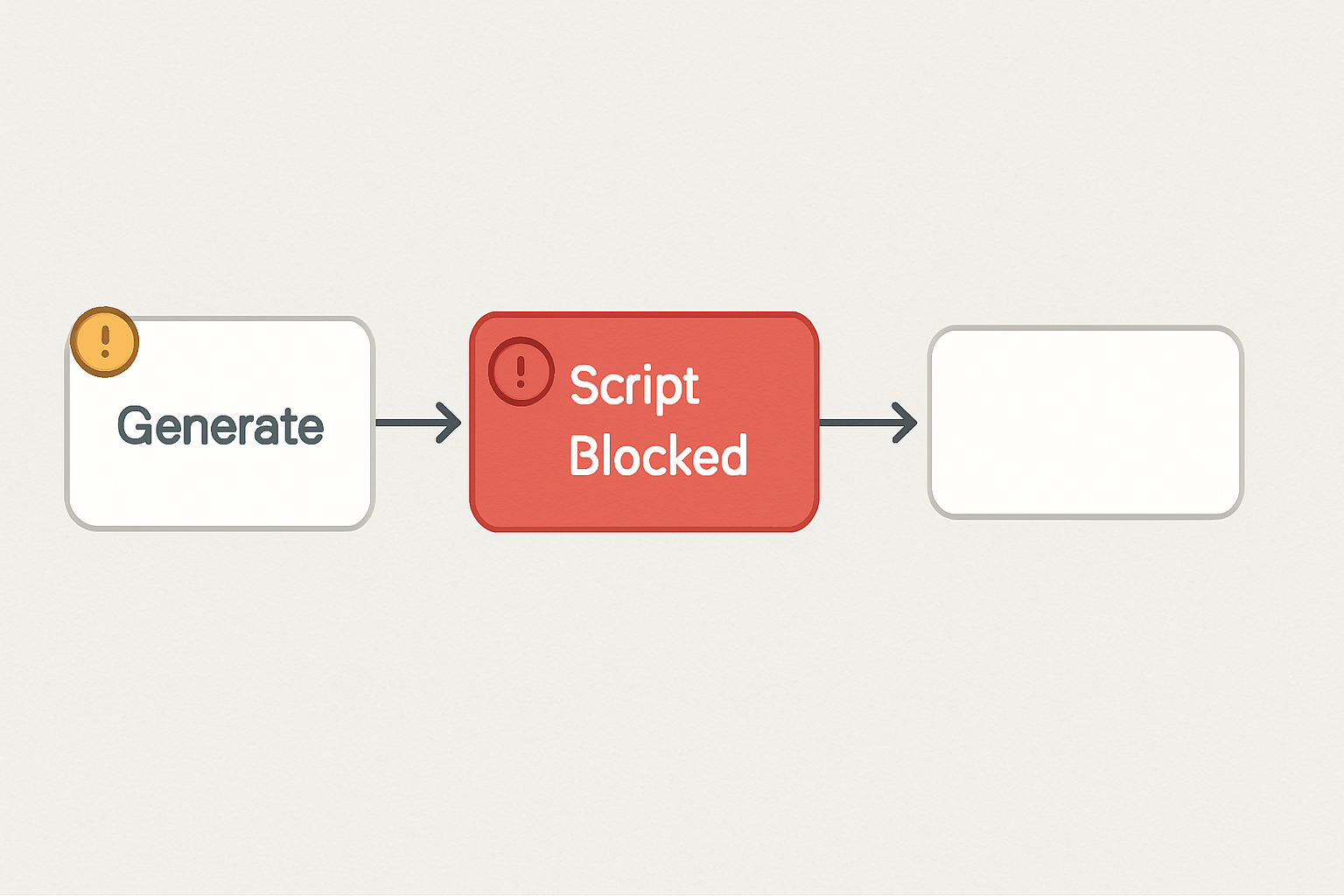

No error message. No partial output. Just an empty field where the generated feedback was supposed to be — and no obvious reason why.
The first assumption is almost always the same: the AI model is down. So the extension gets reloaded, the tab gets refreshed, and the whole sequence runs again. Still nothing. The model is not the problem. It rarely is.
The 30-Second Brisk Integrity Audit
- Memory Throttling: If your Chrome has 20+ tabs open, Memory Saver might be “freezing” Brisk’s output script mid-execution. A blank field is a sign of a suspended process.
- Silent Ad-Blockers: Privacy extensions often mistake AI-to-page script injection for a tracking event. If the spinner finishes but the box is empty, check your extension’s “Blocked” count.
- The Cache Loop: A standard refresh reloads the broken script. You need a
Hard Refresh(Ctrl+F5 / Cmd+Shift+R) to force-clear the local execution environment. - Incognito Proof: If it works in an Incognito window, your problem is 100% an extension conflict, not a Brisk or API failure.
Best For
Teachers using Brisk in Google Docs, Slides, or YouTube who click Generate and get no response
Avoid If
You are seeing a visible error code — that is a different failure category with a different fix path
Time Reality
Roughly 5–10 minutes to isolate the cause; most fixes resolve in under 3 minutes once the source is identified
Verdict
This is a browser environment conflict, not a Brisk or AI model failure — and that distinction changes everything about how you fix it
Why the Empty Output Feels Like an AI Problem
Brisk Teaching is built to run inside the browser — directly inside Google Docs, Slides, PDFs, and YouTube tabs. That design is what makes it low-friction for classroom use. No separate dashboard, no copy-paste loop between tools. The extension intercepts the active page and delivers output inline.
But that same architecture creates a dependency chain that most error messages never explain. When Brisk generates a response, it is not just calling a cloud model and printing text. It is executing scripts inside the active Chrome environment, which means anything that interrupts script execution in Chrome will silently break the output — with no visible error, no fallback message, and no indication that the cloud model responded perfectly fine.
The generation failure is local. The AI is not the failure point.
The Chain Reaction Nobody Sees
Here is how the failure actually cascades. A teacher opens a Google Doc, activates Brisk, selects a feedback option, and clicks Generate. In the background, Chrome is simultaneously managing memory across a dozen open tabs. If Chrome’s Memory Saver feature is active, it may throttle or suspend background processes — including the script thread Brisk needs to write output into the page.
At the same moment, an ad-blocking extension running in the browser may flag and intercept part of the Brisk request. Ad-blockers and privacy extensions use filter lists that sometimes match the domain patterns of AI tools, treating a legitimate generation request as a tracking script. The block is silent. No popup, no warning. The request goes out, the model responds, and the output never arrives because the return path was cut.
The result looks identical whether the cause is Memory Saver, an ad-blocker conflict, or a stale extension cache: a button that appears to work, a spinner that resolves, and a field that stays empty.
Assuming the AI model is down is understandable. It is also almost always wrong — and acting on that assumption wastes the one thing most teachers cannot recover: planning time.
The Wrong Fix First
The instinct is to reload the extension or reinstall it. That was the first move in the situation that produced this pattern. The extension reloaded cleanly. The problem did not change.
The second attempt was switching to a different Google Doc. Same result. The generation appeared to trigger, and nothing appeared in the output area.
What looked like a Brisk problem was a Chrome environment problem. The extension was functioning. The browser was blocking its output path at two separate points simultaneously — Memory Saver was throttling the tab, and a content-blocking extension was intercepting the script return. Neither conflict surfaced as an error. Both had to be resolved together before generation worked again.
This is the pattern that matters: when Brisk generates nothing and shows no error, the failure is almost always in the local browser environment, not the cloud model. Chasing the model wastes time. Checking the environment solves the problem.
The Fix: Isolating the Conflict in Order
The most efficient way to unblock Brisk output is to work through the environment in a specific sequence. Skipping steps or doing them out of order risks fixing one conflict while leaving another active — which produces the same empty output and doubles the confusion.
Step 1 — Disable Chrome Memory Saver
Open Chrome Settings and navigate to Performance. If Memory Saver is toggled on, turn it off. Memory Saver is designed to suspend inactive tabs, but Chrome’s definition of “inactive” can include tabs that are waiting for a script response — which is exactly what Brisk is doing during generation. Disabling it removes the throttle from the script execution thread.
If turning it off entirely is not practical, add the Google Docs or Slides URL to the Memory Saver exception list so those tabs are always kept active.
Step 2 — Disable Content-Blocking Extensions Temporarily
Navigate to Chrome’s Extensions manager and pause any ad-blocker, privacy extension, or script-blocker that is currently active. This includes extensions like uBlock Origin, Privacy Badger, or similar tools. Reload the Brisk tab and attempt generation again.
If output appears, the content-blocking extension was the conflict. The permanent fix is to add Brisk Teaching’s domain to the extension’s allowlist rather than disabling the blocker entirely. This preserves the privacy tool while restoring Brisk’s output path.
Step 3 — Clear the Extension Cache
Even after resolving the Memory Saver and ad-blocker conflicts, a stale extension cache can hold corrupted script data that prevents clean output. To clear it: open chrome://extensions, find Brisk Teaching, click the refresh or reload icon, then navigate back to the active document and test generation again.
For a more complete cache clear, remove the extension, restart Chrome, reinstall from the Chrome Web Store, and sign back in. This resets the local script environment entirely and typically resolves cases where the first two steps alone were not enough.
What This Actually Replaces
This fix does not save a few minutes of troubleshooting — it recovers the entire planning window that disappears when a teacher assumes the AI is broken and stops trying. The invisible cost of “the tool isn’t working” is never the five minutes spent clicking; it’s the decision to abandon the workflow entirely and go back to building everything by hand.
What This Does Not Solve
These fixes address the silent empty-output failure specifically. They will not resolve every Brisk issue, and applying them to the wrong problem wastes time in a different direction.
If Brisk displays a visible error code or a specific message about authentication, the problem is account-level, not environment-level. Re-signing in or checking the Brisk account status is the correct path there.
If output generates but the content is misaligned with the learning objective — wrong reading level, wrong format, wrong subject framing — that is a prompt and context problem, not a technical failure. The extension is working; the instruction set needs adjustment.
And if the empty output only occurs on specific document types or within embedded iFrames, the issue may be a page-level script permission conflict that the standard cache-clear will not fix. In those cases, testing Brisk on a clean Google Doc first helps isolate whether the problem is the extension or the host page structure.
Before and After: What Changes When the Environment Is Clean
Before — Broken Environment
- Generate button clicked, spinner resolves, output field empty
- No error message — failure looks like model downtime
- Memory Saver throttling the active tab mid-request
- Ad-blocker silently cutting the script return path
- Teacher abandons workflow, rebuilds feedback manually
- Roughly 40–60 minutes of planning time lost to a 3-minute fix
After — Clean Environment
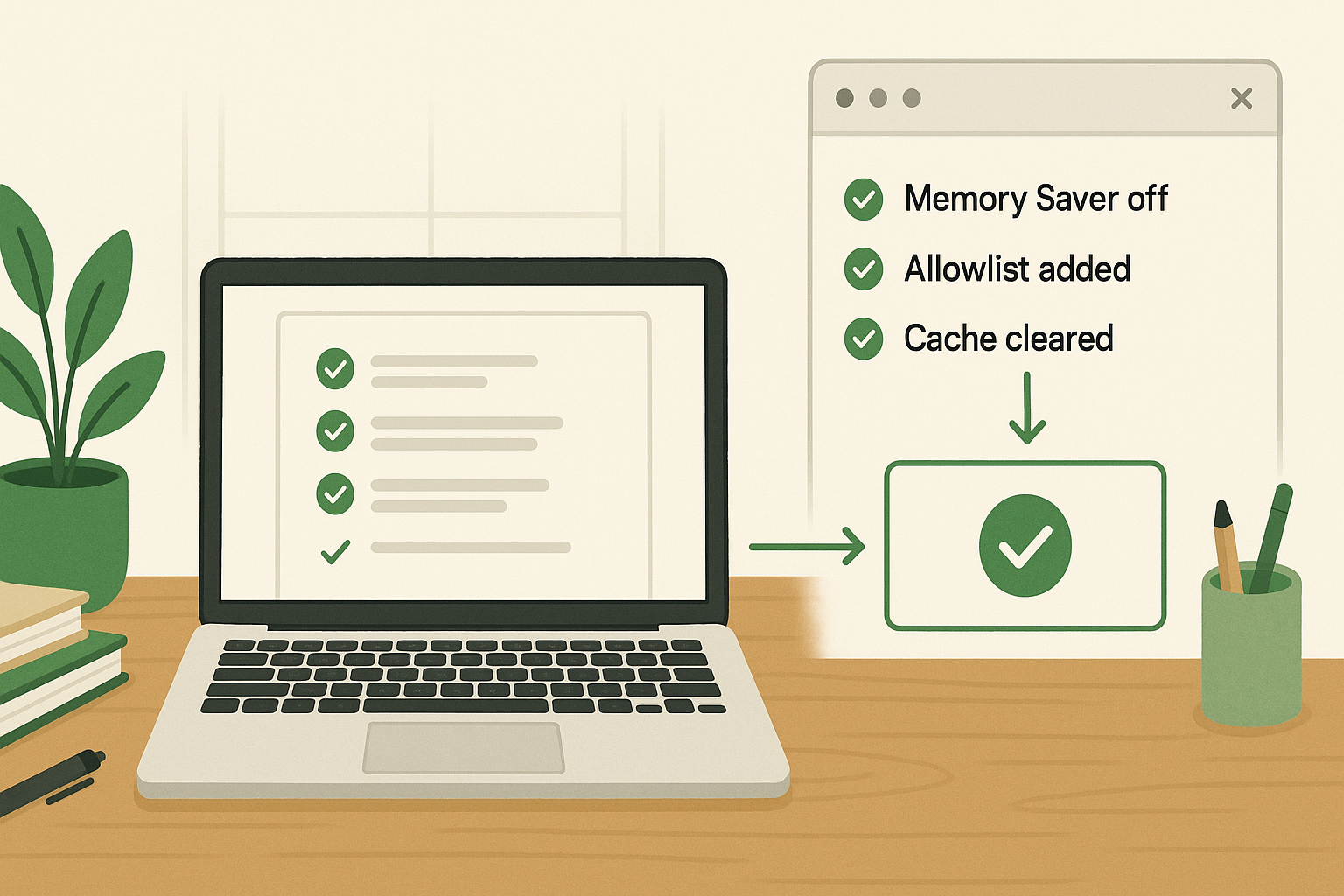
- Memory Saver off or Doc URL added to exception list
- Content-blocking extension allowlisted for Brisk domain
- Extension cache cleared and reloaded fresh
- Generate button produces output on first click
- Teacher reviews and edits AI draft against learning objective
- Feedback cycle that took an hour now takes roughly 10–15 minutes
The Workflow Value Block
Task
Generate student feedback on a written assignment via Brisk in Google Docs
Manual Approach
Write individual comments per student — typically 45–90 minutes for a class set
AI-Assisted Workflow
Brisk drafts feedback inline → teacher reviews and edits for accuracy and tone → roughly 10–20 minutes for the same set
Education Effect
More feedback cycles per term without increasing teacher workload — but only if the browser environment is not blocking output
Free Resource — AI Workflow Troubleshooting Checklist
If browser environment conflicts are blocking your AI tools, the underlying issue is almost always a repeatable checklist problem — not a one-time glitch. Download the AI EdTech Review Chrome Extension Conflict Checklist: a step-by-step diagnostic for teachers and course creators using AI tools in browser-based environments. Covers Memory Saver, script-blocking extensions, cache conflicts, and permission gaps.
Course Creator Note
Most of the time, Brisk isn’t actually failing — Chrome is just getting in the way. The spinner freezes, nothing appears, and suddenly a five-minute fix turns into an hour of rebuilding the lesson by hand.