

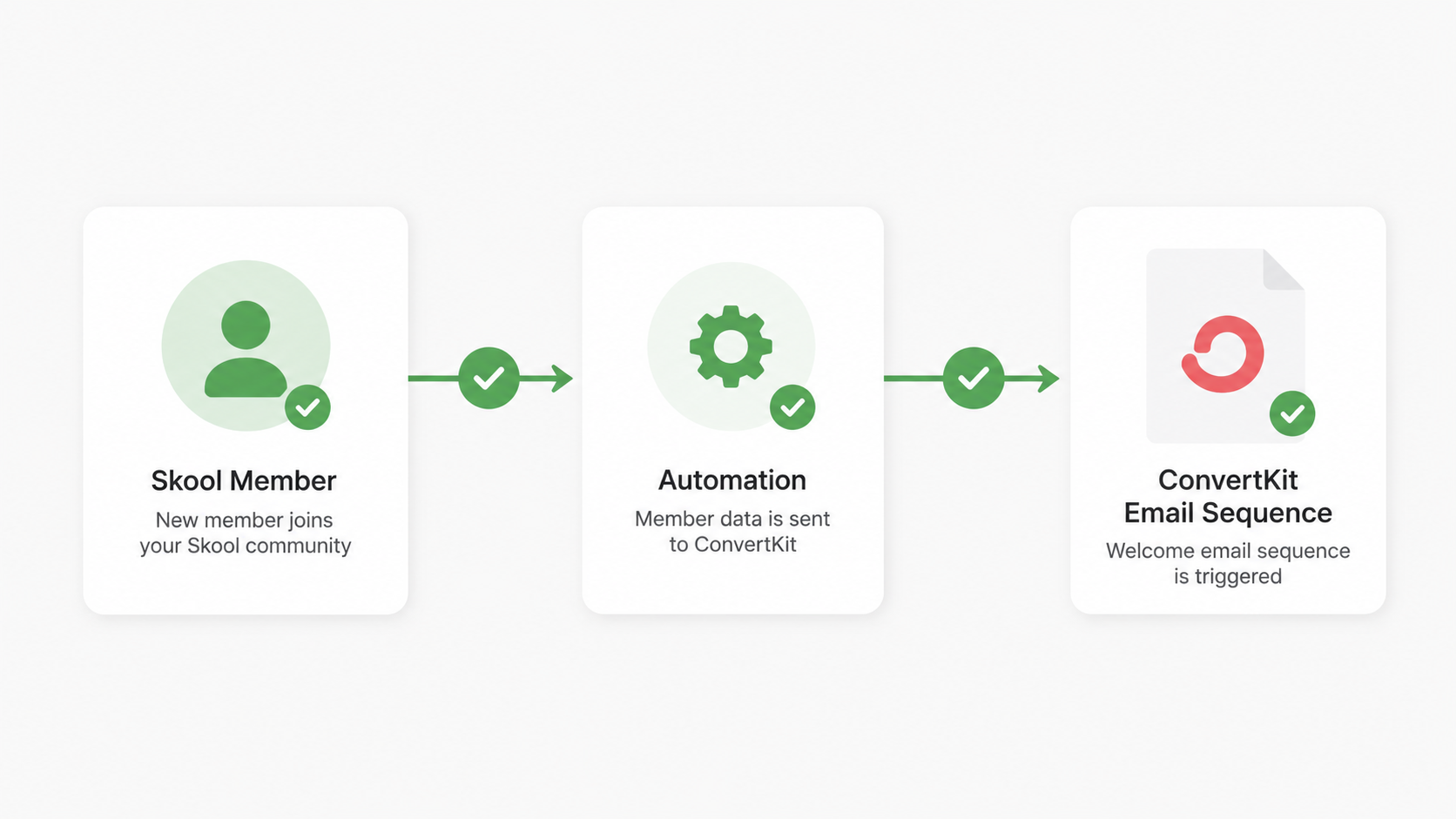
The problem is not Skool. The problem is that Skool and ConvertKit have no native connection. Every new member requires a manual step: copy email, add to list, apply tag, start sequence. At 10 members a week, that is manageable. At 50, it is a part-time job you did not sign up for.
This guide covers the exact setup for automating that handoff — using either Zapier or Make.com — including the trigger configuration, tag naming, failure handling, and the specific points where the workflow breaks silently without telling you.
Decision Snapshot
Best for: Course creators onboarding more than 10 new Skool members per month who need ConvertKit sequences to fire automatically without manual data entry.
Avoid if: You have fewer than 10 members per month — manual onboarding is faster than the setup time at that volume.
Time reality: First-time setup takes 2–3 hours including testing. Each subsequent workflow for a new group takes under 30 minutes.
Verdict: Use Zapier if you already have it for other workflows. Use Make.com if you want more control over error handling. viaSocket works for the basic trigger-action but has limited failure notification options.
Why the Manual Process Breaks at Scale
The failure pattern is predictable. At low volume, manual onboarding works fine. As membership grows, the copy-paste process introduces three specific failure modes:
Timing failures. Members added manually 12–24 hours after joining receive welcome sequences out of sync with their actual onboarding experience. The first email arrives after they have already explored the community on their own — or decided it was not worth it.
Tag errors. When multiple Skool groups exist — a free tier, a paid tier, a cohort — manual tagging introduces mismatches. A paid member gets tagged as free. A free member gets tagged as paid and receives course access they should not have.
Missed members. At 50+ members per month, the manual process develops gaps. Members who joined during high-traffic periods or outside business hours are missed. They never receive onboarding emails. They churn quietly, and the reason never surfaces in your data.
Automation eliminates all three failure modes — but introduces a different one: the workflow breaks silently and you do not know until a member complains.
The 30-Second Sync Integrity Audit
- Tag String Match: Open ConvertKit and Zapier side-by-side. Is one “Skool” and the other “skool”? If yes, your automation is already broken.
- Group ID Check: Did you use the Group Name? Bad move. Go to Skool settings and copy the numeric ID. Names change; IDs are forever.
- The Ghost Test: Join your own group with an alias. If the welcome email doesn’t hit your inbox in 300 seconds, stop everything and check the ‘Task History’ logs.
The Exact Setup: Zapier
Step 1 — Create the Zap
In Zapier: Create Zap → Trigger → Search “Skool” → Select “New Member in Group”
Connect your Skool account. Select the specific group you want to monitor. If you have multiple membership tiers, create a separate Zap for each group — do not try to handle multiple groups in a single Zap with filters at this stage.
Step 2 — Configure the Action
Action → Search “ConvertKit” → Select “Add Subscriber to a Form” or “Add Tag to Subscriber”
Map the fields:
- Email: map from Skool member email field
- First Name: map from Skool member name field
- Tag: use a consistent naming convention — recommended format:
skool_[groupname]_joined
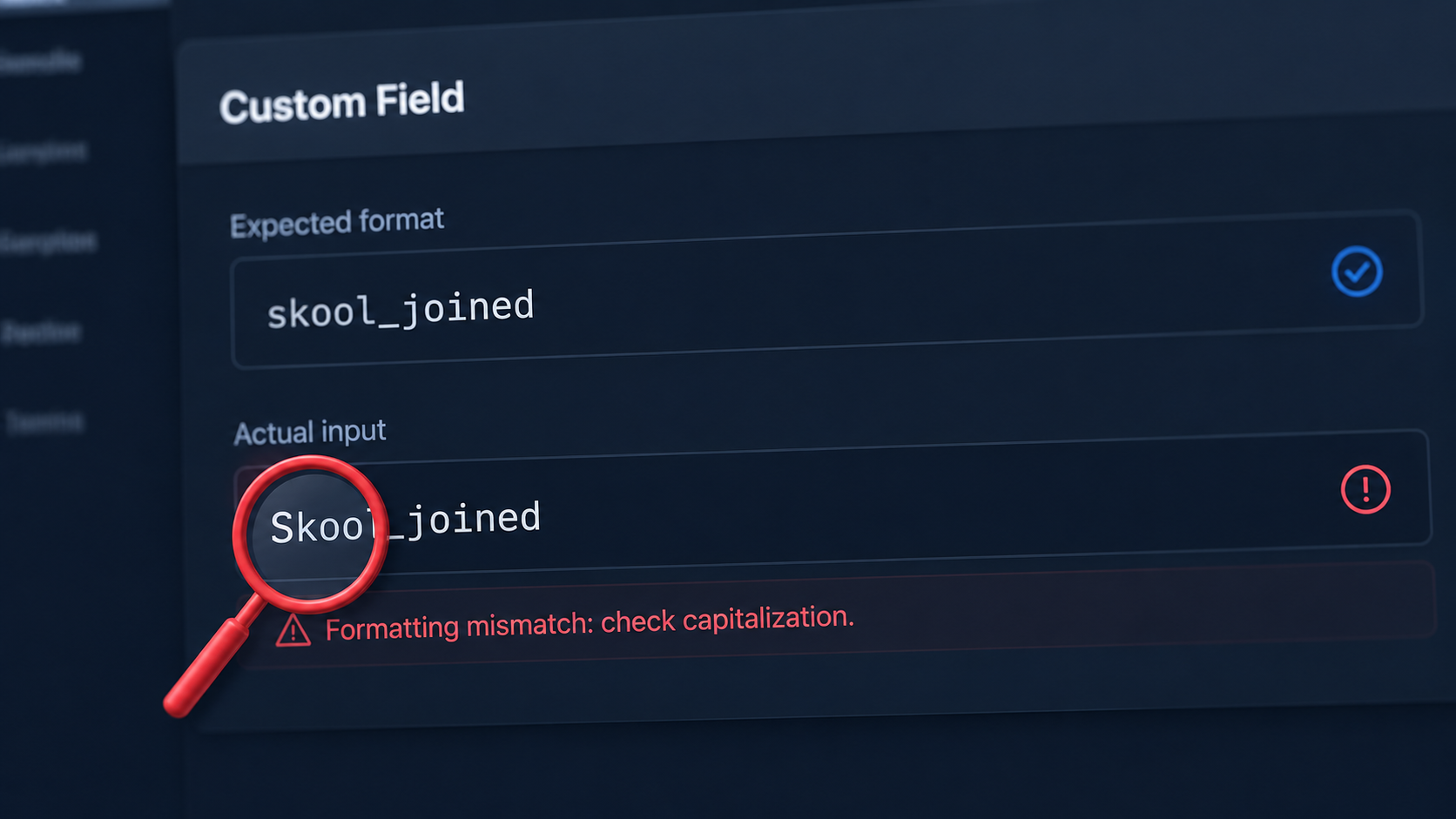
The tag naming convention matters. If you use Skool New Member in one Zap and skool-new-member in another, ConvertKit treats these as different tags. Your sequence triggers will misfire. Use lowercase with underscores and document the convention before you create the first Zap.
Step 3 — Build the ConvertKit Sequence Trigger
In ConvertKit: Automations → New Automation → Trigger: “Tag is added” → Select your tag
Build the sequence from the trigger. A working 5-email onboarding sequence for a course community:
- Email 1 (immediate): Welcome + community guidelines + quick-start resource
- Email 2 (Day 2): Course module access or first content piece
- Email 3 (Day 4): Community engagement prompt — ask a question, introduce yourself
- Email 4 (Day 7): Progress check + most common first-week questions answered
- Email 5 (Day 14): Success story or case study + next step offer
Step 4 — Test Before Activating
Create a test email address (Gmail + alias works: youremail+skooltest@gmail.com). Join your Skool group with that address. Watch Zapier’s task history — the trigger should fire within 1–2 minutes. Check ConvertKit for the new subscriber and confirm the tag was applied. Confirm the sequence starts.
If the sequence does not start within 5 minutes of the tag being applied, the automation trigger in ConvertKit is not correctly linked to the tag. Re-check the exact tag string — it must match character for character.
The Hidden Workload
The manual process does not feel expensive until you count it. At 3 minutes per member and 50 members per month, that is 150 minutes of data entry — every month, permanently. The automation setup takes 2–3 hours once and disappears from your workload entirely.
Make.com Setup (More Control, Better Error Handling)
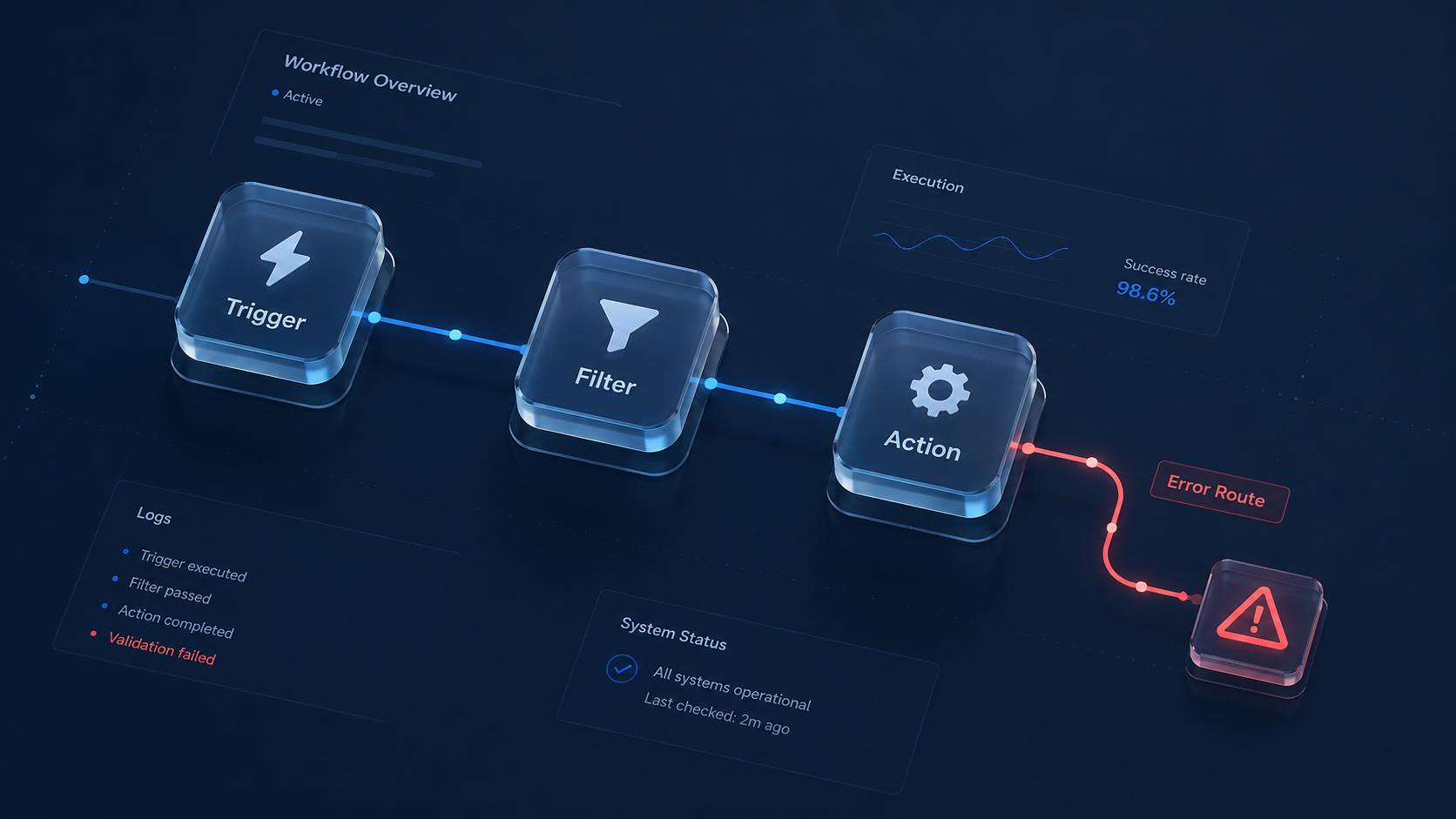
Make.com requires more initial configuration but gives you explicit error routing — which matters when the workflow breaks silently.
Scenario structure in Make.com:
Skool → Watch New Members (polling: every 15 min)
Group ID = [your specific group ID] — prevents cross-group contamination
ConvertKit → Add Subscriber (email + first name + tag)
ConvertKit → Add Tag to Subscriber (sequence trigger)
On failure → Gmail alert with member email + failure reason
The error route is not optional. Without it, Make.com logs the failure internally but you will not know until you check the scenario history manually. The Gmail alert means you catch failures within the hour and can manually onboard the affected member before they notice.
Zapier vs Make.com vs viaSocket — Practical Comparison
Zapier is the right choice if you already use it for other automations. The Skool and ConvertKit integrations are native. Setup takes 30–45 minutes for someone familiar with Zapier. Error notifications require a paid plan for multi-step error handling.
Make.com gives you explicit error routing at the free tier. The visual scenario builder makes the data flow transparent — you can see exactly what is being passed between Skool and ConvertKit, which makes debugging faster when something breaks. Setup takes longer (roughly 90 minutes first time) but the failure visibility is worth it.
viaSocket handles the basic trigger-action reliably for this specific pairing. It is the fastest to set up (under 20 minutes). The limitation: failure notifications require additional configuration, and complex multi-group scenarios are harder to manage than in Zapier or Make.com.
Pricing as of May 2026:
- Zapier Free: 100 tasks/month — enough to test, not enough for production at volume
- Zapier Starter: $19.99/month — covers up to 750 tasks
- Make.com Free: 1,000 operations/month — sufficient for most course creators
- Make.com Core: $10.59/month — 10,000 operations/month
- viaSocket: free tier available, paid from $49/month
Where This Breaks
Incorrect tag names. This is the most common failure mode. The tag in Zapier or Make.com must match the tag in ConvertKit’s automation trigger exactly — including capitalization and spacing. A mismatch means the sequence never starts. The subscriber gets added to ConvertKit but receives no emails. You will not know unless you check ConvertKit subscriber records manually.
Skool group ID changes. If you delete and recreate a Skool group, the group ID changes. Your automation trigger is pointed at the old ID and stops firing. All new members go unprocessed. Check the scenario logs in Make.com or task history in Zapier if new member volume suddenly drops to zero.
ConvertKit sequence not active. A ConvertKit automation must be set to “Live” to trigger. Draft automations do not fire. If you built the sequence but forgot to activate it, the tag is applied and nothing happens. Check the automation status in ConvertKit under Automations → [your automation] → Status.
Platform downtime. Both Zapier and Make.com experience occasional downtime. Members who join during a downtime window miss the automated trigger. Neither platform retroactively processes missed triggers by default. Check your integration platform’s status page if you suspect downtime caused missed onboarding.
Setup Checklist
- Document your tag naming convention before creating the first workflow — format:
skool_[groupname]_joined - Create the Zapier/Make.com trigger using the specific Skool group ID (not group name — IDs are stable, names are not)
- Map email, first name, and tag fields explicitly — do not use auto-mapping for the tag field
- Build the ConvertKit automation with trigger set to “Tag is added” → your specific tag
- Set the ConvertKit automation to “Live” before testing
- Test with a real email address — join the Skool group and confirm the sequence fires within 5 minutes
- Enable error notifications in Zapier (Task History alerts) or add Gmail error route in Make.com
- Check the scenario/task history weekly for the first month
- Document the exact tag name, sequence ID, and group ID in a reference doc for troubleshooting
FAQ
Does this work if I have multiple Skool groups?
Yes, but create a separate workflow for each group. Trying to handle multiple groups in a single workflow with conditional logic adds complexity that breaks during edge cases. One group, one workflow, one tag, one sequence.
What happens if a member joins while the automation is down?
They will not receive the welcome sequence automatically. Make.com and Zapier do not retroactively process missed triggers. Check your task history or scenario logs after any suspected downtime and manually add missed members to ConvertKit with the correct tag.
Can I use this with Kit (ConvertKit’s rebranded name)?
Yes. ConvertKit rebranded to Kit in late 2024. Zapier and Make.com integrations updated accordingly. Search for “Kit” in Zapier’s app directory if “ConvertKit” does not appear as an option.
How do I verify the sequence is actually firing for new members?
In ConvertKit: Subscribers → search the test email → click the subscriber → check the Activity tab. You should see “Tag added: [your tag]” and “Entered automation: [your sequence name]” within 5 minutes of the Skool join event.
Get the Make.com Scenario Template
The full Make.com scenario JSON for this workflow — importable directly into your account. Includes the Skool trigger, group ID filter, ConvertKit tag action, and Gmail error routing. Join the list and get it sent directly.
The Practical Takeaway
The automation is not the hard part. The hard part is the tag name mismatch you will not notice until a member emails asking where their welcome sequence is. Document the tag convention first. Test with a real email. Then forget about it — which is the point.