
The rubric was loaded. The document was attached. Brisk returned 0% — “No content found” — for every single student submission. Nothing in the interface explained why, and searching the problem turns up almost nothing useful: a few forum posts, some generic cache-clearing advice, and one outdated tutorial that assumes the extension isn’t installed correctly. None of it touches the actual failure layer.
The extension was working fine. The grading pipeline wasn’t. And the gap between those two facts is where most teachers lose an hour they didn’t have.
What Search Results Get Wrong About This Error
When you search “Brisk Grade 0% not working” or “Brisk no content found,” the first page is almost entirely community forum threads and generic AI tool troubleshooting guides. Most of them point to reinstalling the Chrome extension, clearing the browser cache, or checking whether the student shared the document correctly. A few suggest the rubric format is the issue.
Those paths aren’t useless — but they’re downstream of the real problem. They assume the failure is in the tool’s connection to the document. It usually isn’t. The failure is in what the tool can actually see inside the document. Brisk’s grading feature is, at its core, a vision and text-extraction task. If the source material is a scanned PDF with low contrast, a photographed worksheet, or a handwritten submission with inconsistent letterforms, the AI isn’t malfunctioning — it’s returning an accurate result for unreadable content.
No tutorial on page one says that. Most assume clean digital text as a baseline. If your students are submitting photos of handwritten work, you are operating outside that baseline without knowing it.
The Wrong Diagnosis Most Teachers Try First
The natural assumption when Brisk returns 0% is that something broke in the grading setup — wrong rubric format, misaligned criteria, maybe a permission issue with the Google Doc. So the troubleshooting sequence usually goes: check the rubric, re-share the document, reload the extension, try a different browser profile. Some teachers reinstall Brisk entirely.
One submission that failed this way looked, on screen, like a perfectly readable typed document. The student had photographed their handwritten answers, uploaded the image to Google Drive, and shared that link — not a typed Doc, not a converted PDF, but a raw JPEG embedded in a Slide. Brisk opened the file without error. It returned 0% because there was no extractable text layer. The image looked fine to a human reader at normal zoom. At the resolution Brisk was working with, the letterforms were degraded enough that OCR produced nothing usable.
The operating rule that matters here: if a human would struggle to read it at arm’s length, the AI cannot grade it. Keep that rule close. It applies to every submission format, not just handwriting.
Why This Is an OCR Problem, Not a Brisk Problem
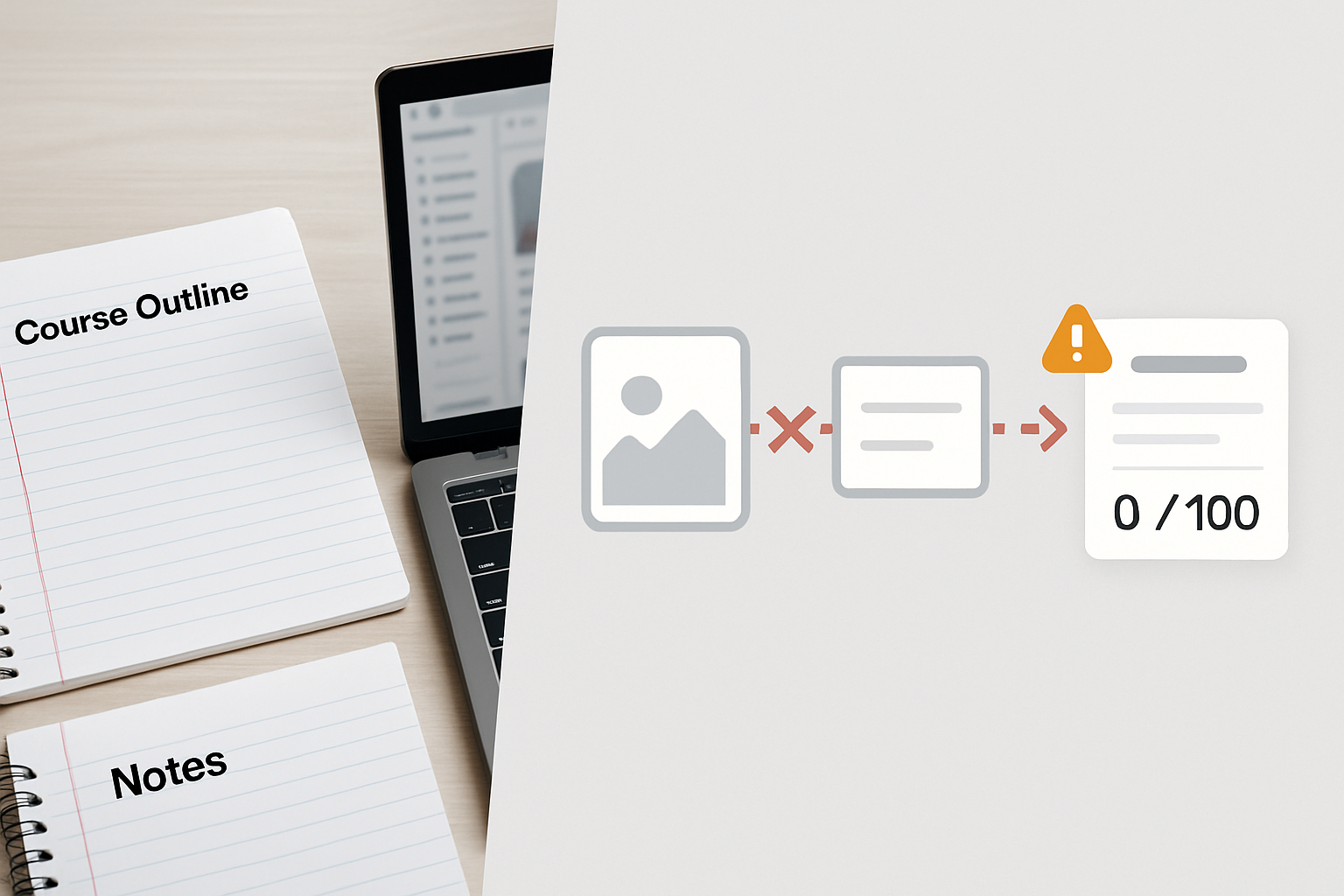
Brisk’s grading feature extracts text from the submitted document before it applies any rubric logic. If that extraction step returns empty or near-empty content, the grading score is 0% by definition — there’s nothing to evaluate against the criteria. The AI didn’t misread the work. It received a blank input.
This matters because the failure is invisible in the interface. Brisk doesn’t surface an OCR error message. It doesn’t tell you the document contained an image with no text layer. It returns a score of 0% or the “No content found” state, which looks exactly like a rubric mismatch or a tool failure. The visible symptom and the actual cause point to completely different fixes.
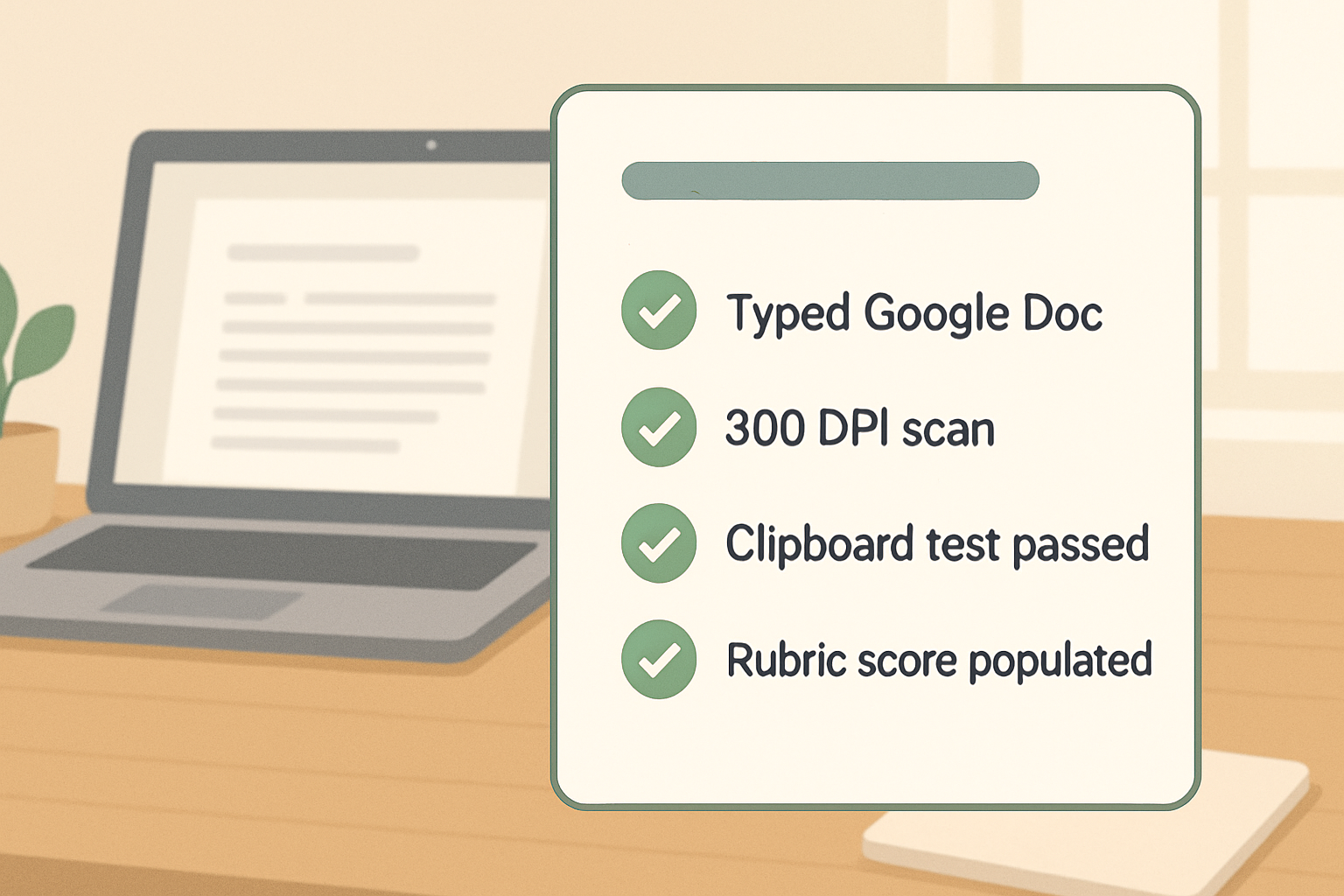
The technical signal most users miss: if you open the submitted document in Google Docs and press Ctrl+A to select all, then Ctrl+C to copy, then paste into a plain text editor — you will see exactly what Brisk sees. If the paste produces nothing, or produces only image placeholder tags with no readable text, Brisk will return 0%. That clipboard test takes about 15 seconds and tells you more than any extension reinstall.
This is the grading blindness: the document looks complete, the tool appears to be running, and the score comes back empty — all without a single visible error state in the workflow.
Before and After: What the Submission Actually Contains
BROKEN STATE — What Brisk Receives
Student photographs a handwritten worksheet on a phone. Uploads the JPEG to Google Drive. Shares the Drive link. Brisk opens the file, finds one image object with no text layer, extracts nothing. Rubric runs against an empty string. Score: 0%. No error message. No indication of what failed.
WORKING STATE — What Brisk Needs
Student types responses directly into a Google Doc and shares the Doc link. Or: student scans at 300 DPI minimum, high contrast, black ink on white paper, submitted as a PDF with OCR applied. Brisk extracts a full text string. Rubric applies normally. Score reflects actual work.
The shift between those two states isn’t about grading quality — it’s about whether grading is possible at all. Roughly half the “Brisk is broken” reports in teacher forums describe the broken state above without recognizing what separates it from the working one.
The Fix Sequence — Run This Before Anything Else
What This Actually Replaces
Manual re-grading sessions after a 0% return typically cost 20–40 minutes per batch — re-opening submissions, checking formats, re-running Brisk. Fixing the submission format upstream eliminates that loop entirely and makes the grading batch reusable across future assignments.
- Run the clipboard test first. Open the student’s submitted document in Google Docs or Drive. Press Ctrl+A, then Ctrl+C, then paste into any plain text editor (Notepad, TextEdit, or even a blank Google Doc). If you get readable text, the document has a usable text layer. If you get nothing or image tags, stop here — the format is the problem, not the extension.
- Identify the submission format. Check whether the file is: a typed Google Doc (safe), a high-quality scanned PDF with OCR (usually safe), a raw photo JPEG or PNG (will fail), a screenshot embedded in Slides (will fail), or a low-resolution scan below 200 DPI (likely to fail).
- For handwritten work specifically: require students to photograph on a white surface with strong overhead lighting, minimum phone resolution of 12MP, and convert using Google Drive’s built-in OCR (right-click the image in Drive → Open with → Google Docs — Drive will auto-apply OCR and create a text-layer copy).
- For scanned PDFs: require 300 DPI minimum, black ink on white paper, no grey pencil submissions. If your school scanner defaults to 150 DPI, change it under the scanner’s settings menu before the next batch — this single change typically resolves the majority of 0% returns on typed-but-scanned work.
- Re-run Brisk Grade on the corrected document. Do not re-run on the original file. Open the new text-layer version, confirm the clipboard test passes, then run the grading tool. If the score is still 0%, check whether the rubric criteria match the document’s language level — but that’s a separate, less common failure.
- Set a submission format requirement for the assignment going forward. Add one line to the assignment instructions: “Submit as a Google Doc with typed text, or as a PDF scanned at 300 DPI or higher. Image files and screenshots will not be accepted.” This prevents the format problem from recurring without requiring individual follow-ups.
Where This Fix Breaks — Two Edge Cases Worth Knowing
Edge Case 1: The Document Passes the Clipboard Test But Still Returns 0%
This happens when the document contains readable text but the text is in a language or script that Brisk’s extraction layer doesn’t handle cleanly — or when the student’s response is so short (one or two words per criterion) that the rubric matching algorithm finds no evaluable content. In this case, the OCR worked but the content density is too low for the grading model to anchor against. The fix is to check whether the rubric criteria require paragraph-length responses and whether the student actually wrote to that length. A submission of “Yes” and “No” for open-ended questions will often return 0% even with a perfect text layer.
Edge Case 2: Google Drive’s OCR Produces a Text Layer, But It’s Garbled
Drive’s built-in OCR is good for clean printed text. For cursive handwriting, pencil on lined paper, or any submission with a background pattern (graph paper, coloured paper, ruled lines), the OCR output can be worse than no output — it produces a text layer full of misread characters that Brisk cannot match against rubric language. The clipboard test will show text, but the text is unusable. The only reliable fix for this submission type is digital-first: the student types their response. If handwritten submission is a pedagogical requirement, accept that Brisk Grade will not reliably score it and use manual grading for that assignment type.
If a human would struggle to read it at arm’s length, the AI cannot grade it — and sometimes, even when a human can read it, the OCR layer cannot reconstruct it cleanly enough for the rubric to fire.
Copy-Paste Prompt: Assignment Instructions That Prevent This Problem
Add this block to any assignment where you plan to use Brisk Grade. It takes 10 seconds to paste and eliminates the format problem for most students before they submit.
Please submit your work in ONE of these formats only:
1. A Google Doc with your response typed directly into the document (preferred).
2. A PDF scanned at 300 DPI or higher — black or blue ink on white paper only.
Do NOT submit:
– Photos of handwritten work (JPEG, PNG, HEIC)
– Screenshots of typed documents
– Google Slides with embedded images
– Pencil on lined or coloured paper
If you are unsure whether your file is in the right format, open it in Google Docs, select all the text (Ctrl+A), and check whether you can copy and paste the words into a new document. If you can, the format is correct.
Paste this into Google Classroom, Canvas, or whichever LMS you use. Students who follow it will produce documents Brisk can grade. Students who don’t will self-diagnose the problem before submitting.
What Brisk Grade Does Not Solve
Even with a clean text layer and a well-structured rubric, Brisk Grade is not a replacement for human judgment on ambiguous responses. It scores against explicit rubric language — if a student’s answer is technically correct but phrased in a way that doesn’t match the rubric’s vocabulary, the score will be lower than a teacher would assign manually. The tool works best when the rubric criteria are written in plain, specific language that overlaps with how students actually write, not in abstract academic phrasing.
It also does not handle multi-modal submissions — a document that contains both typed text and embedded diagrams, charts, or images will be scored only on the text portion. If the assignment requires students to interpret a graph or annotate an image, Brisk will score the written commentary but not the visual work. That’s not a bug. It’s a constraint worth knowing before you build the assignment around it.
And if the rubric itself is vague — criteria like “demonstrates understanding” without specifying what evidence counts — the 0% return may actually be the tool telling you something useful about the rubric, not the submission.
If you are working with a grading batch right now, run the clipboard test on the 0% submissions before touching the extension settings. That test will split the batch into two groups: fixable format problems and genuine rubric mismatches. Fix the format problems with the Drive OCR conversion or a resubmission request, then re-run. Most 0% returns in a single batch will cluster in the same format failure — one student submits a photo, and then several others copied the same submission method from the assignment instructions they shared. Fix the instructions, and the next batch runs clean.
Classroom Reality
The grading blindness this article describes — a submission that looks complete but contains nothing Brisk can read — is a format problem, not a tool problem. It compounds fast across a class set: if 8 of 30 students submit photos instead of Docs, you lose the grading efficiency for those 8 and often don’t know why until you’ve already spent time debugging the wrong layer.
Set the submission format requirement before the first Brisk-graded assignment. Check it once mid-semester when a new assignment type is introduced. The clipboard test takes 15 seconds per submission and tells you exactly what the tool can see.
Free Resource: AI Grading Workflow Checklist
If you want a reusable checklist for preparing AI-ready assignments — covering submission format, rubric structure, and Brisk-specific setup steps — AI EdTech Review has a free grading workflow reference available to newsletter subscribers. It covers the full pre-submission chain, not just the format check.