

The “Sign in with Google” button worked yesterday. Today it just reloads the page — same screen, same button, same result, forever. No error message. No explanation. Just a loop that looks like a server problem but isn’t one.
Before you file a support ticket or blame the school’s IT setup, check the browser first. The redirect isn’t coming from Grammarly’s authentication server. It’s coming from inside Chrome itself, and the fix takes about four minutes once you know what you’re looking at.
What the Search Results Will Tell You (And Why It’s Wrong)
Search “Grammarly school login loop Chrome” and the first page is almost entirely forum threads from 2021 and 2022, most of them pointing at the same three suggestions: clear your cache, disable extensions, try incognito mode. Some suggest checking Grammarly’s status page, which will almost certainly show all systems operational — because the systems are operational. Grammarly’s SSO infrastructure isn’t down. Your local browser environment is the problem, and no status page will tell you that.
Nearly every tutorial that ranks for this issue treats it as a network or server failure. It isn’t. It’s a profile conflict — specifically, a Chrome profile that has accumulated competing Google account sessions, and Grammarly’s SAML-based SSO cannot resolve which identity to authenticate against. The redirect loop is the browser caught between two sessions, neither of which wins.
Don’t trust the screen. Trust the profile. That’s the operating rule here, and it’s worth holding onto as you work through the fix.
Profile Pollution: The Actual Cause of the Loop
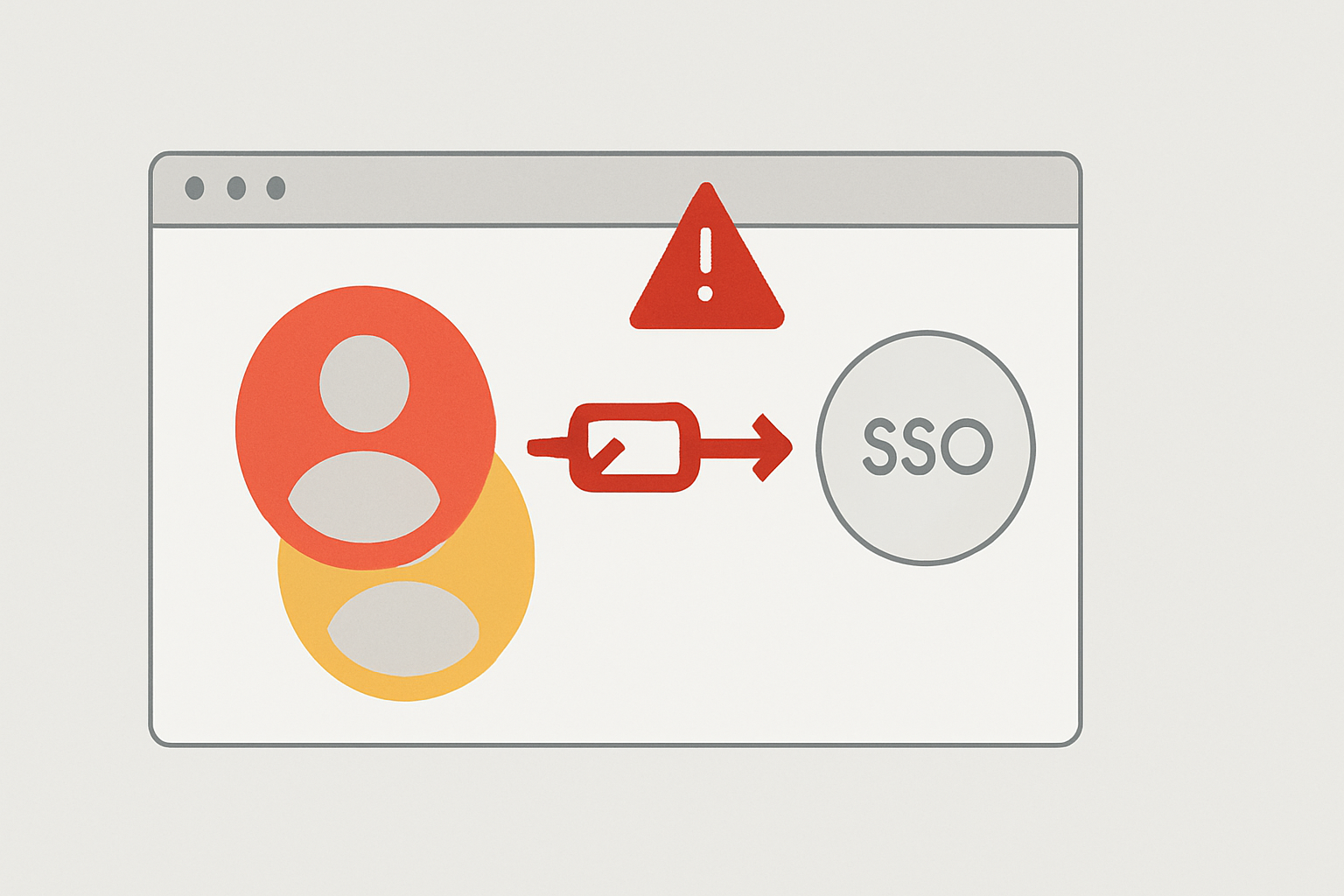
Most educators and students use Chrome for everything — personal Gmail, school Google Workspace, YouTube, and Grammarly — all inside one browser profile. Over time, that profile accumulates stored sessions, cached tokens, and competing identity cookies from multiple Google accounts. When Grammarly’s SSO initiates a SAML authentication request and routes it through Google as the identity provider, Chrome has to decide which Google session to hand back. If it can’t resolve that cleanly — because a personal account and a school Workspace account are both active — it bounces the request back to the Grammarly login screen. That bounce is what the loop looks like from the outside.
This pattern is specific to school-managed Grammarly accounts on the Education or Business plan, where SAML SSO is enabled by the admin. Personal Grammarly accounts that use standard Google OAuth don’t hit this wall in the same way because there’s no SAML assertion to resolve. The moment SSO is in the picture, profile hygiene matters enormously.
Incognito mode sometimes breaks the loop temporarily — which is why it appears in forum fixes — but it doesn’t solve it permanently. Incognito strips the cached sessions, which removes the conflict, but the moment you return to a normal window with both accounts active, the loop comes back. The fix isn’t clearing the cache. It’s separating the accounts at the profile level, so the conflict cannot form in the first place.
The Fix: Create a Dedicated School Chrome Profile
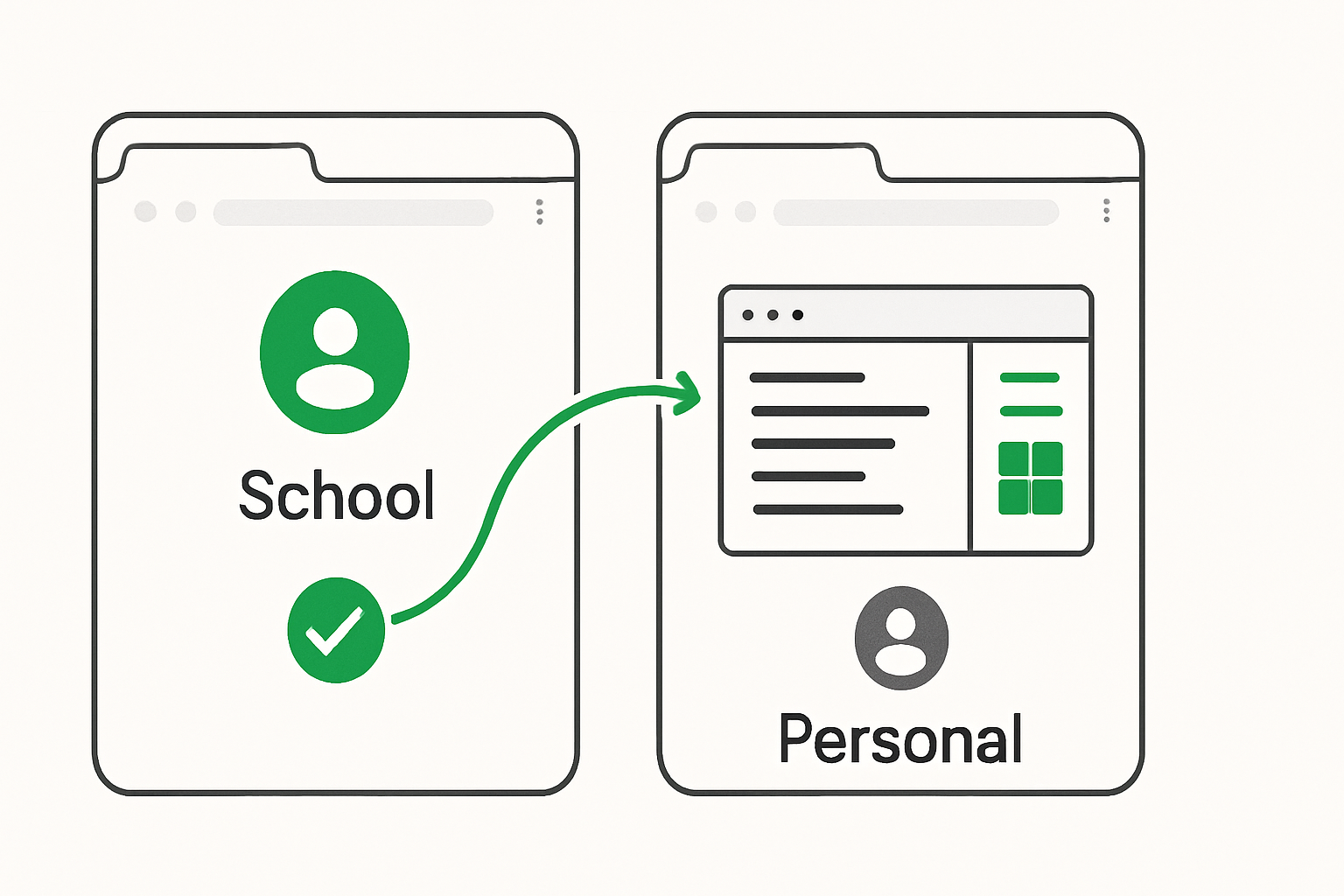
The permanent solution is a Chrome profile that contains only your school Google account — no personal Gmail, no mixed sessions, no residual tokens from a home account. Grammarly’s SSO will find exactly one Google identity in that profile, authenticate cleanly, and never loop.
Here is the exact sequence:
- Open Chrome and click the profile icon in the top-right corner of the browser window (it shows your name or a letter avatar).
- Select Add at the bottom of the profile dropdown — this opens the profile setup screen.
- Choose Sign in to Chrome and enter your school Google Workspace account credentials only. Do not add your personal Gmail here.
- Name the profile something unambiguous — “School” or your institution name works — so you don’t accidentally open the wrong one under time pressure.
- Once the profile loads, open a new tab and navigate to app.grammarly.com.
- Click Sign in with Google. Chrome will find exactly one Google account in this profile and pass it to Grammarly’s SSO without a conflict.
- If your school uses an identity provider like Okta or Microsoft Entra ID rather than Google directly, sign in through your identity provider’s dashboard instead — Grammarly should appear as a listed application there. Do not use the Grammarly login page directly when SAML is active.
- Bookmark Grammarly inside this profile only. Do not open Grammarly from your personal profile again.
Switch between profiles using the profile icon in the top-right corner of Chrome — it takes under three seconds. Keep the school profile for anything touching your school Google account, and the pollution problem cannot recur.
Before and After: What Changes When the Profile Is Clean
Broken State — Mixed Profile
Chrome holds active sessions for a personal Gmail account and a school Workspace account simultaneously. Clicking “Sign in with Google” on Grammarly initiates a SAML request. The identity provider responds, but Chrome cannot cleanly resolve which session to return. Grammarly receives an ambiguous or failed assertion and redirects back to the login page. The loop runs indefinitely. The browser console may show a redirect chain terminating with a 302 back to app.grammarly.com/signin — which is not a server error, it’s a failed SSO handshake.
Working State — Isolated School Profile
Chrome holds exactly one active Google session — the school Workspace account. Clicking “Sign in with Google” sends a SAML request that resolves against a single, unambiguous identity. Grammarly receives a valid SAML assertion and completes authentication in one step. No redirect. No loop. The Grammarly editor loads directly.
Don’t trust the screen. Trust the profile. If the screen shows a login page after clicking sign-in, the profile is the first thing to check — not the network, not the server status.
Where This Fix Breaks (And What to Check)
What This Actually Replaces
A dedicated school Chrome profile replaces the endless cycle of cache-clearing, extension-disabling, and incognito workarounds that teachers and students repeat every few weeks — each of which costs roughly 10–15 minutes and solves nothing permanently. One profile setup, done once, removes the conflict at the source.
The isolated profile fix handles the majority of SSO loop cases, but there are three failure modes worth knowing before you assume the problem is fully resolved:
The school’s SAML configuration is wrong. If the Grammarly app inside your identity provider (Okta, Google Workspace Admin, Microsoft Entra ID) has an incorrect ACS URL or Entity ID, authentication will fail regardless of how clean your Chrome profile is. The error Grammarly surfaces in this case is “No SSO settings found” — which is a configuration error on the admin side, not a browser problem. If you see that message after creating a clean profile, escalate to your IT admin rather than continuing to troubleshoot the browser.
The school account is not provisioned in Grammarly. SAML SSO on Grammarly’s Education and Business plans requires that user accounts be added by the admin before SSO will authenticate them. If your account hasn’t been provisioned, the SAML assertion will succeed but Grammarly will still reject the login. The fix is the same: contact the admin, not the browser.
A second Google account was accidentally added to the school profile. This is the most common way the fix degrades over time. If a user signs into a personal Google service inside the school Chrome profile — even once — the session pollution begins again. The rule is strict: the school Chrome profile must contain only the school Google account, permanently.
Copy-Paste Diagnostic: What to Check Before You Touch the Browser
SSO Loop — First Diagnosis Checklist
☐ 1. Open Chrome → click profile icon (top right) → count how many Google accounts are signed in to this profile. If more than one → this is the cause.
☐ 2. Check browser console (F12 → Console tab) while attempting Grammarly login. A redirect loop terminating at app.grammarly.com/signin confirms SSO handshake failure, not a server outage.
☐ 3. Confirm your school uses SAML SSO: ask your IT admin or check whether Grammarly appears in your Okta / Google Workspace / Entra ID app dashboard. If yes, do not use Grammarly’s login page directly — use the identity provider dashboard.
☐ 4. If you see “No SSO settings found” after a clean profile attempt → the SAML configuration in the identity provider is incorrect. This is an admin fix, not a browser fix.
☐ 5. If login succeeds but Grammarly still rejects entry → your account may not be provisioned in the Grammarly admin panel. Contact your school’s Grammarly admin directly.
This Keeps Happening Because One Profile Does Too Much
The deeper pattern here is not specific to Grammarly. Any school tool that uses SAML SSO — Google Classroom, Canvas, Schoology, any LMS tied to a Workspace identity — will produce the same redirect failure when Chrome is carrying mixed account sessions. Grammarly surfaces it visibly because its login flow has nowhere to fall back to when the SAML assertion fails. Other tools may fail more silently: a document that won’t load, a grade sync that doesn’t complete, a submission that appears to go through but doesn’t register.
Don’t trust the screen. Trust the profile. A single Chrome profile trying to serve both a personal and a school identity is a reliability liability for every SSO-dependent tool in the stack, not just Grammarly. The four minutes it takes to create a clean school profile is the cheapest infrastructure decision available to any educator or student running school tools in Chrome.
If you manage a classroom or a course cohort and students are reporting Grammarly login failures, the fastest triage question is not “did you clear your cache?” — it’s “how many Google accounts are signed in to that Chrome profile?” The answer will almost always be more than one.
Classroom Reality
For teachers managing a classroom set of Chromebooks or shared school laptops, the risk compounds fast: students who log into a personal Google account on a shared device before opening Grammarly will poison the SSO session for the next user. The fix at scale is a managed Chrome policy that restricts which Google accounts can be added to the school browser profile — something an IT admin can enforce through Google Admin Console under Devices → Chrome → Settings → Sign-in settings. That removes the browser-level conflict before it reaches any individual user’s workflow.
At the individual level, the threshold is simple: if Grammarly’s login page appears more than once after clicking sign-in, stop clicking and check the profile first. Every click after the second one is wasted time.