

The slides look perfect on screen — layout clean, colors matched, content structured. Then you click a text block and nothing responds. No cursor. No selection handle. The whole slide behaves like a screenshot someone dropped into a document.
Before assuming the AI generation failed, or that Slidesgo produced a broken file, check one thing: the format you exported in. That single decision — made in about three seconds during download — determines whether you get an editable presentation or a beautifully formatted image stack.
What Most People Try First (And Why It Doesn’t Help)
When you search this issue, the first page is almost entirely forum threads and generic troubleshooting guides. Most of them point toward browser cache, Google account permissions, or reinstalling the Slides app. A few suggest downloading again and re-uploading. Nearly every result assumes the file itself is corrupted or that Google Slides failed to parse it correctly.
None of that addresses the actual cause, because the file is not corrupted. It opened fine. It rendered perfectly. The problem happened before the download, not after it. The format was set to static during export, and Google Slides has no mechanism to reverse-engineer editable objects from flattened image layers. Re-downloading the same file in the same format produces the same locked slides.
The real cost here is not the missing edit functionality — it’s the fifteen minutes spent cycling through browser fixes that have no connection to the actual failure layer.
The Format Split: Image-Based vs. Theme-Based Export
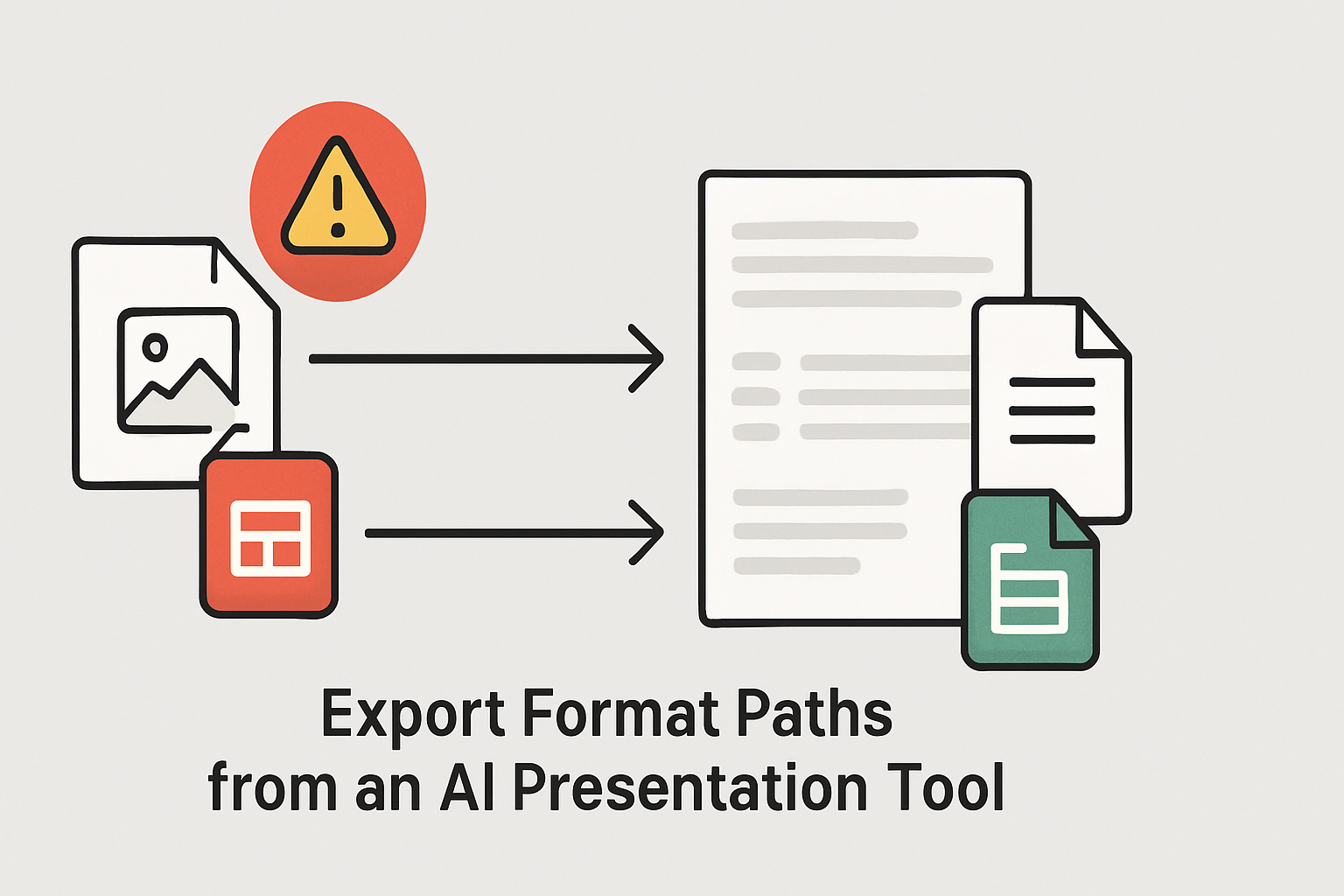
Slidesgo’s AI presentation generator offers more than one output format, and the difference between them is not cosmetic. When you export as an image format — or when the tool defaults to a static output to reduce file transfer size — each slide is rendered as a flat graphic. Google Slides receives that graphic, displays it correctly, and gives you no editable objects because there are none. The text, shapes, and layout are baked into the image layer.
When you export using the Google Slides theme format, the tool instead builds a native Slides structure: real text boxes, editable placeholders, adjustable shapes, and slide master logic that Google Slides can read and manipulate. That is the version that behaves like a presentation instead of a photo album.
WHAT THIS ACTUALLY REPLACES
Rebuilding a Slidesgo template manually in Google Slides — matching fonts, layout grids, and color themes — typically takes between 45 minutes and two hours depending on slide count. Getting the export format right the first time replaces that entire rebuild with a two-minute download correction.
AI-to-slide tools often default to static formats because rendered images are smaller, faster to transfer, and visually identical to the editable version on first glance. The failure is invisible until you try to type.
The Google Drive Authorization Layer
There is a second failure point that appears even when the format is correct. When Slidesgo generates a presentation and offers to send it directly to Google Drive, it requires OAuth authorization — a permission handshake between Slidesgo’s platform and your Google account. If that authorization was skipped, expired, or completed under a different Google account than the one you’re working in, the file either fails to transfer or lands in the wrong Drive entirely.
The symptom looks identical to a format problem: slides open but behave as read-only, or the file appears in Drive but cannot be located in the correct account. Checking which Google account is active in your browser before authorizing Slidesgo is not optional — it determines where the editable file lands and whether the theme structure survives the transfer intact.
If you authorized Slidesgo while logged into a personal Gmail account but are now working in a school or organizational Google Workspace account, the editable file exists — it’s just in the wrong Drive. Re-authorizing under the correct account and regenerating the export resolves it without touching browser settings.
The Fix Sequence — Run This Before Anything Else
Operating rule: If you can see it but can’t click it, the format was wrong at export — not at import.
Use this sequence exactly as written. Do not skip the authorization check even if you believe you are already signed in.
- Return to Slidesgo and open the AI presentation generator for your topic.
- When the presentation is generated, locate the export or download options — do not click the first available download button.
- Select Google Slides as the export format explicitly. If the option reads “PowerPoint (.pptx)” or shows an image format, change it before proceeding.
- When the Google authorization prompt appears, confirm that the Google account shown matches the Drive account you intend to work in. If it does not, click the account switcher and select the correct account before approving access.
- Approve the Drive permission request — Slidesgo needs write access to your Drive to place an editable file rather than a downloaded static export.
- Open the file directly from Google Drive (not from a downloaded file on your desktop). Files opened from Drive retain the full editable theme structure; downloaded files re-uploaded manually may lose it depending on your browser’s handling.
- Click any text block on the first slide. If a cursor appears, the export succeeded. If the slide still behaves as an image, repeat from step 2 — the authorization likely completed under the wrong account.
BEFORE / AFTER STATE CHECK
Broken state: Slide opens in Google Slides. Clicking any element produces no cursor, no selection box, no resize handles. The entire slide background is selectable as a single image object.
Working state: Each text box is independently selectable. Clicking a title shows a blinking cursor. Layout placeholders can be moved, resized, or deleted. The slide master is accessible under Slide → Edit Theme.
Where This Fix Breaks Down
The sequence above covers the most common path. Two edge cases produce different failure modes that the same steps will not resolve.
Free plan export limitations. Slidesgo’s free tier may restrict direct Google Drive export or limit theme-based output to a watermarked version. If the Google Slides export option is greyed out or absent during download, the account tier is the constraint — not the format selection. Upgrading or using the PowerPoint export followed by manual upload to Drive is the workaround, though the PowerPoint route occasionally flattens certain design elements during conversion.
Organizational Google Workspace restrictions. Some school and university Google Workspace accounts block third-party OAuth connections at the admin level. In that case, the Slidesgo authorization prompt either fails silently or returns an error message. The editable file never reaches Drive, and downloading the static version becomes the only available path. The fix requires an administrator to whitelist Slidesgo’s OAuth client ID under Admin Console → Security → API Controls → App Access Control — a change that affects the entire organization, not a single account.
If you exported as PowerPoint and then uploaded to Drive manually: Google Slides converts .pptx files during upload, but complex AI-generated layouts sometimes lose editable text layers during that conversion. The slide may appear editable but contain text rendered as a shape fill rather than a true text object. Test by triple-clicking a text block — if it selects the entire shape instead of the text content, the conversion failed at that element.
Copy-Paste Export Format Check — Use Before Every Download
Run this check every time you download from any AI presentation generator, not just Slidesgo. The format default changes depending on which button you click first.
COPY-PASTE FORMAT CHECKLIST — SLIDESGO AI EXPORT
☐ Export format reads “Google Slides” — not PDF, not PNG, not PowerPoint
☐ Google account shown in the auth prompt matches your working Drive account
☐ Drive permission was approved in this session (not carried over from a previous login)
☐ File was opened from Google Drive directly — not from a desktop download folder
☐ First text block click produces a cursor, not a shape selection
☐ Slide → Edit Theme is accessible (confirms theme structure is intact)
If any item fails, the fix is always upstream — return to the export step, not the Google Slides settings.
Operating rule: If you can see it but can’t click it, the format was wrong at export — not at import. Carry that forward to every AI presentation tool you use. The symptom is consistent across platforms; only the export menu location changes.
What a Working Slidesgo AI Presentation Actually Gives You
Once the export format is correct and the Drive authorization resolves cleanly, the editable Slidesgo AI presentation behaves like a native Google Slides file. Slide masters are intact, meaning color scheme changes propagate across all slides from a single edit. Text placeholders are real text boxes — searchable, screenreader-compatible, and indexable by Google Drive search. Layout grids are built from shape objects rather than image layers, so repositioning elements does not degrade visual quality.
For course creators building module decks or teachers assembling unit presentations, that structure means the AI-generated layout is a starting point, not a finished artifact. Roughly 80% of the design work — layout, hierarchy, color logic — is already done. What remains is content editing, which takes minutes per slide rather than the 20-to-40 minutes a manual build from a blank template typically requires.
The limitation worth naming: Slidesgo’s AI content generation reflects what the model was trained on, which means topic-specific accuracy needs human review before any presentation goes in front of students or clients. The structure is reliable. The factual content is not self-verifying.
If you want a structured workflow for adapting AI-generated presentations into classroom-ready materials — including a slide audit checklist and a content review sequence — the AI Visual Content Workflow Guide on AI EdTech Review walks through the full adaptation process, from export format selection through final slide review.
CLASSROOM REALITY
The AI generated the presentation correctly. The export format discarded the editable structure before the file reached your Drive. Every minute spent debugging Google Slides settings is a minute aimed at the wrong layer.
Run the six-item checklist above before opening any AI-generated slide file. If item five fails — cursor does not appear on click — go back to the export menu. That is the only place the fix exists.