

The feedback draft was there on Thursday. By Friday morning, after a routine Chrome cache clear, it was gone — no warning, no recovery prompt, no trash folder to check. If you searched for an answer, you already know what page one looks like: forum threads about ChatGPT history, Chrome recovery tools for browsing data, and a Brisk FAQ page that doesn’t mention local storage once. None of those results explain what actually happened to your lesson drafts.
Most guides assume the data lives somewhere permanent. With Brisk, that assumption is the wrong starting point entirely.
The Wrong Diagnosis Most Users Make First
When Brisk history disappears after a cache clear, the instinct is to check the extension itself — reinstall it, log out and back in, check whether the account subscription is still active. Some users file a support request assuming the tool deleted their data server-side. Others spend time looking through Google Drive for auto-saved files that never existed.
The real cost here is not the missing draft — it’s the twenty minutes spent looking in places that were never connected to the data in the first place.
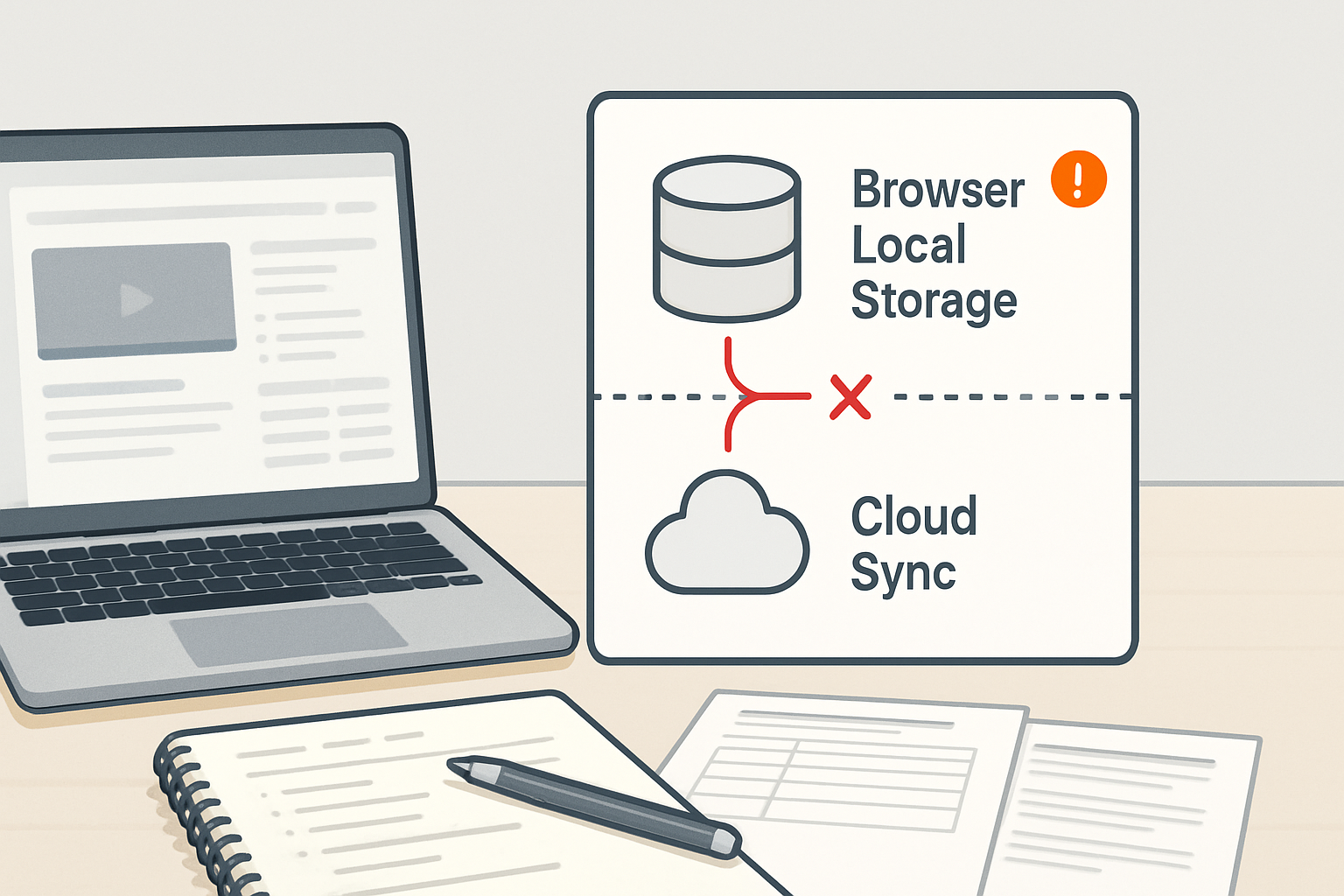
Brisk does not store your session history in the cloud the way a platform like Google Docs or Notion does. There is no sync icon in the corner. There is no version history tab. When the extension generates feedback, a rubric draft, or a lesson outline and you don’t export it, that output lives in Chrome’s local storage — a browser-side cache layer tied to the extension’s origin. Clear the cache, and local storage goes with it.
What Local Storage Actually Means for Extension Data
Chrome extensions can store data in two ways: through local storage (session-scoped, browser-resident) or through a synced cloud account tied to the tool’s backend. Brisk uses the first method for session-generated content. That means every draft, feedback comment, and AI output lives in the same partition that Chrome clears when you run “Clear browsing data” with the “Cached images and files” or “Cookies and other site data” boxes checked.
Here’s the technical contradiction most users miss: the Brisk extension remains visible and functional in the Chrome toolbar after a cache clear. The icon is there. The tool loads. It looks exactly as it did before. But the session history — every draft generated in previous sessions — is gone. The UI gives no signal that anything was lost. There is no error message, no broken state indicator, no console warning visible to the user. The extension appears operational because it is operational; it just has no memory of what it generated before.
This is the gap between “the extension works” and “the extension remembers.” They are not the same condition.
Before and After: What the Two States Actually Look Like
Before cache clear (working state)
Brisk extension shows previously generated drafts in the sidebar panel. Feedback comments, rubric drafts, and lesson outlines from earlier sessions are accessible. Clicking into the extension history loads the prior output without re-prompting.
After cache clear (broken state)
Extension loads normally. Toolbar icon is present. No error message appears. The history panel is empty or shows only the current session. All prior drafts are unrecoverable from within Brisk. The extension has no indication that data was lost.
If you are reading this after the clear already happened: the drafts stored only in local storage are not recoverable through Brisk, Chrome history tools, or Google My Activity. Chrome’s browsing history recovery methods (checking Google My Activity, using file restore tools) apply to visited URLs — not to extension-generated content stored in local storage partitions. Those are separate data layers.
The Fix: Export Before You Clear
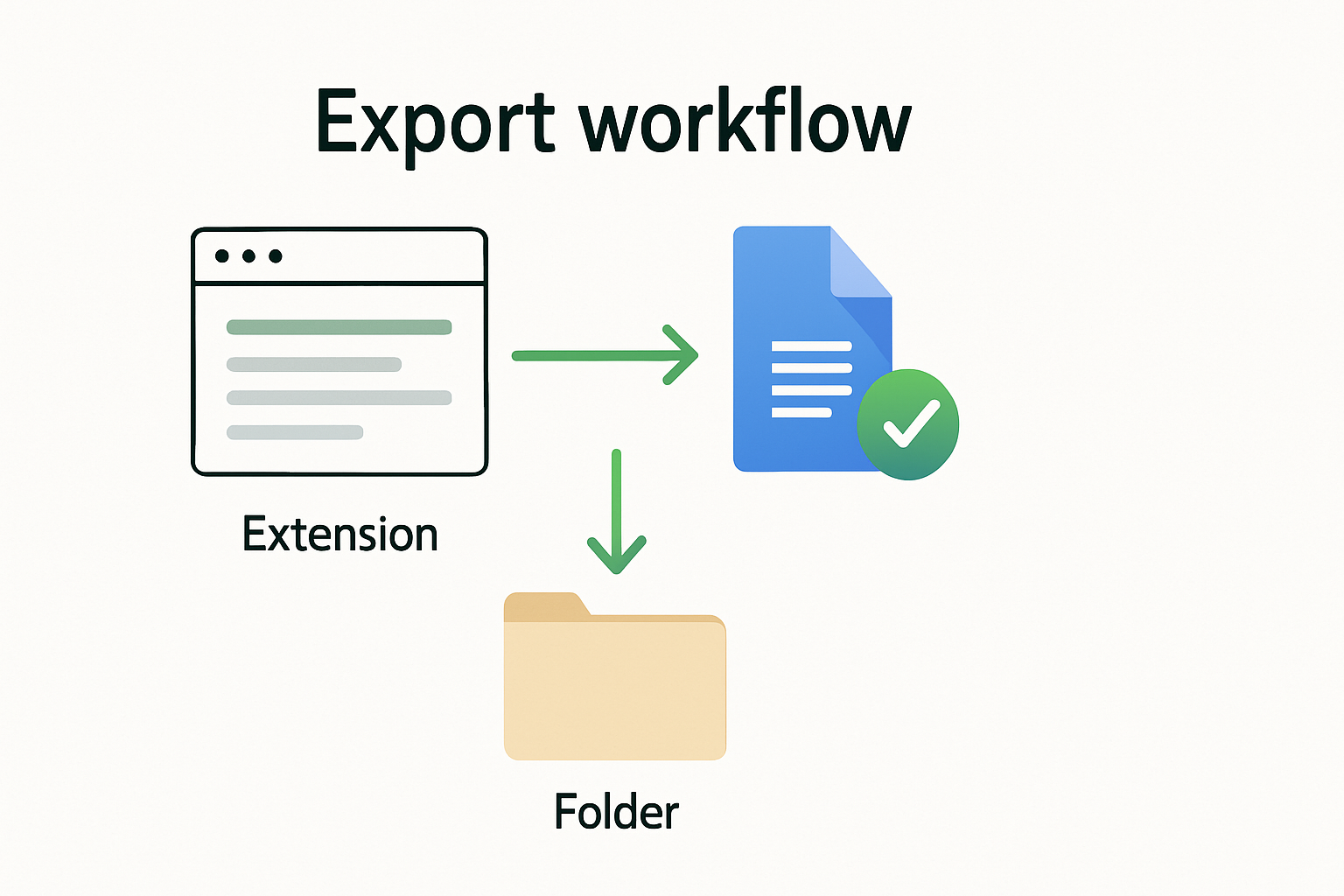
The only reliable protection is exporting any Brisk output you want to keep into Google Docs before clearing the cache — or before ending a session if the output matters. Brisk includes an export-to-Docs function for most generated content. Once the draft lives in Google Docs, it is independent of Chrome’s storage state entirely.
Immediate export sequence — follow this live:
- Generate your content in Brisk (feedback, rubric, lesson outline, or quiz draft).
- In the Brisk sidebar panel, locate the export or copy option for the output — look for “Copy to Doc,” “Open in Google Docs,” or a clipboard icon depending on the content type.
- Click the export option. A new Google Doc will open or the content will be pushed to an existing document.
- Confirm the content appears correctly in the Google Doc before closing the Brisk panel.
- Rename the Google Doc immediately with a date and content type (e.g., “Brisk Rubric — Unit 3 — May 2026”) so it is findable later.
- Only after confirming the export is complete should you proceed with any cache clear or browser reset.
This sequence takes under two minutes per draft. Skipping it means the draft exists only in local storage with no fallback.
Operating rule: Export before you clear. Always. That sentence is short enough to remember and specific enough to act on. It should be the last thing you check before opening Chrome settings.
Where This Breaks: Edge Cases That Catch Users Twice
Edge case 1: Partial cache clears. Chrome’s “Clear browsing data” dialog has two tabs — Basic and Advanced. The Basic tab includes “Cached images and files.” The Advanced tab includes “Cookies and other site data,” which is the option most likely to wipe extension local storage depending on how Brisk stores session data under your browser profile. If you ran an Advanced clear with “Cookies and other site data” checked, local storage for extensions in that origin partition is gone. Running only “Cached images and files” may or may not affect it depending on Chrome version and extension storage method. The safe assumption: any full cache clear carries risk. Export first.
Edge case 2: Multiple Chrome profiles. If you use Brisk across more than one Chrome profile (a personal profile and a school profile, for example), the local storage is profile-specific. Clearing cache in one profile does not affect the other. But it also means there is no cross-profile backup. A draft generated under the school profile does not appear under the personal profile and cannot be recovered from there after a clear.
Edge case 3: Assuming “Sync” means cloud backup. Chrome sync (the feature that syncs bookmarks, passwords, and extensions across devices) does not sync extension local storage content. Having Chrome sync turned on gives no protection against local storage loss. The extension may reinstall automatically on a new device through sync, but the session data it generated on the previous device does not travel with it.
Building a Backup Habit That Holds
The pattern that causes the most repeated data loss is treating Brisk like a document editor — something that saves automatically in the background. It does not. It functions more like a scratchpad that lives inside the browser: useful, fast, and temporary unless you move the output somewhere permanent.
A practical weekly structure for anyone using Brisk regularly for lesson planning or feedback:
- During session: Use Brisk to generate drafts as normal. Do not close the panel until you have decided whether the output is worth keeping.
- End of each working session: Export any draft marked as useful to a dated Google Doc. Use a consistent naming format.
- Before any browser maintenance (cache clears, Chrome updates, profile resets): Open Brisk, review the session panel, export anything not yet saved to Docs.
- Monthly: Review the Google Docs folder where Brisk exports land. Archive or delete outdated drafts to keep the folder usable.
Extensions are not databases. They are temporary windows into data that has no automatic persistence layer. That sentence is not a criticism of Brisk — it is a description of how Chrome extension architecture works. Building the export habit into the workflow removes the dependency on local storage entirely.
Export before you clear. Always. If that rule is in place, the cache clear becomes a non-event.
Copy-Paste Prompt: Rebuilding a Lost Draft with Brisk
If the draft is already gone and you need to regenerate it quickly, use this prompt structure inside Brisk to reconstruct a feedback set or rubric from scratch:
// BRISK REGENERATION PROMPT — copy and paste into Brisk prompt field
Generate [rubric / feedback comments / lesson outline] for [grade level] students on [topic or standard]. The assignment type is [essay / project / quiz / discussion]. Focus feedback on [clarity / argument structure / evidence use / mechanics]. Output should be [teacher-facing / student-facing]. Format as [bullet list / paragraph / scoring guide].
Fill in the bracketed fields before submitting. This is not a perfect recovery — the original phrasing is gone — but it recreates a usable working draft in under three minutes. Once generated, export to Google Docs immediately before doing anything else in the browser.
If you want a ready-made Google Docs template for logging and organizing Brisk exports by unit, date, and content type, the AI EdTech Review resource library includes a Brisk Backup Log template built for exactly this workflow — structured so each export takes under 90 seconds to file correctly. Check the resource section at AIEdTechReview.com for the current version.
Check your Google Docs folder right now for any Brisk exports from the past two weeks. If the folder is empty and you have been using Brisk regularly, local storage is the only place those drafts exist — and the next cache clear will remove them without warning.