

The presentation loaded perfectly during the prep period. By second block, with thirty students in the room, the slides were frozen and the join code was dead.
Nothing on the screen explained why. Curipod’s status page showed no outage. Reloading the tab produced the same blank state. The lesson was live. The tool wasn’t.
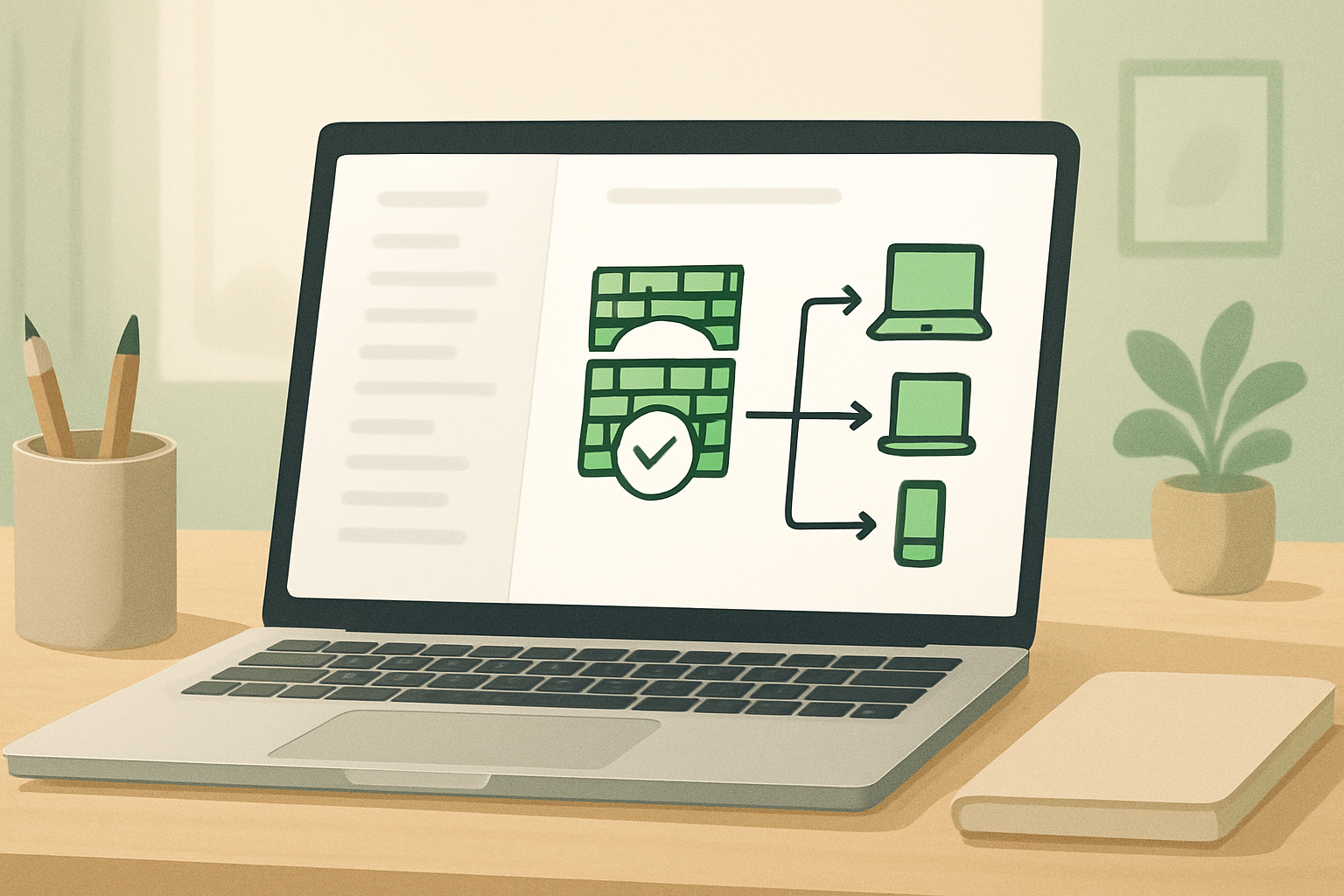
When you search this problem, nearly every result points to the same two suggestions: clear your browser cache, or check your internet connection. Both are wrong diagnoses. The issue is not the browser. It’s not the server. It’s the network path between the school’s firewall and the persistent connection Curipod needs to stay alive during a live session — and that path is almost always closed by default on managed school networks.
Interactive slides require live connections that school firewalls block by default. That rule is the entire article. Everything below is the evidence and the fix.
What the Error Actually Looks Like
The failure has a specific shape. Students either can’t reach the join screen at all, or they connect briefly and then drop mid-session. The teacher’s presenter view may continue showing slides normally while students see a spinner or a blank join page. This is the signal most people miss: the teacher’s browser is already connected and cached, so it appears functional. The student devices are hitting the firewall cold, with no prior session to fall back on.
Open the browser console on a student device (F12 → Console tab in Chrome) and you’ll typically see one of these:
WebSocket connection to 'wss://...' failedERR_CONNECTION_REFUSEDon a secure WebSocket handshake- A series of repeated
net::ERR_NETWORK_CHANGEDentries as the connection attempts cycle
None of those messages appear in Curipod’s UI. The platform shows a loading indicator. The console shows the real failure. The visible symptom is not where the problem lives — the firewall dropped the handshake before the session could establish, and the app has no way to surface that gracefully.
The Curipod help documentation confirms that connectivity failures during live sessions are typically network-side, not platform-side. But most teachers never reach that documentation because the first instinct is to reload, which does nothing against a firewall rule.
Why WebSocket Traffic Gets Blocked
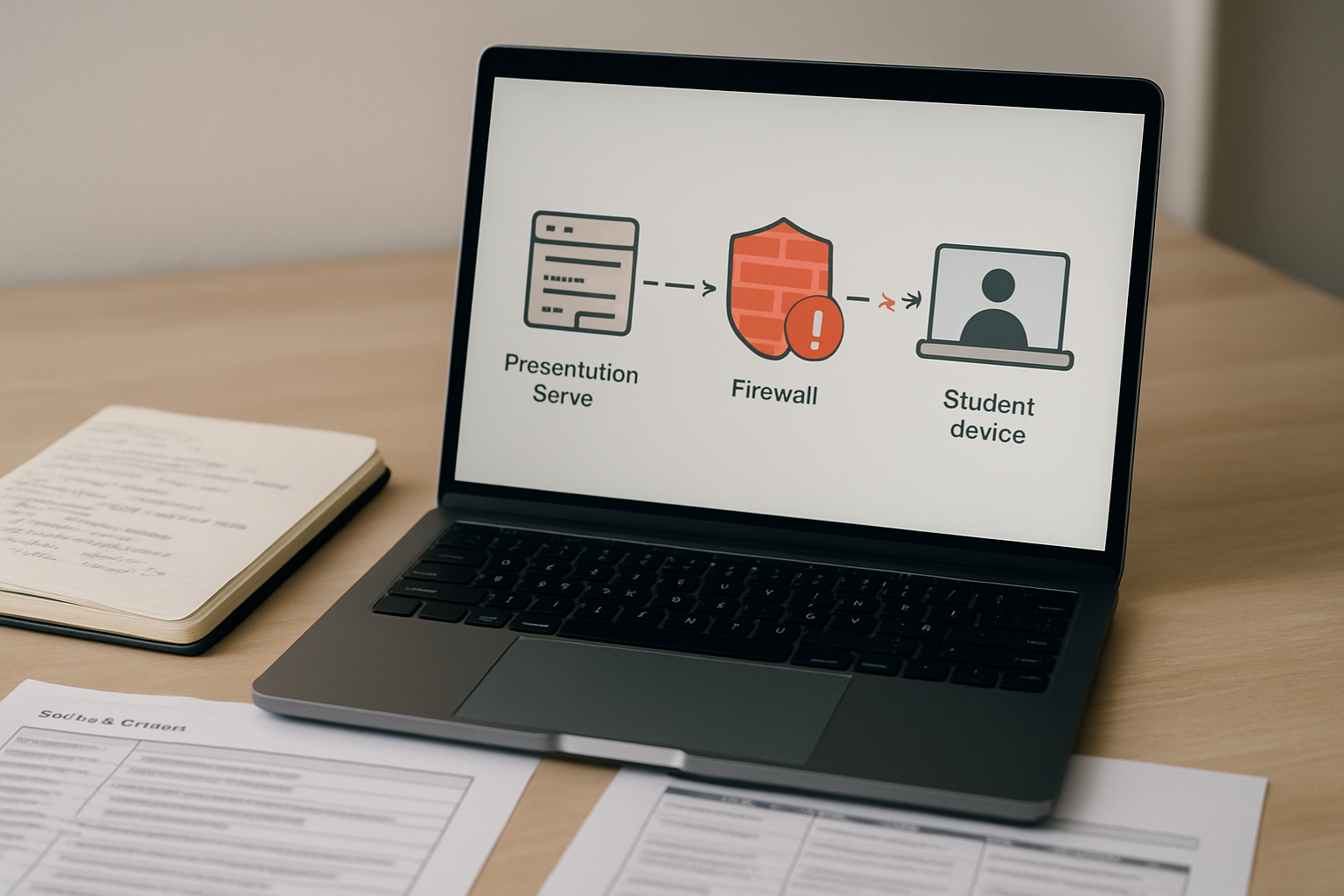
Curipod’s live session feature — the part that syncs student responses, shows live polls, and pushes slide transitions in real time — runs on WebSocket connections, not standard HTTP requests. A regular web page loads once and stays static. A live Curipod session needs a persistent, two-way connection that stays open for the entire lesson duration.
School firewalls are typically configured to allow standard HTTPS traffic on port 443 and HTTP on port 80. WebSocket connections use the same ports but behave differently: after the initial handshake, they hold the connection open rather than closing it after each request. Deep packet inspection tools and content filtering systems used in K-12 environments frequently flag this as anomalous behavior and drop the connection, even when the destination domain is otherwise permitted.
This means a school can have *.curipod.com listed in its allowed domains and still block live sessions, because the domain whitelist doesn’t automatically extend to WebSocket upgrade requests on that domain. The two configurations are handled separately in most enterprise firewall and content filter products.
That gap — domain allowed, WebSocket blocked — is why the tool appears to work during setup but fails the moment a live session starts. Setup involves standard HTTPS. Live slides involve WebSocket. Different protocols, different firewall rules.
The Fix: What to Send Your IT Department
The fix requires two distinct actions from your network administrator. One without the other will not resolve the issue.
COPY-PASTE IT REQUEST — CURIPOD FIREWALL WHITELIST
Subject: Firewall Configuration Needed for Curipod Live Sessions
Hi [IT contact],
We’re using Curipod for interactive classroom lessons, but live sessions are failing on school Wi-Fi. The issue is firewall-side, not platform-side. We need two configurations applied:
1. Domain whitelist: Allow all traffic to *.curipod.com on ports 80 and 443.
2. WebSocket traffic: Allow persistent WebSocket (WSS) connections to *.curipod.com on port 443. These connections must not be terminated by the content filter after a short idle period — live sessions hold the connection open for the full class duration (typically 30–60 minutes).
Content filter note: If your system uses SSL inspection or deep packet inspection, WebSocket upgrade requests to *.curipod.com must be excluded from inspection, as inspection can break the handshake.
The symptom is: slides load but students can’t join, or students drop mid-session. Browser console shows WebSocket connection failed or ERR_CONNECTION_REFUSED on student devices. Thank you.
Use that request as-is. Vague requests to “fix Curipod” typically result in the domain being checked, found already allowed, and the ticket closed without touching WebSocket configuration. Specificity is what gets the right rule applied.
Before and After: What Changes When the Rule Is Applied
Before the firewall rule is corrected, the classroom workflow breaks at the moment live slides begin. The teacher’s screen advances normally. Students on managed Chromebooks or school iPads see either a blank page or a perpetual join spinner. The console on those devices logs WebSocket failures. Reloading does not help because the firewall drops each new connection attempt the same way. The session cannot recover mid-lesson without a network change.
After the WebSocket rule is applied correctly, student devices connect during the join phase and maintain that connection through slide transitions, live polls, and open-response activities. The session stays synchronized even when individual students briefly switch tabs or lock their screens, because the persistent connection re-establishes without triggering a new firewall check. The browser console is clean. Curipod’s live features — the entire reason to use the platform over a static slide deck — become available.
The difference is not a performance improvement. It’s a binary state: the tool either has the persistent connection it needs, or it doesn’t function as a live tool at all.
Where This Fix Does Not Apply
If the WebSocket rule is correctly applied and sessions still drop, the remaining failure conditions are narrower but worth ruling out.
SSL inspection bypass not applied. Some content filter products — particularly those used in district-managed Chromebook environments — perform SSL inspection on all HTTPS traffic, including the WebSocket handshake. Even with *.curipod.com whitelisted, the inspection layer can break the upgrade request. The fix in this case is adding *.curipod.com to the SSL inspection bypass list, separate from the domain allowlist. This is a second configuration step that IT may not apply unless specifically requested.
Captive portal interference. Schools using a captive portal for guest Wi-Fi or BYOD networks sometimes apply different firewall rules to those segments. If students are on a guest network and teachers are on the staff network, the whitelist may only be applied to one segment. Confirm with IT which network policy applies to the devices students use.
Connection timeout set too short. Some firewall products terminate idle connections after a fixed period — commonly 5 or 10 minutes — to free up resources. A Curipod session where students are reading or writing without sending responses may appear idle to the firewall even though the WebSocket is still in use. The IT request above addresses this explicitly, but confirm the timeout exception was applied, not just the domain rule.
Home network, no issue. If the problem only occurs on school Wi-Fi and not on a personal hotspot, the cause is definitively firewall-side. This is the fastest way to confirm the diagnosis before contacting IT.
The Verification Step Most Teams Skip
After IT applies the whitelist, run a controlled test before the next live lesson. Open a Curipod session from a teacher device, then join it from a student-side device on the school network — ideally a managed Chromebook or school iPad, not a personal phone. Open the browser console on the student device and confirm there are no WebSocket errors in the console log during the join phase and for at least two minutes after joining.
If the console is clean and the session holds for five minutes without dropping, the configuration is correct. If WebSocket errors still appear, the SSL inspection bypass was likely not applied. Send a follow-up to IT with that specific finding.
Do not assume the fix worked because IT said they applied it. The console confirmation takes under three minutes and removes any ambiguity before a live class depends on the connection.
Interactive slides require live connections that school firewalls block by default. Verifying the fix is part of the fix.
Numbered Fix Sequence
- Test Curipod on a personal hotspot with a student device. If it works there and not on school Wi-Fi, the cause is confirmed as firewall-side.
- Open the browser console on a student device (F12 → Console) and screenshot any WebSocket error messages. Include these in your IT request as evidence.
- Send the copy-paste IT request from this article. Specify both the domain whitelist and the WebSocket persistent connection requirement explicitly.
- Ask IT to also add
*.curipod.comto the SSL inspection bypass list if the school uses SSL/TLS inspection on outbound traffic. - Confirm which network segment student devices use (staff network, student network, or guest Wi-Fi) and verify the rule applies to that segment specifically.
- Run a five-minute test session from a student device on the school network after IT confirms the change. Check the browser console for WebSocket errors.
- If errors persist after step 6, ask IT to confirm the connection timeout exception was applied, not just the domain allowlist.
If your school has a technology coach or instructional technology coordinator, loop them into the IT request. They often have standing relationships with network admins and can flag the ticket as curriculum-critical, which typically shortens response time. The request itself is technically straightforward — it’s a two-rule firewall change, not a platform integration — but it needs to reach the person who manages the content filter, not just the general helpdesk.
Once the configuration is correct, it applies to every Curipod session on that network going forward. You won’t need to request it again unless the school rotates its firewall product or changes network segmentation.
Interactive slides require live connections that school firewalls block by default. Send the right request once, verify with the console, and the problem stops recurring.