

The spacebar shortcut did nothing. The AI prompt never appeared. The workspace looked identical to every tutorial online — except the one button that was supposed to be there wasn’t.
Searching the issue returns the same recycled answers: clear cache, reinstall the app, upgrade your plan. None of them address what’s actually happening. The assistant isn’t broken. It was never switched on.
Decision Snapshot
Best for: Students and educators on the Notion Education Plus plan who signed up but cannot access AI features.
Avoid if: You are on a free personal plan with no education verification — AI is a paid add-on there, not a hidden setting.
Time reality: The activation itself takes under 2 minutes once you are in the right admin panel. Finding that panel is where most people lose 45 minutes.
Verdict: This is an entitlement switch problem, not a plan problem. The feature exists in your tier. It is just not on by default.
What the Search Results Get Wrong
When you search “Notion AI not working student plan,” page one is almost entirely forum threads from 2023 and generic troubleshooting posts that assume the problem is a browser conflict or a cache issue. Several tutorials walk through reinstalling the desktop app. At least two guides suggest downgrading and re-upgrading the plan to force a refresh.
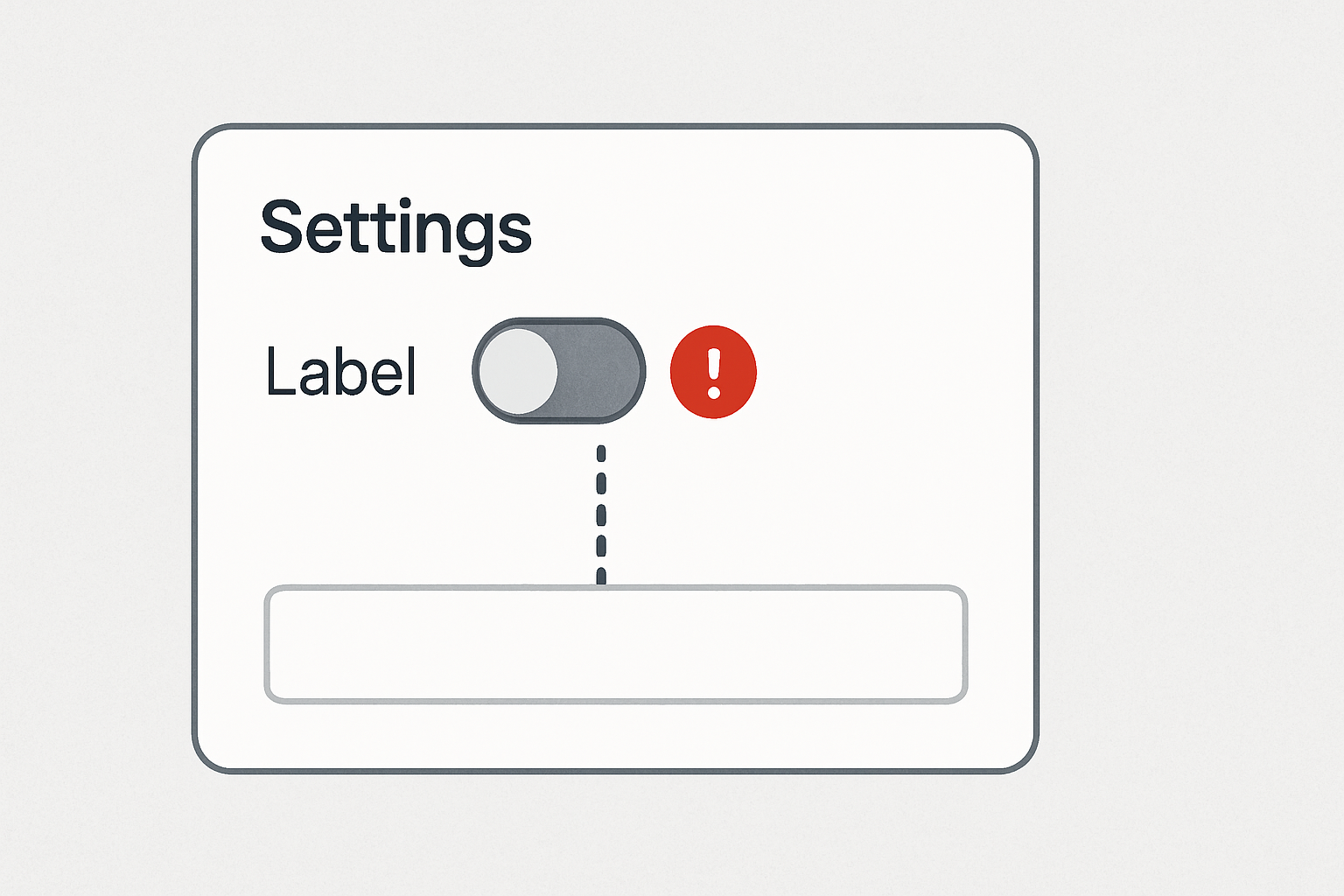
None of them mention workspace-level AI entitlement. That’s the layer they’re all missing. The real failure is not in the browser. It’s in the admin settings — a toggle that enterprise-style plans require to be manually enabled by whoever owns the workspace. On an individual Education Plus workspace, that’s you. The toggle is off by default, and nothing in the onboarding flow tells you it exists.
The visible symptom — spacebar producing nothing, no AI option in the slash menu — is not the actual failure. The actual failure is one settings layer upstream.
The Chain Reaction Nobody Documents
Here is what actually happens when an education user sets up Notion AI access. The Education Plus plan grants the entitlement to use AI. It does not activate AI. Those are two different states.
When the entitlement is inactive, Notion doesn’t show an error. There’s no red badge, no console warning, no broken icon. The workspace simply behaves as if AI doesn’t exist. The slash menu loads without AI options. The spacebar shortcut does nothing. If you open a block and look for the “Ask AI” option, it’s not there.
A student in this state typically follows the same chain: try spacebar → nothing → search online → try clearing cache → try reinstalling → try logging out and back in → give up or assume the plan doesn’t include AI. The entire chain is a wrong diagnosis. The entitlement was never turned on, so no amount of browser troubleshooting touches the root cause.
The real cost here is not the missing tool — it’s the 45 minutes spent clearing cache and reinstalling an app that was never the problem.
The 30-Second Notion AI Entitlement Audit
- Access vs. Action: Having the “Education Plus” badge in your settings doesn’t mean AI is active. It only means you have the right to turn it on.
- The Hidden Toggle: The activation switch isn’t in your ‘Personal Settings’; it’s in the ‘Workspace Settings’ under the ‘Plans’ tab.
- Institutional Firewall: If your workspace is school-managed, the toggle is likely locked. No amount of cache clearing will bypass an IT-level restriction.
- Regional Lag: If the AI section is completely missing from the Plans panel, it’s a regional deployment issue, not a bug in your app.
The Actual Fix: Enabling AI in Workspace Settings
This is the sequence. It takes under 2 minutes once you know where to look.
- Open your Notion workspace in a browser (not the desktop app — the settings panel is more reliable in-browser).
- Click your workspace name in the top-left corner to open the workspace menu.
- Select Settings from the dropdown.
- In the left sidebar of the Settings panel, click Plans (sometimes labeled Billing & Plan depending on your workspace version).
- Look for the Notion AI section within the Plans panel. You should see a status indicator — if it reads “Off” or shows a toggle in the disabled position, that is the problem.
- Enable the toggle. Notion may prompt you to confirm AI activation for the workspace.
- Close Settings and return to any page. Press the spacebar in an empty block or type /AI in the slash menu. The AI prompt should now appear.
If you do not see the Plans section or the AI toggle: confirm that your account is logged in with your institution email address, and that the education verification was completed during signup. Unverified accounts default to the free tier, where AI is not included regardless of settings.
Before and After: Two States, One Setting
Before Activation
Spacebar in empty block: no response.
Slash menu: no AI options visible.
“Ask AI” option: absent from block toolbar.
No error message. No explanation. Workspace appears normal.
After Activation
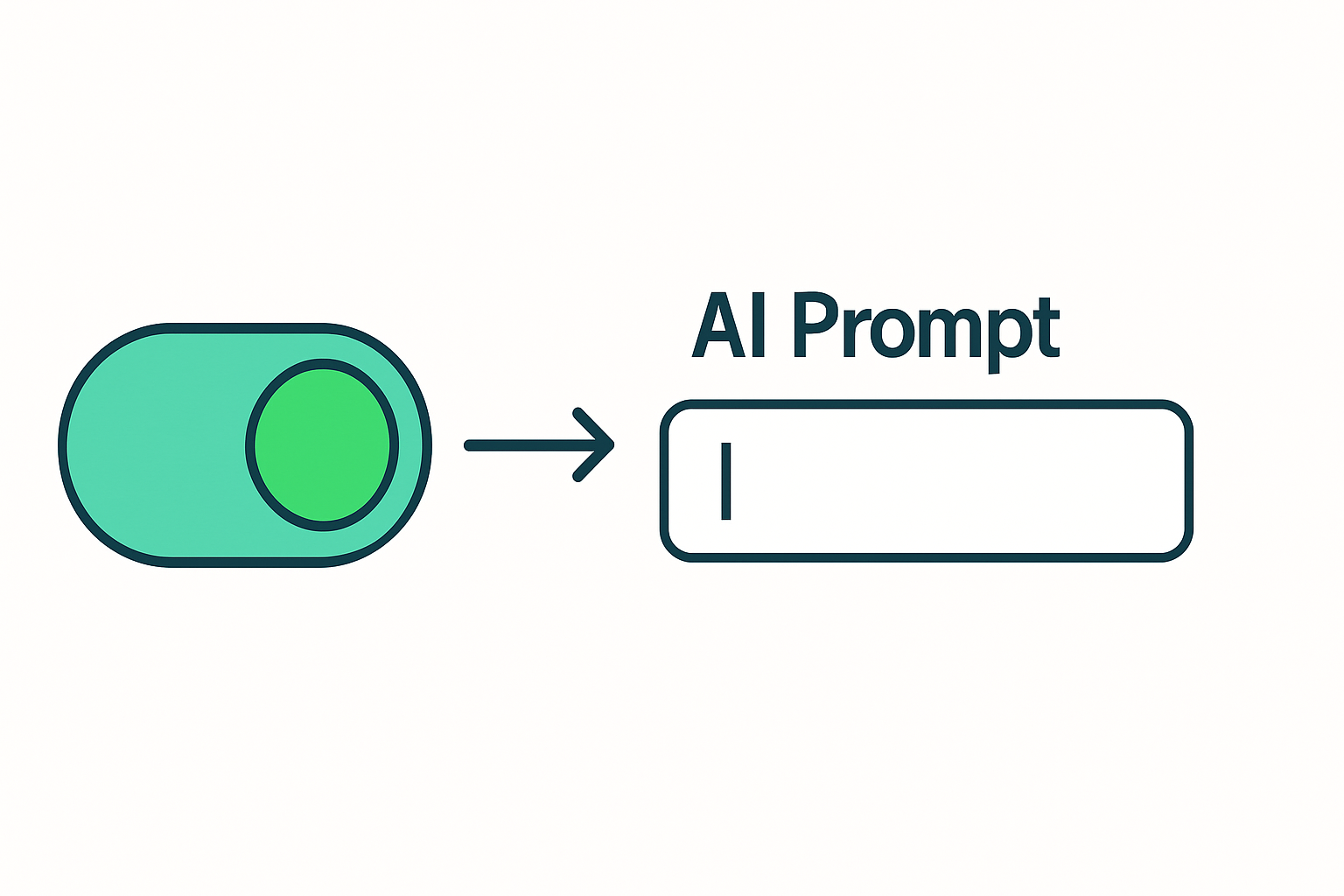
Spacebar in empty block: AI prompt appears immediately.
Slash menu: AI options visible under /AI.
“Ask AI” option: present in block toolbar on hover.
No reinstall. No plan change. No browser switch. One toggle.
Where This Fix Breaks: Two Edge Cases
Edge Case 1: Institution Email Not Verified
The Education Plus plan requires signup with a verified institution email — one that matches the WHED (World Higher Education Database). If the account was created with a personal Gmail and then later connected to a school email, the verification may not have registered. In this state, the Plans panel either shows the free tier or shows Education Plus without the AI entitlement. The fix is to log out, create a new account directly with the institution email, and re-verify. The AI toggle will not appear until the plan correctly reflects Education Plus with a verified edu address.
Edge Case 2: Regional Availability Lag
Notion AI features have not always rolled out simultaneously across all regions. If the workspace was created in a region where AI was not yet available at signup time, the entitlement may exist on the plan but the toggle may be absent or grayed out in the Settings panel. The clearest diagnostic here: log in via browser at notion.so, navigate to Settings → Plans, and check whether the AI section appears at all. If the section is completely absent — not toggled off, but missing — this is a regional or account-state issue. In this case, reaching Notion support directly with the account email and plan confirmation is the fastest path, as there is no self-service workaround for a missing entitlement section.
The Entitlement Switch Pattern
This failure follows a pattern that appears across several enterprise-adjacent education platforms. A plan grants access to a feature. Access does not equal activation. The feature exists in the tier, but it requires a deliberate “on” switch by whoever owns the workspace before it functions.
Notion inherited this structure from its team and enterprise product line, where an admin enabling AI for an entire organization is a deliberate governance decision. On an individual Education Plus workspace, there’s no team to govern — but the architecture didn’t change. The entitlement switch is still there, still defaults to off, and still waits silently for someone to flip it.
The feature was never missing. The switch was just never flipped. That sentence is worth keeping visible while troubleshooting any education plan that behaves like a lower tier than it should.
This applies beyond Notion. Any time a platform’s education plan includes a feature that doesn’t appear after signup, check for a workspace-level or admin-level activation step before assuming the plan doesn’t include it.
The Activation Checklist: Copy and Use
Run this before concluding that Notion AI isn’t available on your plan:
Notion AI Education Plan — Activation Checklist
- Confirm login is using institution email (not personal Gmail or Outlook).
- Confirm education verification completed at signup — check Settings → Account for plan label.
- Navigate: workspace name → Settings → Plans → locate Notion AI section.
- Check AI toggle state: if Off or missing, this is the issue.
- Enable AI toggle and confirm activation prompt if shown.
- Return to a page, press spacebar in an empty block — AI prompt should appear.
- If AI section is absent entirely: check regional availability or contact Notion support with plan confirmation.
- If plan shows Free tier despite edu email: log out, create new account directly with institution email, re-verify.
What This Does Not Solve
This activation fix addresses the entitlement switch problem. It does not resolve every scenario where Notion AI is unavailable to education users.
If your institution’s Notion workspace is managed by a school IT administrator — common in university-issued accounts — you may not have access to the Settings → Plans panel at all. In that case, the workspace owner is the IT department or the account admin assigned by the institution. The toggle exists, but only they can flip it. Submitting a request through your institution’s IT helpdesk is the correct path, not the self-service sequence above.
Additionally, the Education Plus plan for individuals covers a one-member workspace. If a student is trying to use Notion AI in a shared workspace they were invited to — rather than their own workspace — the AI availability depends on that workspace’s plan, not their personal Education Plus plan. The entitlement does not travel between workspaces.
Finally, there are usage limits. Education plan AI access includes a capped number of AI responses per month. The activation fix makes the feature available; it does not remove the response ceiling. Once the monthly limit is reached, AI prompts will stop responding until the next billing cycle regardless of the toggle state.
If you’re building study systems, course notes, or lesson plans inside Notion, the AI EdTech Review resource library includes workflow templates for setting up AI-assisted note pipelines and course module outlines — designed specifically for education plan users once the AI features are active.
One toggle in the Settings panel separates a workspace with no AI from one where the assistant appears on every page. The fix takes under 2 minutes. The confusion around it persists because nothing in Notion’s onboarding surfaces this step, and most troubleshooting guides are looking in the wrong layer entirely. Once the entitlement is active, the platform behaves exactly as the plan promises — the feature was never absent, just waiting.