
The first instinct is always the same: the integration broke. The AI tool failed. Something needs to be reconnected, re-authorized, or rebuilt from scratch. That diagnosis is almost always wrong — and acting on it is where the real teacher workload begins.
Decision Snapshot
Best for
AI-to-Classroom API users facing “missing” assignments.
Time Reality
Diagnostic: 2 mins | Re-sync: 45 mins (Avoid this).
Verdict
It’s almost always in the ‘Drafts’ folder.
The 30-Second Classroom Sync Audit
- The Propagation Gap: Google’s API isn’t instant. If the AI tool says “Success,” wait 90 seconds before assuming it failed.
- Drafts by Default: Check the very top of your ‘Classwork’ tab. Google often holds API-pushed content in ‘Draft’ status as a safety gate.
- Section Ghosting: Did you select the right period? A “missing” assignment is often just sitting in an archived or different class section.
- Integration Fatigue: Do not disconnect the API until you’ve checked the Drafts folder. Re-authorizing permissions is usually a 40-minute distraction.
The Wrong Diagnosis: Assuming the Integration Failed
When an assignment disappears after a sync, the visible evidence points in the wrong direction. The AI tool shows a success state. The LMS shows nothing. The logical conclusion is that the handoff between platforms broke somewhere in the middle.
So the troubleshooting begins: disconnect and reconnect the Google Classroom integration, re-authorize the OAuth permissions, rebuild the assignment manually, post it again. This sequence can absorb an entire planning period — and it solves a problem that didn’t exist.
The integration didn’t fail. The assignment arrived. It just hasn’t surfaced yet, and it landed somewhere most teachers never think to look.
The Actual Cause: API Propagation Delay and Eventual Consistency
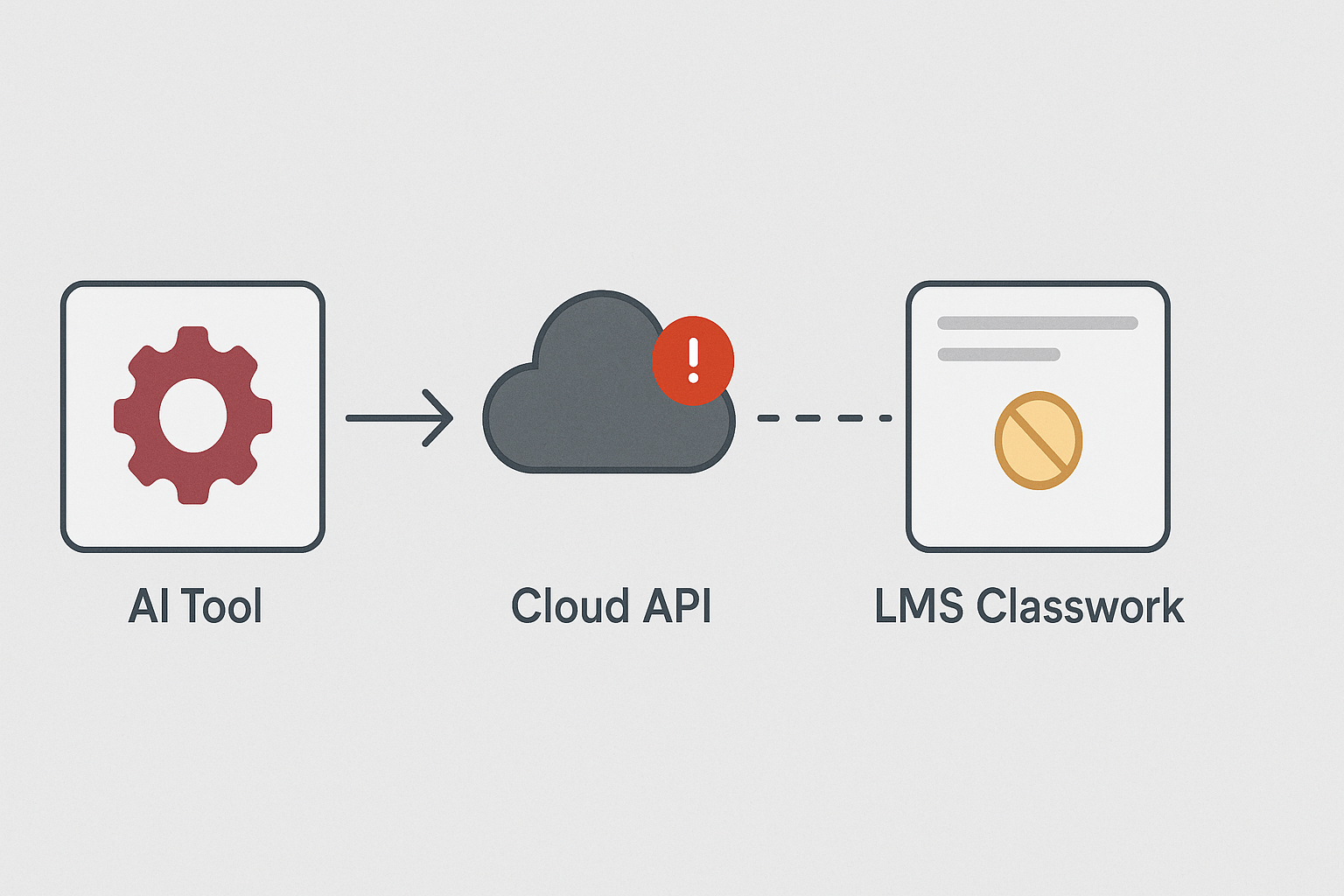
Google Classroom’s API operates on a principle called eventual consistency. When a third-party tool — an AI lesson generator, a curriculum platform, a quiz builder — pushes an assignment through the API, Google’s systems don’t publish it instantaneously. The data travels through a queue, gets validated, and propagates across Google’s infrastructure before it becomes visible in the class feed.
This process usually takes somewhere between 30 seconds and 2 minutes. Under heavier server load, it can take longer. During that window, the assignment exists in Google’s system but hasn’t resolved to a published state. To the teacher looking at the Classwork tab, it looks like nothing happened at all.
There’s a second variable that compounds this: class section routing. Many AI tools that integrate with Google Classroom require you to select a specific section at the point of sync. If that selection defaults to the wrong section — or if you have multiple sections with similar names — the assignment posts successfully to a class you weren’t looking at. It’s visible. Just not where you’re checking.
Neither of these failures appears in any error message. Both of them look identical from the outside: an assignment that posted and then vanished.
Before and After: Two Paths Through the Same Problem
AI tool confirms assignment posted → Classroom shows nothing → Assume integration failed → Disconnect and reconnect → Re-authorize permissions → Rebuild assignment manually → Lose 45 minutes → Assignment was in Drafts the entire time
AI tool confirms assignment posted → Classroom shows nothing → Wait 90 seconds → Open Classwork tab → Check Drafts folder → Find assignment → Publish directly → Done in under 2 minutes
The shift isn’t technical sophistication. It’s knowing where to look before touching anything else.
The Fix: Check Drafts Before You Touch the Integration
Open Google Classroom. Go to the Classwork tab. At the top of the list, look for a section labeled Drafts. It doesn’t always appear prominently — it sits quietly above the topic sections, easy to scroll past if you’re moving fast.
The assignment is almost certainly there. API-pushed content that hasn’t fully propagated frequently lands in draft state rather than publishing directly. This is a deliberate behavior: Google holds unverified or in-transit content in draft to prevent partially-formed assignments from going live to students.
Once you find it, review it quickly — confirm it’s assigned to the correct class section, check that the due date carried over correctly, and publish. The whole process runs under 2 minutes if you go there first.
If it’s not in Drafts, check the other class sections. Open each section’s Classwork tab and look for the assignment. A section mismatch at the point of sync is the second most common cause of a “missing” assignment — and it also resolves in under a minute once you know to check.
Where the Time Actually Goes
The assignment isn’t missing — it’s waiting in Drafts while the API catches up. The invisible cost isn’t the sync delay; it’s the 45 minutes spent rebuilding something that was never lost. Every minute spent reconnecting integrations before checking Drafts is lesson planning time that doesn’t come back.
The Scenario That Repeats
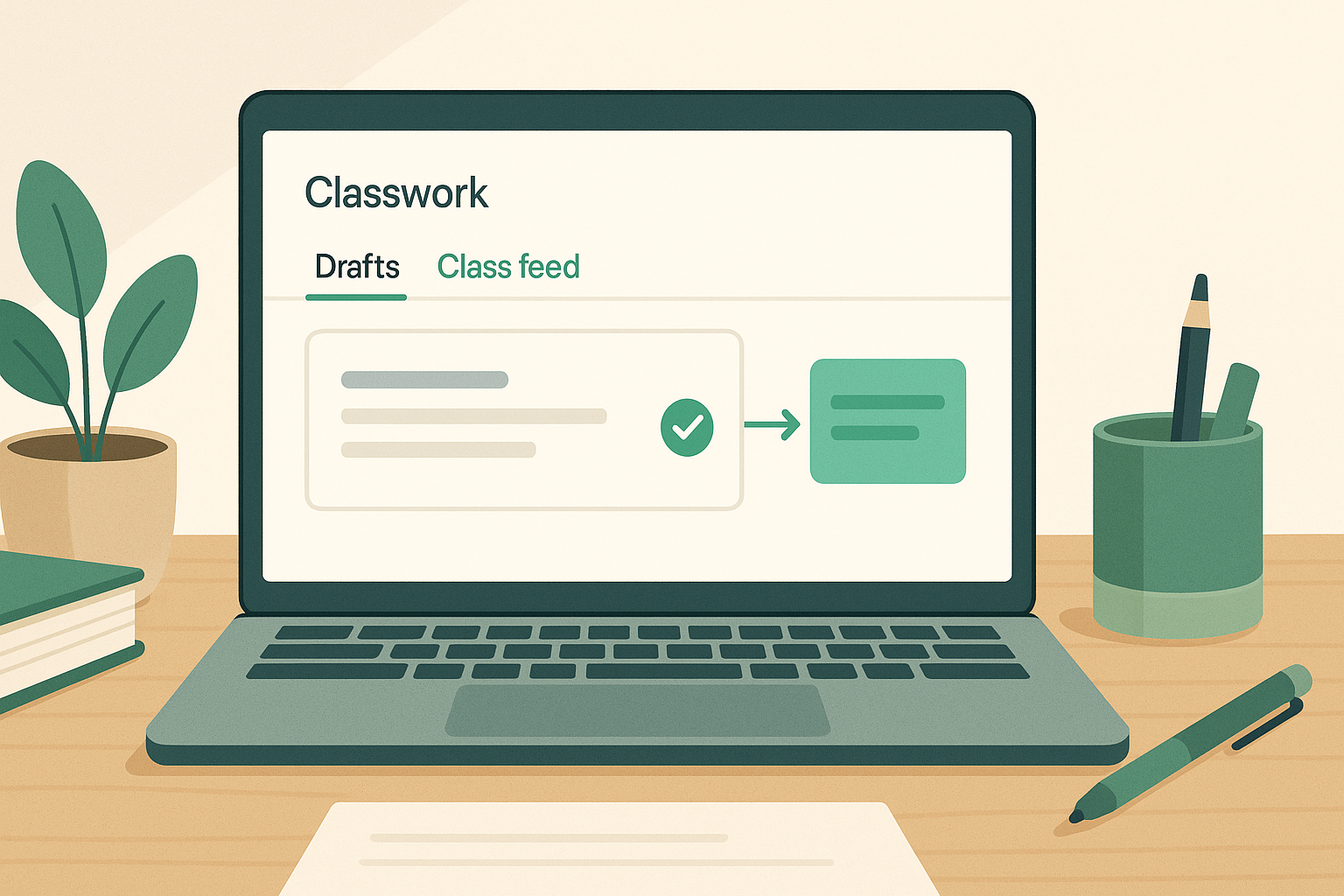
An AI lesson planning tool generates a structured assignment — objectives, tasks, rubric — and the teacher clicks the “Send to Google Classroom” button. The tool returns a green checkmark. The teacher switches to Classroom, checks the Classwork tab, and sees nothing new.
The wrong assumption: the sync failed and the assignment needs to be rebuilt manually.
The failure point: the Drafts folder was never checked, and the class section dropdown in the AI tool defaulted to a second section that hadn’t been used all semester.
The fix: wait 90 seconds, open Classwork, check Drafts, verify the section, publish. Assignment live in under 2 minutes. No rebuilding. No re-authorization. No lost planning time.
The time shift is roughly 45 minutes saved per incident — not because the workflow got faster, but because the correct diagnostic sequence was applied instead of the intuitive one.
What This Does Not Solve
Eventual consistency and the Drafts folder fix covers the most common version of this problem. But there are edge cases where the assignment genuinely didn’t transfer — and those require a different response.
The Drafts-first diagnostic handles the majority of cases. The edge cases above are real — but they’re less common, and none of them should be assumed until the simple check has been done.
The Workflow Pattern Worth Keeping
Cross-platform automation between AI tools and an LMS is not instantaneous. It is eventual. Building a 2-minute verification step into every AI-to-Classroom workflow — check Drafts, confirm section, publish — converts an unpredictable failure point into a reliable repeatable sequence.
If you’re regularly pushing AI-generated content into Google Classroom or another LMS, a short pre-publish checklist prevents most of the friction described in this article. The checklist covers section verification, Drafts confirmation, grade passback validation, and browser hygiene — the four steps that catch 90% of sync problems before they become planning-time losses.
Get the AI-to-LMS Sync Checklist → — a practical workflow card for teachers using AI lesson tools with Google Classroom.
A missing assignment after sync is almost never a broken integration — it’s a propagation delay that resolves in under two minutes if you look in the right place first. The pattern repeats across every AI-to-LMS workflow: the system isn’t failing, it’s just finishing. The most expensive mistake in cross-platform automation isn’t a technical failure — it’s rebuilding something that was never lost.