
Not a plan problem. Not a student problem. A share-modality problem that looks identical to a dozen other Canva issues until you know exactly where to look.
The 30-Second Canva Access Audit
- Link Type Check: Did you copy the URL from the browser bar? If yes, it’s a View link. You MUST generate a “Template Link” from the Share menu.
- “Use Template” Prompt: If students don’t see a purple “Use Template” button upon clicking, the link is restrictive. Don’t troubleshoot accounts yet; fix the link first.
- Team-Membership: A student on a personal free account cannot use Education-tier features. Confirm they’ve “Accepted” your Team Invitation.
- Incognito Test: Before posting to your LMS, paste the link into a Private/Incognito window. If you can’t edit it there, neither can your students.
Decision Snapshot
Best for
Teachers assigning editable Canva project templates to classes.
Avoid if
You only need students to ‘watch’ a presentation without touching it.
Verdict
The link in your browser bar is not a template. Switch to ‘Template Link’.
The Wrong Diagnosis (And Why It’s So Easy to Make)
When students report they can’t edit a Canva design, the first assumption is almost always account-related. The instinct is to check whether the student has a Canva for Education account, whether they’re on the free tier, or whether the school license covers their grade level. All of those are reasonable guesses. Most of them are wrong.
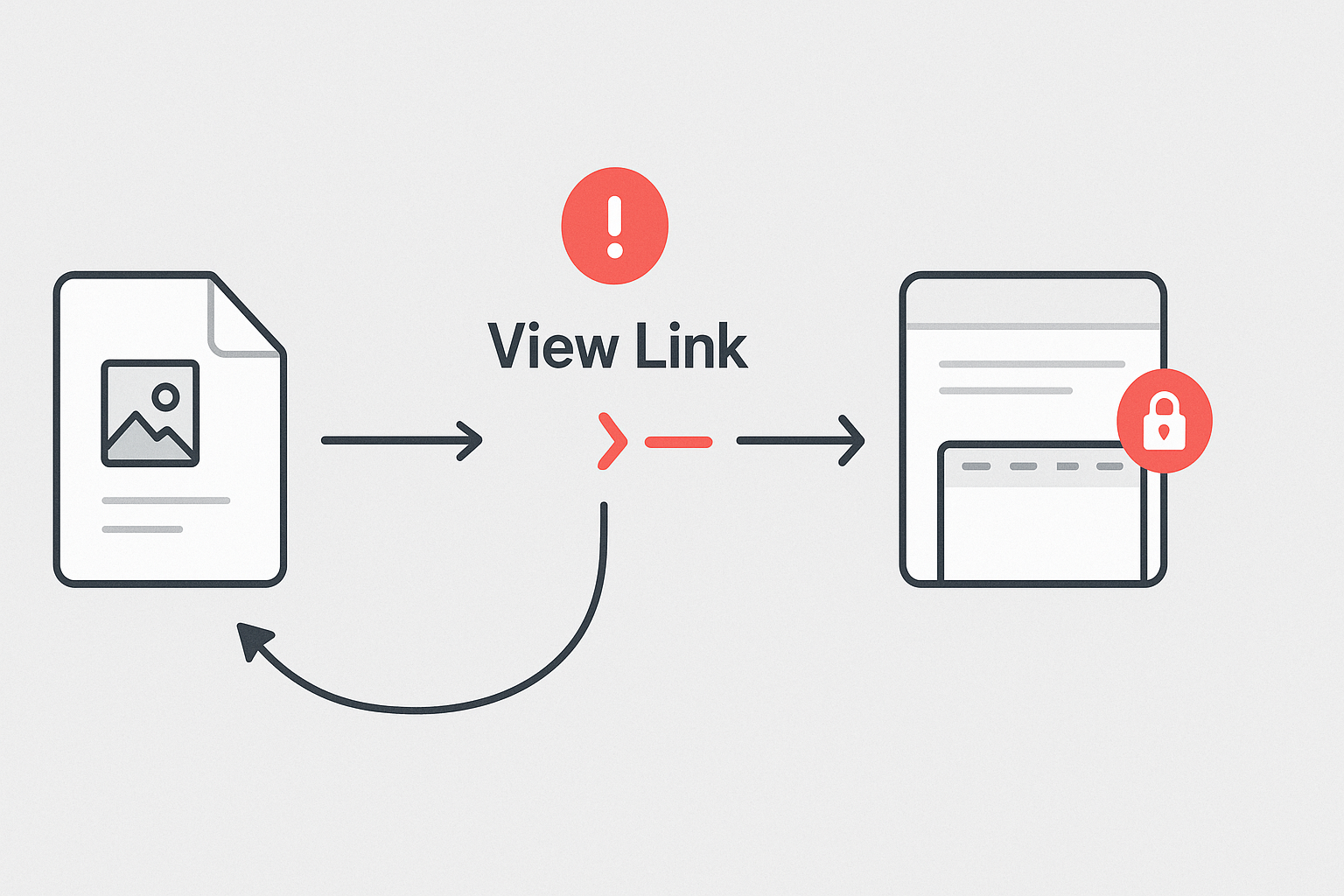
The actual cause, in the majority of cases, is simpler and more frustrating: the teacher shared a View link instead of a Template link. From the teacher’s side of the screen, both links look like successful shares. From the student’s side, one opens a fully editable copy and the other opens a locked read-only display with no toolbar access.
This distinction doesn’t surface clearly in Canva’s interface. The share menu uses language like “Anyone with the link can view” — which sounds collaborative, not restrictive. That single word, view, is doing enormous work, and it’s easy to miss during lesson planning when the teacher workload is already stretched.
View Link vs. Template Link: The Actual Difference
These two share types produce completely different student experiences, but they live in the same share panel and require only one additional step to separate.
- Student opens the design in read-only mode
- No edit toolbar appears
- Student cannot copy or duplicate the design to their own account
- Looks identical to a working template on the teacher’s screen
- Generates support tickets, class confusion, and re-explaining time
- Student clicks link and is prompted to “Use Template”
- Canva creates a personal editable copy in the student’s account
- Original teacher design remains untouched
- Every student gets an independent working copy
- No account-level troubleshooting required
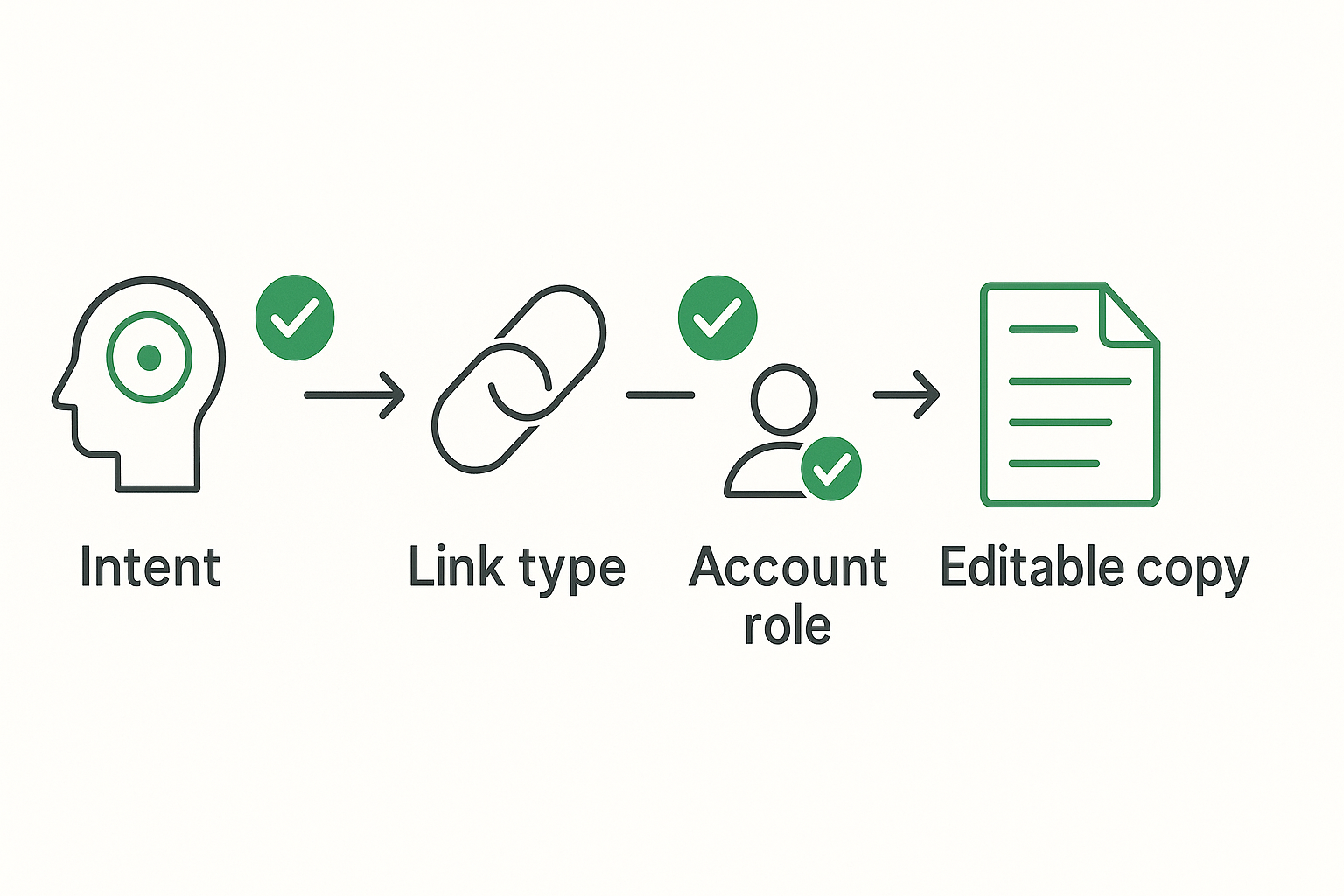
The Template link is generated from the same Share panel. After clicking Share, look for the option that reads “Use Template” or navigate to the link settings and switch the permission from “View” to “Template.” Canva for Education accounts may also surface this through the Assign feature inside Canva Classroom, which handles the link type automatically when you push a design to a class roster.
Before and After: What the Workflow Actually Looks Like
Teacher builds a poster template, copies the share URL from the top of the browser, pastes it into Google Classroom. Students click the link. A read-only version opens. No edit button appears. Students message the teacher. Teacher assumes the students aren’t logged in. Ten minutes of class time disappears. Teacher eventually resends the link — same URL — with instructions to “try again.” Nothing changes because the link type was never corrected.
Teacher opens Share panel, selects “Share a template link” (or uses Canva Classroom Assign), copies the generated URL. Students click the link, see “Use Template,” click once, and land in their own editable copy. The entire class is working within 90 seconds of receiving the link. Teacher workload on troubleshooting: zero.
The time shift here isn’t dramatic in isolation — it’s roughly a 2-minute fix that prevents a 20-to-40-minute class disruption. But across a semester of assignments, that compounds fast. Every broken share link is a tax on lesson delivery, not just lesson planning.
The Team-Role Hierarchy: Why Student Accounts Sometimes Still Can’t Edit
Even with a correct Template link, some students hit a second wall. This one is genuinely account-level — but it’s still not what most teachers assume.
Canva for Education uses a role hierarchy within a team. The teacher is typically assigned the Team Admin or Teacher role. Students need to be in the same Canva for Education team and carry the Member or Student role. If a student signed up for a personal free Canva account using their school email — rather than being added through the school’s Canva for Education team — they may be on the wrong account type entirely.
The friction pattern: Student has a personal Canva account. Teacher sends a Template link. Student opens it, but their account type doesn’t include the full editing suite or the team assignment feature. They can technically access the template but lose formatting controls or AI features. This looks like a template problem. It’s actually a team-membership problem.
Fix: Invite students explicitly through Canva for Education’s team management panel. Students should accept the team invitation before using any shared templates. Once they’re inside the team with the correct Student role, Template links work as expected.
Building the Canva template takes 30 minutes. Diagnosing why students can’t edit it — when the real answer is a single link-type setting — takes the rest of the class period. The template was never the problem; the share modality was, and that distinction doesn’t show up on any lesson plan.
The Reusable Decision Framework
Rather than troubleshooting this from scratch every time, apply this three-input check before sharing any Canva design with a class:
Do you want students to view the design or edit their own copy? If edit → proceed to Input 2. If view only → a View link is correct and intentional.
Is the link you’re sharing a Template link? Paste it into an incognito browser tab. If you see “Use Template” → correct. If you see a static design with no prompt → wrong link type. Regenerate from the Share panel.
Are students in your Canva for Education team with a Student or Member role? If not, send team invitations first. Template links work correctly only inside the team structure.
This three-step check takes under two minutes and eliminates roughly 90% of “students can’t edit” reports before the link is ever distributed. Run it once per assignment, not after the class has already started.
What This Does Not Solve
The Template link fix is specific. It does not address every Canva friction point in a classroom setting, and treating it as a universal solution creates new confusion.
- Students on school-managed Chromebooks with restricted browser extensions may still hit access issues that are network or IT policy problems, not Canva share problems.
- Canva designs that use Pro-tier elements — premium fonts, stock images, or certain AI features — may render differently or show upgrade prompts in student accounts even when the template link works correctly. Always build classroom templates using elements available on the Education plan.
- Students who have already opened a View link and bookmarked it will need the correct Template link resent. Updating the original link does not retroactively fix a bookmark.
- Canva Classroom’s Assign feature handles the link type automatically, but it requires the teacher to have set up a class roster inside Canva first. It is not a one-click solution for teachers who haven’t completed that setup step.
If you’re building repeatable visual assignment workflows in Canva, the AI EdTech Review Visual Lab covers template design patterns, share-setting checklists, and platform-specific setup guides for Canva for Education — written for teachers managing real classroom rosters, not ideal conditions.
Browse the Visual Lab category for practical setup guides that cover the friction points Canva’s official documentation skips.
A Canva template that students can’t edit isn’t a broken template — it’s a correctly built design attached to the wrong share type, and those two things look identical until a student hits the wall. This problem repeats across every platform where “share” has multiple modes that produce different outcomes for the recipient. The link you copy is not the link your students need — and knowing the difference is the only thing standing between a working assignment and a wasted class period.