

The 30-Second Permission Layer Audit
- The Profile Anchor: Which Google account is active? Check the circle icon in the top right—not the Doc’s share settings. The toolbar is account-bound, not file-bound.
- The .docx Ghost: Is the file extension
.docx? Add-ons are “silent” on Word files opened in Docs. You must convert to a native Google Doc to wake up the toolbar. - Admin Revocation: If it’s in ‘Manage add-ons’ but won’t launch, the vendor is fine, but your school admin has pulled the plug. No browser reset will fix this.
- Marketplace Reality: Search the tool in the school’s Workspace Marketplace. If “Install” is greyed out, your IT policy has changed, and the tool is effectively “de-platformed” for you.
📋 Decision Snapshot
Best for: Teachers, tutors, and course creators using AI add-ons inside a school or institutional Google Workspace account.
Avoid if: You are on a personal Google account — the admin layer does not apply, and the fix is different.
Time reality: Diagnosing the wrong cause can waste an afternoon. Finding the right cause typically takes under 10 minutes once you know where to look.
Practical verdict: The vendor interface is a suggestion. The school Admin Console is the authority. These are two different systems, and only one of them controls what actually runs.
The Wrong Diagnosis That Wastes the Most Time
When an AI add-on vanishes from the Google Docs toolbar, the first instinct is to blame the product. Maybe the free tier changed. Maybe the extension broke. Maybe the browser needs clearing. These are reasonable guesses when you are working on a personal account.
But on a school-managed Google Workspace account, none of those fixes work — because none of them touch the actual problem.
The pattern looks like this: the add-on was installed, it worked, and then at some point an administrator quietly changed the approved app list for the domain. The add-on did not uninstall visibly. It simply stopped functioning. The toolbar entry may still appear in some views, or it disappears entirely, depending on how the revocation was applied. Either way, the tool is no longer permitted to run.
The vendor UI is a suggestion. The school Admin Console is the reality. This is the root cause that most users never reach because they are looking at the wrong layer of the system.
Why School Accounts Behave Differently
Google Workspace for Education gives institutional administrators control over which third-party apps and add-ons can run across the domain. This is a deliberate privacy and security feature, not a flaw. But it creates a real friction point for anyone who assumed their add-on access was permanent once installed.
Administrators can approve, restrict, or revoke add-on access at any time, and they are not required to notify individual users when they do. A policy update, a compliance review, or even a routine audit of approved applications can silently remove access to tools that were working the day before.
This is not unique to AI tools. It applies to any third-party Google Workspace add-on. But AI writing tools, feedback generators, and document assistants are increasingly common targets for institutional review, especially as schools update their AI use policies in 2025 and 2026.
What makes this particularly disorienting is that the cause is invisible from inside the document. There is no error state that says “this tool was disabled by your administrator.” The toolbar item simply does not behave the way it should, or it disappears without explanation.
Before and After: Two Different Responses to the Same Symptom
Before (wrong path): The add-on toolbar is missing. The user uninstalls and reinstalls the extension from the Chrome Web Store, clears the browser cache, tries a different browser, and checks the developer’s support page for known outages. An hour passes. Nothing changes. The tool is still not accessible inside the school document.
After (correct path): The user checks the Extensions menu inside Google Docs first. If the add-on does not appear under Extensions → Add-ons → Manage add-ons, or appears but cannot be launched, the issue is at the permission level, not the installation level. The next step is checking whether the add-on is still approved in the school’s Workspace environment — which requires either contacting the administrator or checking the Admin Console directly if the user has access.
The fix is not a browser fix. It is an account and permission fix. These require different actions and, in many cases, a different person to resolve them.
You don’t have a broken tool problem. You have an invisible permission layer that changes without notice — and every educator who doesn’t know it exists loses the same hour, every single time it happens.
The Hidden Workload: The real cost here is not the missing tool. It is the hour spent troubleshooting the wrong layer of the system while the actual cause sits one level up, invisible and unannounced. Every educator who hits this wall and does not know about the admin layer loses that time silently, every single time it happens.
How to Audit What Is Actually Approved in Your Workspace
If you are an instructor, tutor, or course creator working inside a school-managed Google Workspace account, there are a few places to check before assuming the tool is broken.
Step 1: Check the Add-ons Menu Inside the Document
Open a Google Doc and go to Extensions → Add-ons → Manage add-ons. If the tool appears here but cannot be launched, the installation exists but the permission has been restricted. If it does not appear at all, it may have been fully revoked or never properly installed under the school account.
Step 2: Confirm You Are Using the Right Account
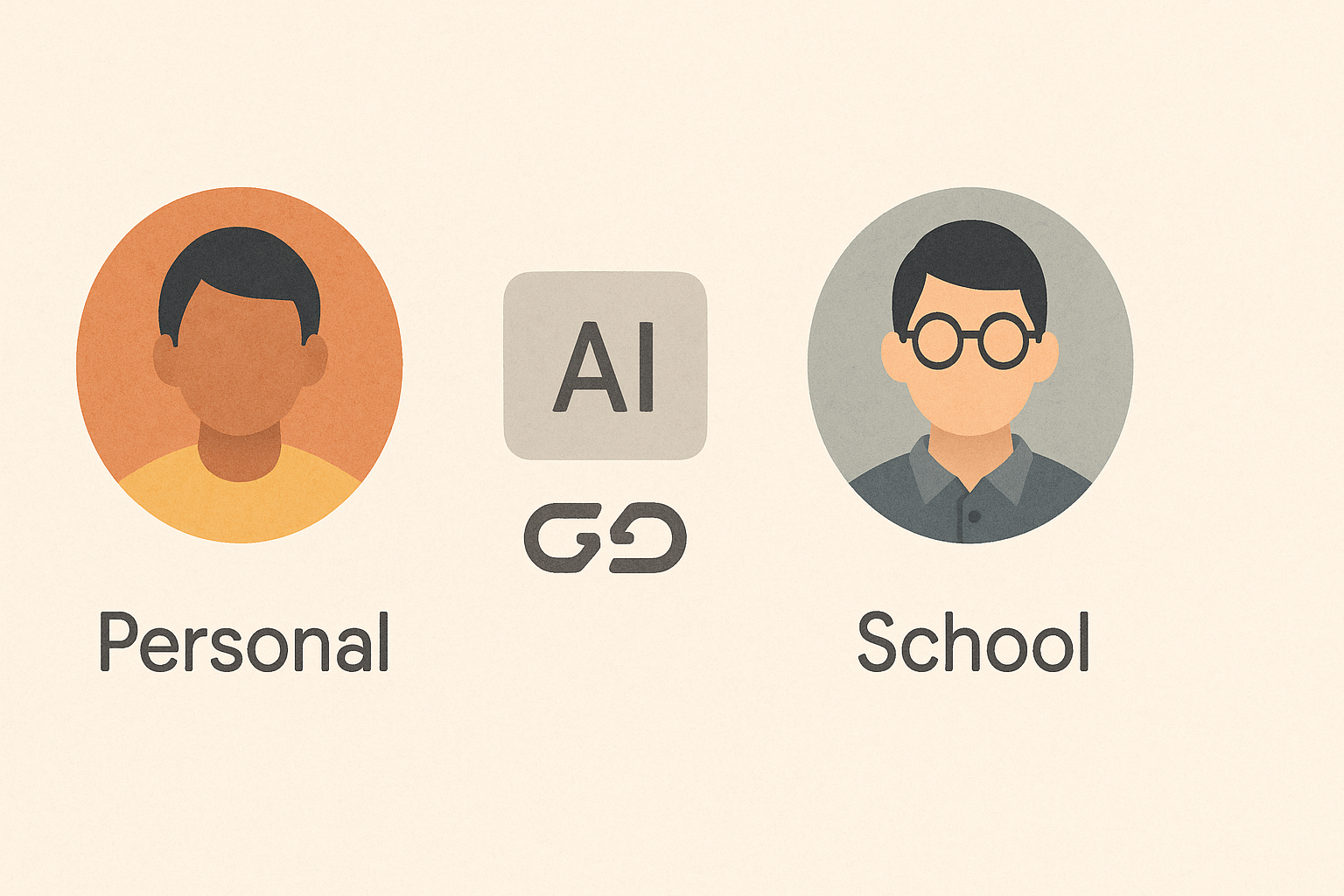
This is where a significant number of cases resolve themselves. Many educators and course creators have both a personal Google account and a school-issued Workspace account. An add-on installed on the personal account does not carry over to the school account, and vice versa. If the document is owned by or opened through the school account, only add-ons approved for that domain will run inside it.
Check the account icon in the top-right corner of the browser. If the active account is the school account but the add-on was installed under the personal account, the toolbar will be empty — and no amount of reinstalling will fix it until the correct account is active.
Step 3: Check the Google Workspace Marketplace Under the School Account
Open the Google Workspace Marketplace while signed in with the school account. Search for the add-on. If it shows as installed, confirm whether it has the correct permissions. If it shows as not installed, attempt to install it. If the installation is blocked or greyed out, the administrator has restricted third-party add-on access for the domain, and individual users cannot override that setting.
Step 4: Contact the Administrator
If the tool is blocked at the domain level, the only resolution is an administrator action. This means submitting a request through the school’s IT process, explaining the specific add-on, its purpose, and why it is needed. Administrators can approve individual apps through the Admin Console under Apps → Google Workspace Marketplace apps → App access control.
This is not a fast process in most institutions. Depending on the school’s review cycle, it can take days or weeks. Building that buffer into any course or teaching workflow that depends on a specific add-on is a practical necessity, not an optional precaution.
The Profile Mismatch Problem Is More Common Than It Looks
A large portion of toolbar-missing cases are not admin revocations at all. They are profile mismatches.
A teacher installs an AI writing assistant on their personal Google account over the weekend. On Monday, they open a school document through their school Workspace login. The add-on is not there. They assume it disappeared. It did not disappear — it was never installed on the account that is currently active.
This distinction matters because the fix is completely different. Profile mismatch requires switching accounts or reinstalling the add-on under the correct account (if the domain allows it). Admin revocation requires an escalation request. Confusing these two cases leads to the wrong fix being attempted, which wastes time and sometimes causes additional confusion when reinstallation attempts fail silently.
The fastest audit is simple: which Google account is currently active in the browser, and under which account was the add-on originally installed? If those two accounts are not the same, that is the problem.
📊 Workflow Comparison: Diagnosing a Missing Add-On
Task: AI toolbar missing from Google Docs
Manual approach: Browser cache clear, reinstall from Chrome Store, check developer support — roughly 45–90 minutes with no resolution if the cause is admin-level
Correct approach: Check active account → check Manage add-ons → check Marketplace under school account → contact admin if blocked
Education effect: Roughly 10 minutes to identify the real cause, even if the resolution requires an admin request that takes longer
Task: Confirm which account has the add-on installed
Manual approach: Guessing based on memory — often incorrect when multiple accounts are active in the same browser
Correct approach: Check account icon → open Marketplace under each account → compare installed apps
Education effect: Profile mismatch cases resolve in under 5 minutes once the correct account is identified
Task: Requesting admin approval for a blocked add-on
Without preparation: Vague request — “my AI tool stopped working” — often deprioritized by IT
With preparation: Specific request with add-on name, Marketplace link, intended use, and data handling context
Education effect: Faster review cycle and higher approval likelihood when the request is specific and framed in institutional terms
What This Does NOT Solve
Knowing the admin layer exists does not mean the add-on will be approved. Some schools have blanket restrictions on all third-party AI tools, regardless of the specific application or its data handling practices. In those cases, no individual request will override the policy until the institution reviews it at a higher level.
Additionally, even if the add-on is re-approved and reinstalled, it will only function inside Google Docs files saved in the native Docs format. A file that was uploaded as a .docx and opened in Docs without converting it will not surface the add-on toolbar. This is a format-level limitation, not an admin issue, and it catches many users by surprise. Converting the file to Google Docs format resolves it — but that requires knowing the distinction exists.
Finally, if the add-on itself has changed its permissions, pricing model, or data access scope since the original approval, the administrator may need to re-review and re-approve it even if it was previously allowed. An add-on that updates its terms silently can trigger an automatic restriction in some Workspace configurations. The add-on is not broken. It is pending re-authorization.
In all of these cases, the practical solution involves a person with administrator access, not a browser fix. Understanding that boundary early saves significant troubleshooting time.
Building AI Workflows That Survive Admin Changes
For educators and course creators who depend on AI tools inside Google Workspace, the smarter approach is to treat add-on access as variable, not permanent. This means keeping a short record of which tools are installed under which account, and having a fallback workflow ready when access changes unexpectedly.
Some practical patterns that reduce disruption: use web-based AI tools that operate outside the Docs environment as a backup layer, keep the add-on name and Marketplace link saved somewhere accessible so the admin request can be submitted quickly, and document which Google account holds which installations so profile mismatch can be ruled out in under a minute.
The goal is not to avoid the admin layer — it exists for legitimate reasons. The goal is to not be surprised by it when it changes.
📥 Get the AI Workflow Continuity Checklist
A short reference covering how to audit your Google Workspace add-on access, what to include in an admin approval request, and how to set up a fallback workflow when institutional tools go offline. Join the list to get it delivered directly.
The Practical Takeaway
The toolbar did not disappear because the tool failed — it disappeared because access was revoked one layer above where most people think to look. In any managed Workspace environment, the admin layer is always the authority, and the interface is always downstream of it. If the tool looks installed but does not work, you are not fixing a broken tool — you are navigating a permission system that was never designed to announce itself.