
1. Go to chrome://extensions — confirm Brisk toggle is on.
2. Click Details → set Site Access to “On all sites.”
3. Pin Brisk to the toolbar via the puzzle icon.
4. Return to your page — workflow restored.
The Chain Starts Before You Even Open a Lesson
Here is the pattern that appears repeatedly in modular EdTech setups: a browser update runs overnight, silently resets extension permissions, and by morning the entire AI-assisted workflow that a teacher, course creator, or instructional designer built around that tool is stalled. Not because the tool broke. Because Chrome quietly decided the extension no longer had permission to run on the pages where it was previously active.
This is called Silent Permission Revocation. Chrome’s update process, particularly in major version jumps, can reset extension site access settings to a restricted or off state without notifying the user. The extension is still installed. It is still in the browser. It simply cannot see the page it is supposed to work on.
For someone who built a weekly feedback workflow around Brisk — pulling up a student draft, generating a comment scaffold, editing it into actionable guidance — losing that tool mid-session is not a minor inconvenience. It breaks the rhythm of the entire session.
Wrong Assumption, Right Tool
The first assumption most people make is that the extension was uninstalled or discontinued. That leads to a detour: checking the Chrome Web Store, reinstalling, logging back in, and discovering the problem still exists. The extension reinstalls fine. It still does not appear on the page.
The second assumption is that the account is wrong — a sign-in mismatch between the school Google account and the personal account linked to Brisk. That is a real issue in some cases, but it is a separate problem. Confusing the two wastes another twenty minutes.
The actual fix is in a place most people do not check first: the extension’s permission settings inside Chrome’s extension manager. The extension never left. Its access did.
Where to Find the Switch Chrome Moved Without Telling You
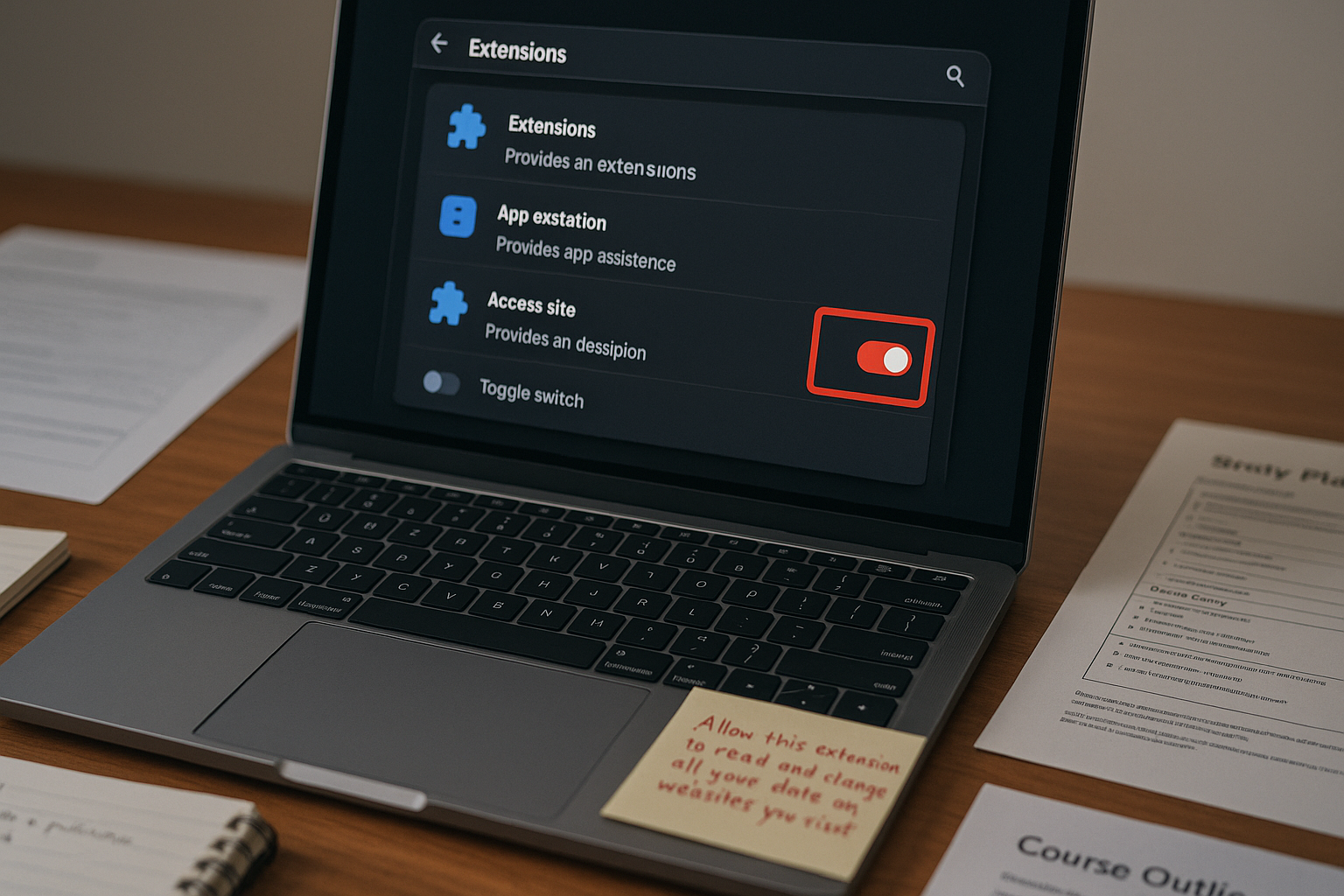
Open Chrome and navigate to chrome://extensions in the address bar. Find Brisk Teaching in the list. There are two things to check immediately.
First, confirm the main toggle is switched on. After a Chrome update, this toggle can revert to off even for extensions that were previously active. If it is grey, flip it on.
Second, and more importantly, click the Details button on the Brisk extension card. Scroll to the Site Access section. This setting controls which pages the extension is allowed to run on. After a silent permission reset, this is often set to “On click” or “On specific sites” instead of “On all sites.” For an AI teaching assistant that needs to read and respond to page content — a Google Doc, a student submission, a course page — this restriction effectively disables the tool.
Set Site Access to On all sites if your workflow requires Brisk to activate automatically. If you only need it on specific platforms, add those URLs manually. Then return to the main extensions view and pin the extension to the toolbar by clicking the puzzle icon and selecting the pin next to Brisk. Pinning keeps it visible and gives you a manual trigger if automatic activation ever fails again.
Brisk’s own support documentation confirms this: if the extension does not appear automatically on a page, clicking the Brisk icon in the Chrome toolbar can manually trigger it. That only works if the icon is pinned and visible.
Where Online Education Gets Faster
The hidden cost is not building the AI workflow. It is rebuilding it every time a silent update resets the permissions you forgot you had to set. A workflow that takes roughly 15 minutes to configure correctly can disappear in seconds — and take an hour to diagnose if you do not know where Chrome hid the switch.
Before and After: The Workflow That Broke and the One That Held
Before the fix: Brisk installed, logged in, toolbar icon missing, extension not triggering on Google Docs or course pages. Manual workaround: copy-pasting content into a separate AI tool, losing the in-context workflow entirely. Feedback cycle slowed from a few minutes per draft to a manual multi-tab process.
After the fix: Site access set to “On all sites,” extension pinned to toolbar, Brisk appearing automatically on supported pages. The in-context workflow restored: open a document, Brisk surfaces, generate a comment scaffold, review and edit before sending. The AI assist step that previously took roughly five to ten minutes per student draft returned to its original rhythm.
The difference is not just speed. It is the removal of a friction layer that makes the AI tool feel unreliable. An AI workflow that breaks without explanation gets abandoned. One that can be restored in under five minutes gets trusted.
Task
Restoring AI feedback workflow after Chrome update
Manual State
Reinstalling extension, switching accounts, multi-tab workaround — roughly 45 minutes to an hour of lost setup time
AI-Assisted State
Check Manage Extensions → toggle on → set Site Access → pin toolbar icon → workflow restored in under five minutes
Education Effect
Feedback cycle stays intact; no session lost to debugging; workflow reliability improves with one locked setting
The Part That Does Not Fix Itself
Restoring the extension is the quick fix. The slower problem is that most AI-assisted education workflows are built without any resilience layer. A single permission reset, a browser update, or a school network block can dissolve a workflow that took weeks to embed into a teaching or course-building routine.
Chrome Sync can help recover extensions across devices, but it does not preserve permission configurations. The extensions come back. The site access settings do not always follow. That means a synced restore can still leave Brisk in a non-functional state — installed, visible, but not reading the page correctly.
Additionally, if the school network has Brisk blocked at the DNS level, no amount of permission adjusting will fix it. That is a separate escalation path involving IT approval, not a browser setting. Brisk’s documentation covers this scenario specifically, and it requires a different resolution process than the silent permission issue.
There is also the authentication layer. Some users have encountered a situation where the extension reinstalls correctly, site access is restored, but Google Authentication fails during sign-in — leaving the extension running in a limited free state rather than the full account. That is not a permission problem. That is a login conflict, often tied to browser cookie restrictions or a Google account mismatch, and it needs to be resolved separately through account settings or a fresh browser profile.
How to Lock the Workflow Before the Next Update Hits
The fix above restores the current session. The goal after that is to make the next Chrome update less damaging.
Three steps reduce the chance of another silent reset breaking the workflow:
- Pin Brisk to the toolbar permanently. A pinned extension is visible, manually triggerable, and easier to notice if something changes. If the icon greys out after an update, that is the signal to check permissions immediately rather than after twenty minutes of confusion.
- Set a calendar reminder to check extension permissions after any major Chrome update. Chrome version numbers change in the browser’s “About Chrome” section. When a version jump happens, treat extension permissions as a quick five-minute audit, not an assumption that everything carried over.
- Document the exact Site Access setting your workflow requires. If you teach across multiple platforms — a Google Doc, an LMS, a course builder — note which URLs need explicit access. Rebuilding that list from memory after a reset is slower than having it written down.
These are not technical safeguards. They are workflow habits. The instinct to trust that the browser will preserve your settings is reasonable. The pattern shows it often does not.

Where This Fix Does Not Apply
Silent Permission Revocation is the most common cause of Brisk disappearing after a Chrome update in a standard personal or school-managed browser. But it is not the only cause, and the Manage Extensions fix will not solve every scenario.
If the extension is missing from the Chrome Web Store entirely, that is a different situation — likely a temporary delisting or a regional availability issue, not a permission reset. If Brisk appears in the extensions list but shows an error state, the extension itself may need to be removed and cleanly reinstalled. If the toolbar icon appears but Brisk does not react to page content even after setting site access correctly, the issue may be that Brisk cannot identify the content on the page — in which case manually highlighting text before activating the extension can help it orient to the correct input.
For school-managed Chromebooks or devices under enterprise policy, extension permissions may be controlled at the administrator level. In those cases, the Manage Extensions toggle may not be editable by the user at all. The fix has to go through IT, not the browser settings panel.
Get the AI Workflow Stability Checklist
A short reference sheet covering extension permission settings, Chrome Sync recovery steps, and the five workflow habits that prevent silent update failures from breaking your AI-assisted teaching or course-building routine. Join the list to get the checklist.
Course Creator Note
The extension didn’t disappear. Chrome moved the switch and didn’t tell you. That’s not a bug. That’s the default and every workflow you build assumes it isn’t